
Vitrium FAQs
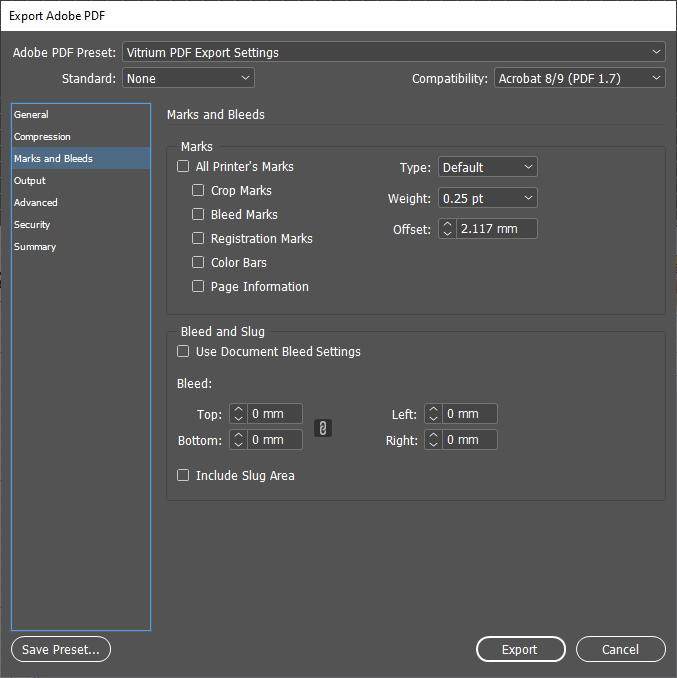
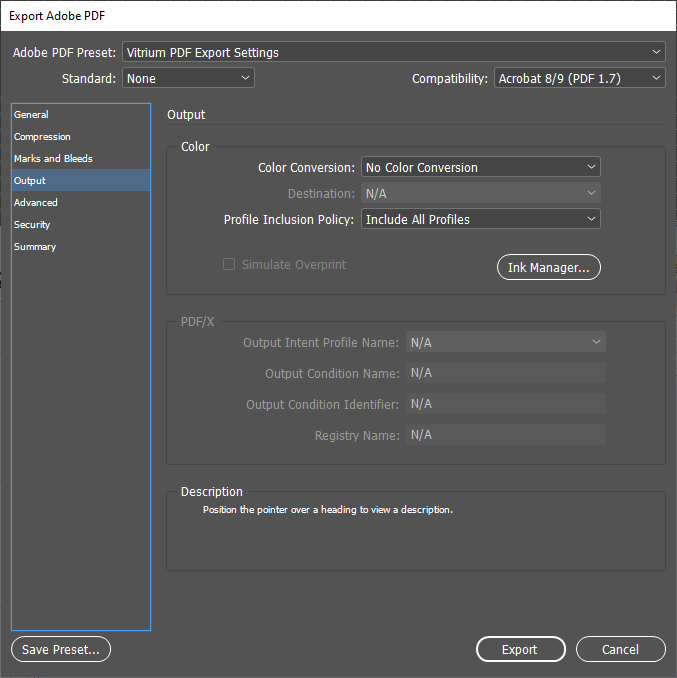
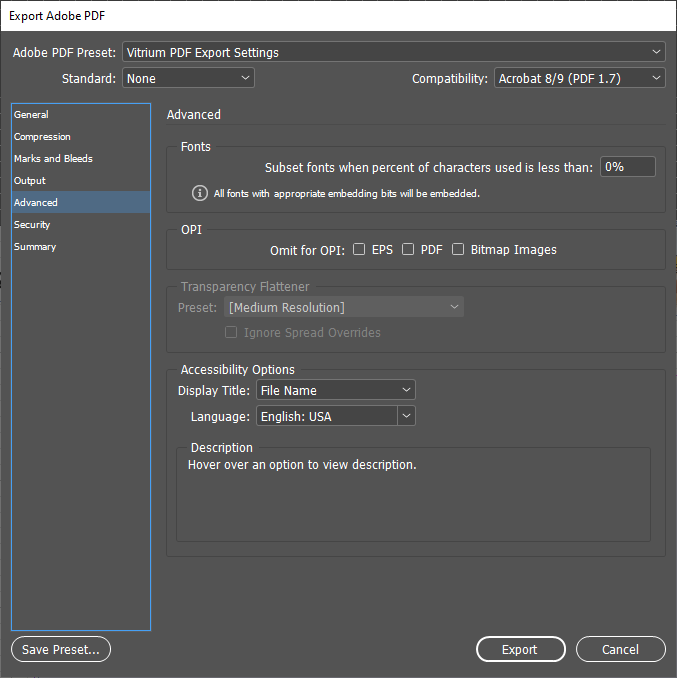
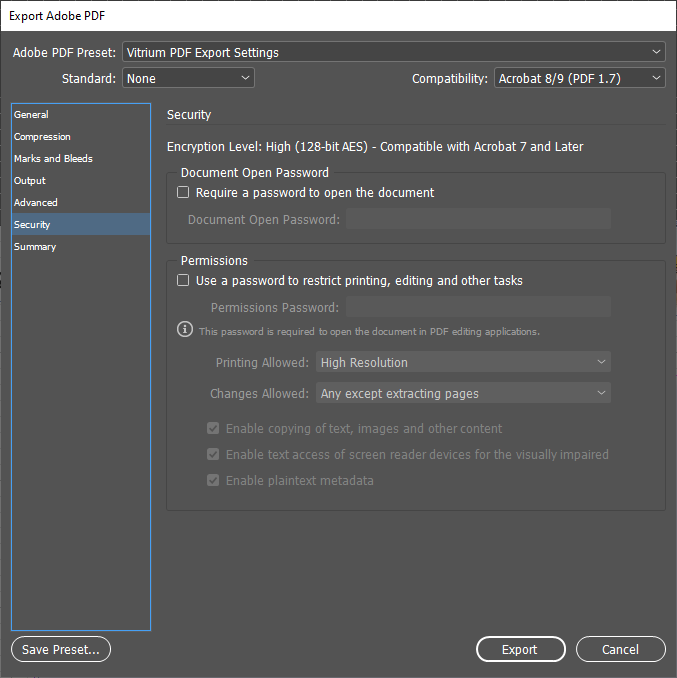
If you use Adobe InDesign to produce your content, then you should consider using these PDF Export Settings before uploading the PDF to Vitrium. These settings will provide you the most optimal conversion to Vitrium’s web viewer.
You can manually create a preset by referencing the screen prints below or import same by downloading this joboptions file and loading it into your InDesign application. Here’s how to import the settings:
To import an Adobe PDF Preset (Windows):
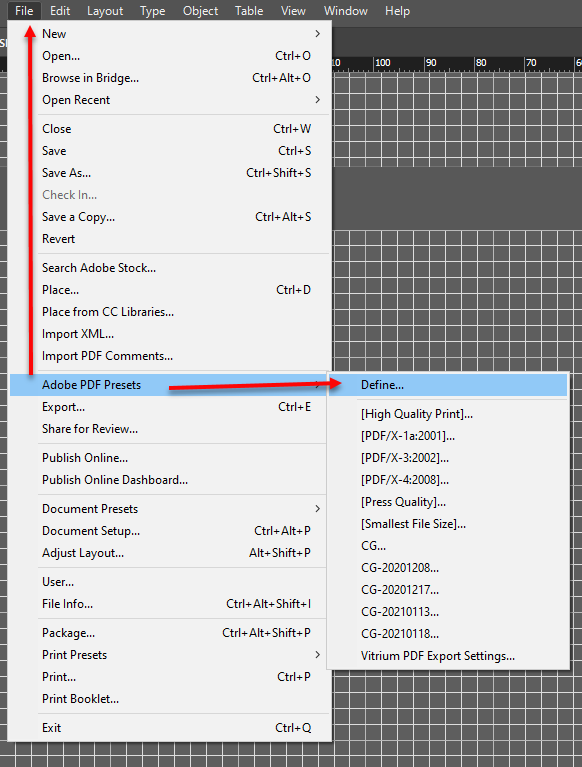
- In your InDesign app, go to File > Adobe PDF Presets > Define
- Click LOAD button, browse, and select the *.joboptions file that you want to import
If you want to share your settings with someone else, then here’s how to export the settings:
To export an Adobe PDF Preset (Windows):
- In your InDesign app, go to File > Adobe PDF Presets > Define
- Scroll to select the setting to be exported and then click SAVE AS and give it a filename keeping the extension .joboptions
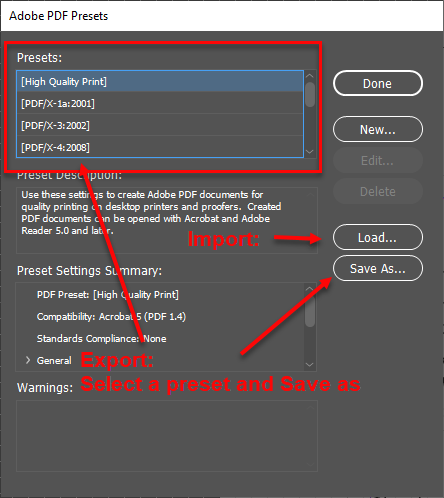
To manually define settings, simply clone these settings in your environment:
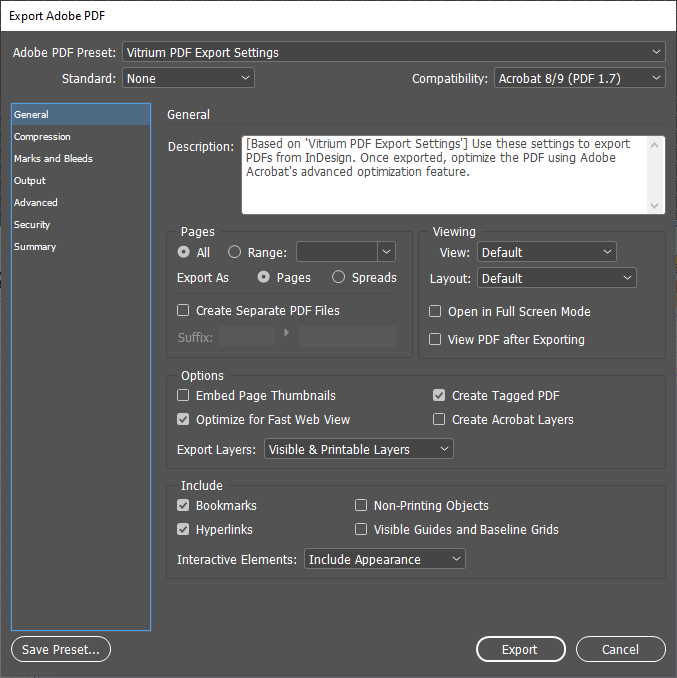
Note – If you have some objects like pictures/drawings etc where attribute is set to ‘Non-Printing’. Please make sure to enable ‘Non-Printing Object’ button under the Include section.
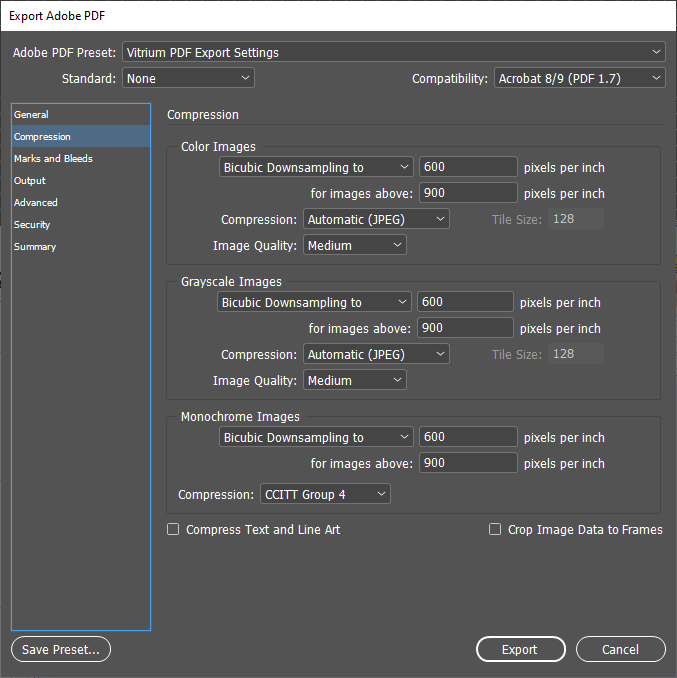
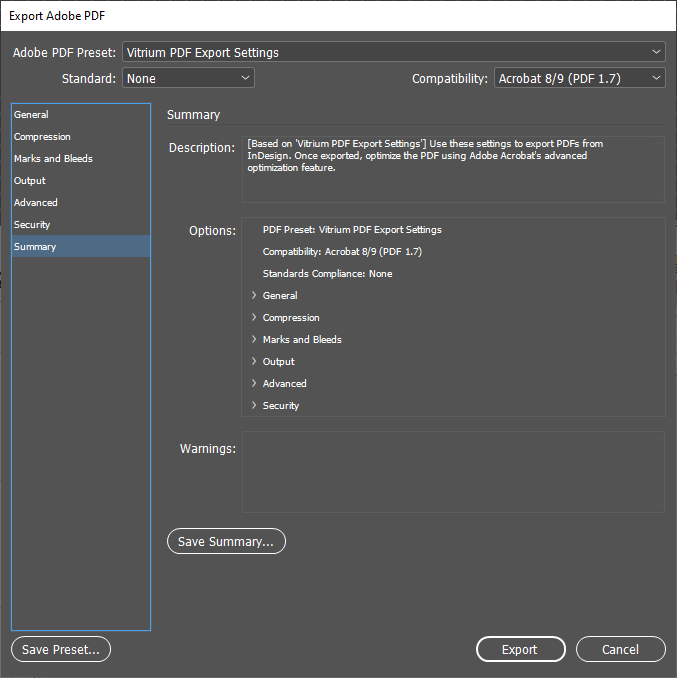
After you export your InDesign file to a PDF following the above steps, we also recommend further optimizing your PDF using Adobe Acrobat’s advanced optimization settings.
If you find that these InDesign PDF export settings are not helpful in resolving the Web Viewer presentation of your content, then please reach out to our team.
Please Note: Custom placed watermarks with a diagonal rotation will not display properly in Protected PDF downloads in Adobe PDF readers due to limitations within their apps.
To insert a watermark in a custom placement, go to your Watermark Settings and click on the Watermark name > Placement > and select ‘Custom’ from the drop-down menu
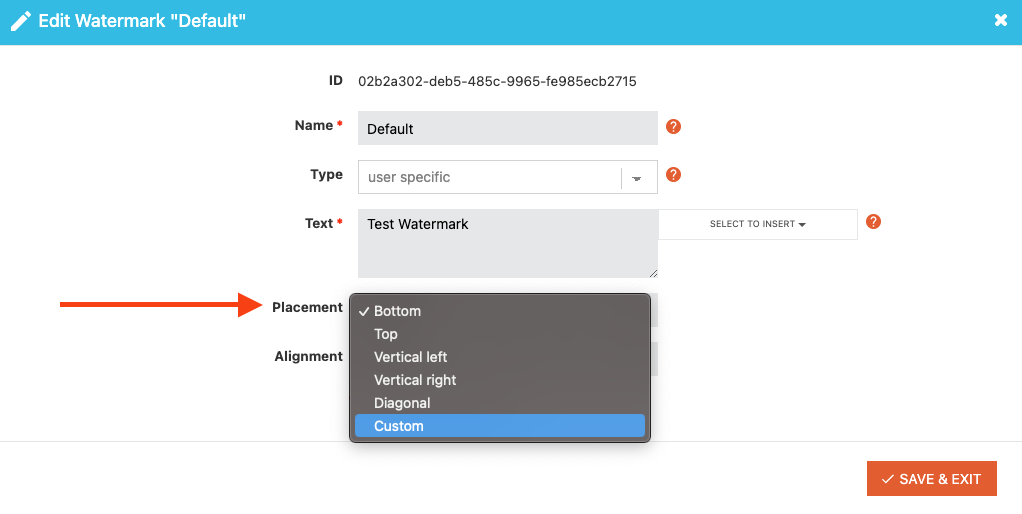
You will see these custom placement fields:
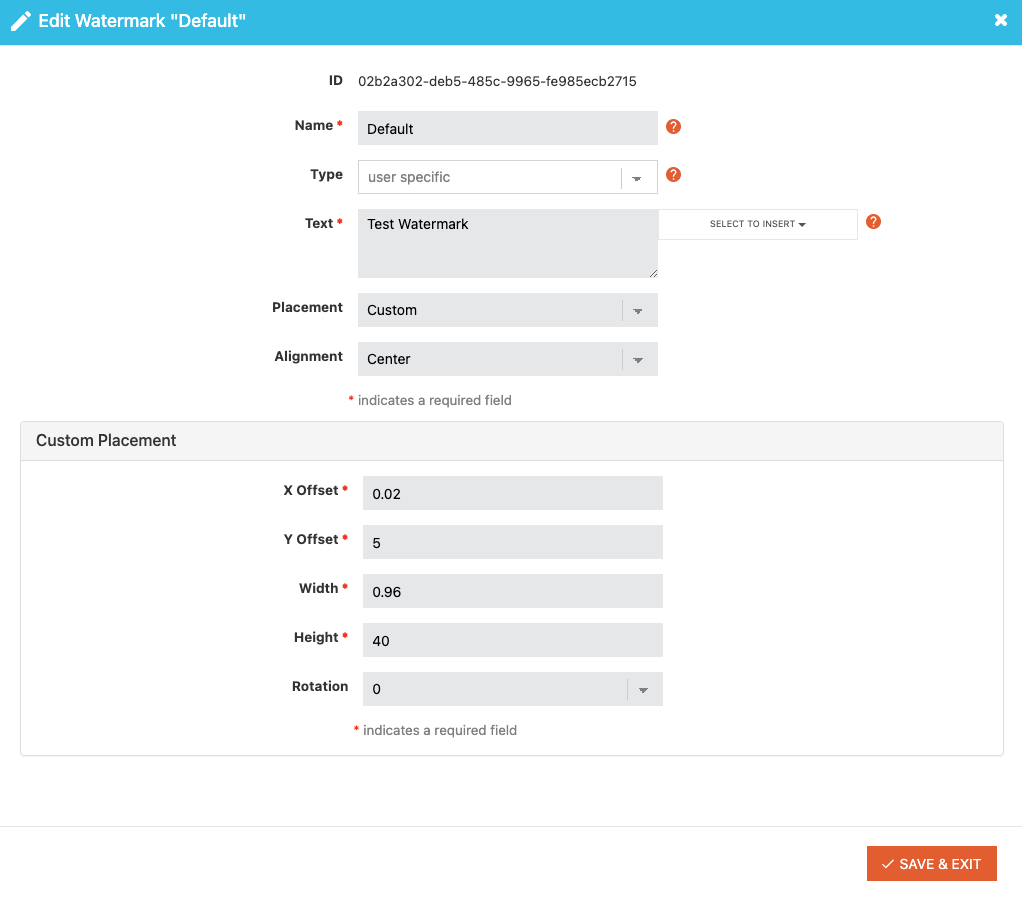
X Offset: this is the horizontal positioning of your watermark. Use a value of 0 to 1 (to represent percentages). For example, 0 (0%) represents the far left, while 1 (100%) represents the far right, and 0.5 represents the middle (50%). It is recommended to use an integer between 0.01 to 0.99.
Y Offset: this is the vertical positioning of your watermark. Use a value of 0 to 1 (to represent percentages). For example, 0 (or 0%) represents the bottom, while 1 (100%) represents the top, and 0.5 represents the middle (50%). It is recommended to use an integer between 0.01 to 0.99.
Width: this is the width size of the box where your watermark will be placed inside (the ‘box’ is invisible). The measurements are in pixels. For example, if you have a longer watermark, you may want to set 300-600 pixels for the width, or for a shorter watermark, you may want to use 50-100 pixels for the width.
Height: this is the height of the box where your watermark will be placed inside (again, this is an ‘invisible’ box). The measurements are in pixels. For example, if you are using a large-sized font, you may want to use a larger height such as 50-100 pixels, or for a smaller-sized font, use a height 10-25 pixels.
Rotation: this is the rotation of your watermark, represented in angles. 0 = horizontal, 90 = vertical (text runs bottom to top), 45 = angled up to the right, 180 = flipped upside down (yikes, don’t use this one!), 270 = vertical (text runs top to bottom)
The Global Object Security (GOS) policy is a setting in Adobe Reader and Adobe Acrobat that controls how cookies in Adobe products behave. The default setting is to “enable global object security policy” which means that every time someone renames a file or moves a file to a different location, a different cookie is created each time. Since Vitrium Security’s content security solution relies on these cookies to track the number of ‘devices’ that a user opens the secured content on, it is STRONGLY recommended that end users disable this feature.
How to disable the Global Object Security Policy:
- In Adobe, go to Edit > Preferences
- Click the JavaScript tab
- De-select (uncheck) the “global object security policy” field
- Click OK
Users will only need to do this once for one computer. If they wish to open the protected PDF file on a 2nd computer (assuming they have permission to do so), then they will need to disable the GOS policy in Adobe on the other computer as well.
To learn more about disabling the GOS check out the ‘How to Support Your End-Users‘ guide.
Why do users need to disable the Global Object Security Policy in Adobe?
Because otherwise the user may exceed the limit that was set for them in their DRM policy and they will encounter the vc3 error message (You have exceeded your PDF or browser limit) even if they have only opened the file on the same computer.
By disabling Adobe’s GOS policy, the user can then safely move the protected file from one folder to another, or rename the protected file to something else, but not reach their limit as the cookie is saved with the file on that same computer.
Can I remove the Adobe global object security policy pop-up message?
Yes, you can remove this message but we only recommend this to Vitrium customers who DO NOT set a PDF limit in their DRM policy settings.
To remove the message on a new content setting:
- In Vitrium, create a new Content Setting
- Click the Advanced Options tab
- Check “Set Acrobat cookie policy”
- For both Acrobat 10.0 and Acrobat 11.0+, select “No prompt and no close document” for both fields
- Ensure all your other Content Settings are created (i.e. no print, no copy, etc.)
- Click Save & Exit
- Then apply this new Content Setting to all files or only those files where you do not require a PDF limit for users
This can also be done in an existing document content setting as long as the content setting has not been applied to more than 25 files. If it has been applied to more than 25 files, feel free to reach out to support@vitrium.com to get the change made for you.
Using Vitrium Security’s VersionUnique API, this content setting can be changed/overridden by including this parameter:
“DocPolicyOverride”:
{
“AcroJsGosBehaviourType”: “NoPromptAndNoClose”,
“AcroJsGosUnlimitedBehaviourType”: “NoPromptAndNoClose”
}
Where:
AcroJsGosBehaviourType would apply to Acrobat v10 and earlier releases
AcroJsGosUnlimitedBehaviourType would apply to Acrobat v11 and newer releases
Definition of each Acrobat GOS policy setting:
- PromptAndCloseDocument – this will prompt the user if they don’t have the global object security policy setting disabled and will close the document until they make this change. This is the default setting.
- PromptOnly – this will prompt the user if they don’t have the global object security policy setting disabled but will not close the document. You then run the risk of the user reaching their PDF limit if they did not follow the instructions.
- PromptOnce – this will prompt the user only once if they don’t have the global object security policy setting disabled but will not close the document. The prompt will appear once per document, not per device. You then run the risk of the user reaching their PDF limit if they did not follow the instructions.
- NoPromptAndNoClose – this will neither prompt the user nor close the document and is only recommended in scenarios where you DO NOT require setting a PDF limit for users. When set, a new device ID/Tracking ID is generated when the user first opens the document; a new deviceId is generated if the user then renames and opens that document; and a new deviceId is generated if the user moves the document to a new folder and opens it from there. So be aware that a small device limit (1 or 2) can be exceeded by a user who simply renames or moves the Protected PDF on disk.
This can only be controlled using our secured web viewer link and not from the PDF using Adobe Reader or PDF-XChange.
Printing the PDF using Adobe Reader or PDF-XChange
There is no limit to the number of times a user can print the content once the print option is enabled. The best solution to prevent this from happening is to set the content to expire at a much earlier date/time frame.
Printing with the Web Viewer
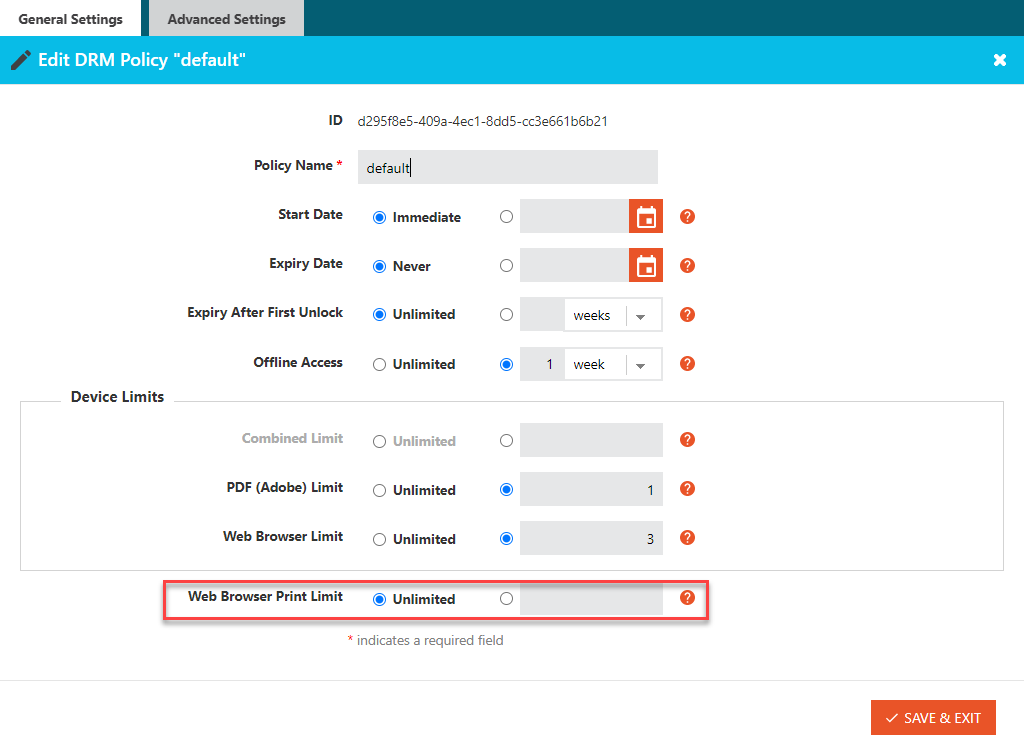
If printing is enabled then you may set the number of times a user can print the content. This is controlled in the DRM Policy settings under Print Control for Web Browser Print Limit.
Your user’s content may not be loading on their screen to one of a few reasons:
- There may be a proxy server or firewall that is interrupting the communication between the content and the authentication server (what is needed to authorize the user to access your content).
- There may be a security software in place (i.e. Zscaler) that is blocking the authentication process.
To resolve this issue, ask your IT department to whitelist the domain on port 443 (https). The domain may differ for different users so be sure to check which domain the content is delivered from, however, it may be one of these:
protectedpdf.com
vitrium.com
[yourdomain.com]
Why do proxy servers or firewalls block the content?
Proxy servers and firewalls are designed to protect your organization from unwanted viruses, malware and other phishing type schemes. However, some types of communication is safe, such as the content you’re trying to access as this is coming from a legitimate and trusted source.
How do I make these changes?
You need to speak to your IT admin as they will ll know what to do but here are some quick tips:
- For proxy or firewall configurations, your IT person needs to ALLOW direct communication with the domain that the content is being sent from on port 443 – the domain might be protectedpdf.com or vitrium.com or the domain of your organization if you are using a custom domain.
- For Adobe Reader/Acrobat configurations, follow these steps:
- Open the Adobe Reader or Acrobat program
- From the top men, select Edit > Preferences
- Under Categories, click Trust Manager
- Click the change Settings button
- Add the applicable domain to the “Allow communication” section
How can I check for a proxy server:
- Click on the Start Menu and open Settings
- Select Network & Internet > Proxy
- Under Manual proxy setup, check to see if the “Use a proxy server” box is selected
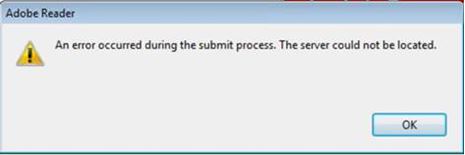
What error message does the user see in Adobe Reader or Acrobat?
They would see a pop-up message like this:
Adobe Reader has certain print settings that may render your protected PDF document as ‘unreadable’. Our software views this as a form ‘modification,’ forcing the document to lock again and hence the reason why you’re seeing ‘This Document is Protected’ when printing the document.
One way to resolve this is to “uncheck” the Save ink/toner field and then re-print your document. If that doesn’t resolve your printing, submit a ticket to the Vitrium support team.
Device limits in Vitrium Security are really “cookie limits” but since that can be a confusing term to people, Vitrium uses the
term ‘device limit’ instead.
Vitrium tracks a ‘device’ in different ways depending on which type of encrypted content the user is opening:
- For the Vitrium Secure Web Viewer, Secure Video Player, and Secure Audio Player, a device is the browser cookie (i.e. opening content on 1 type of browser = 1 device)
- For the Vitrium Protected PDF, a device is the Adobe or PDF-XChange cookie (i.e. opening content on 1 type of PDF viewer = 1 device)
- For more information on device limits refer to our Admin guide here.
For more detailed information on how device limits work in Vitrium Security, refer to this section of our Admin Guide.
Adobe Reader has certain print settings that may render your protected PDF document as ‘unreadable’. Our software views this as a form ‘modification,’ forcing the document to lock again and hence the reason why you’re seeing ‘This Document is Protected’ when printing the document.
One way to resolve this is to “uncheck” the Save ink/toner field and then re-print your document.
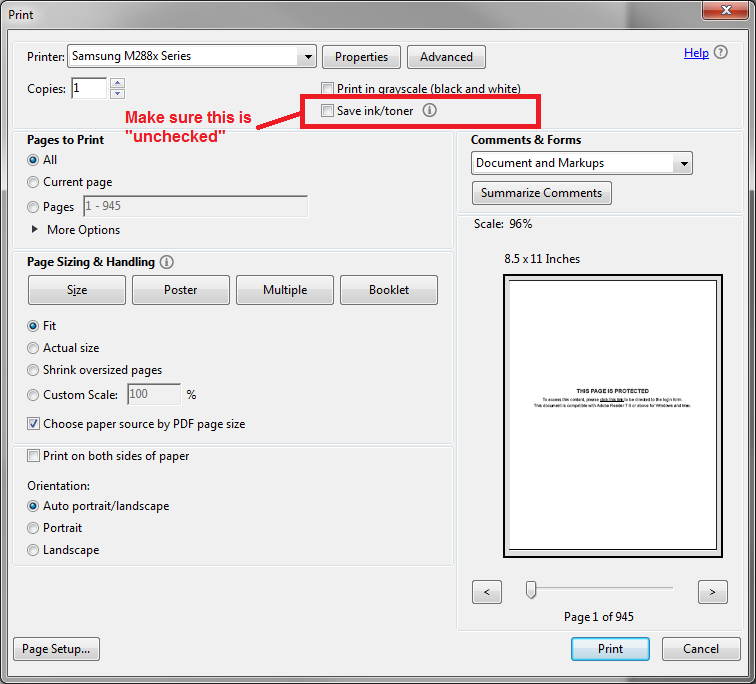
If that doesn’t resolve your printing, submit a ticket to the Vitrium support team here.
There are a number of different ways you can address this. The first thing to do is:
- In your Vitrium Security account, navigate to the SETTINGS tab
- Click on Content Settings and open the main Content Setting that you are using (if you use different setttings, then you may need to repeat this step with the other Content Settings)
- Click on the Advanced Options tab
- Check the field Disable Image Optimization in Web Viewer
- Click SAVE & EXIT, then wait a few minutes before you refresh your web viewer screen
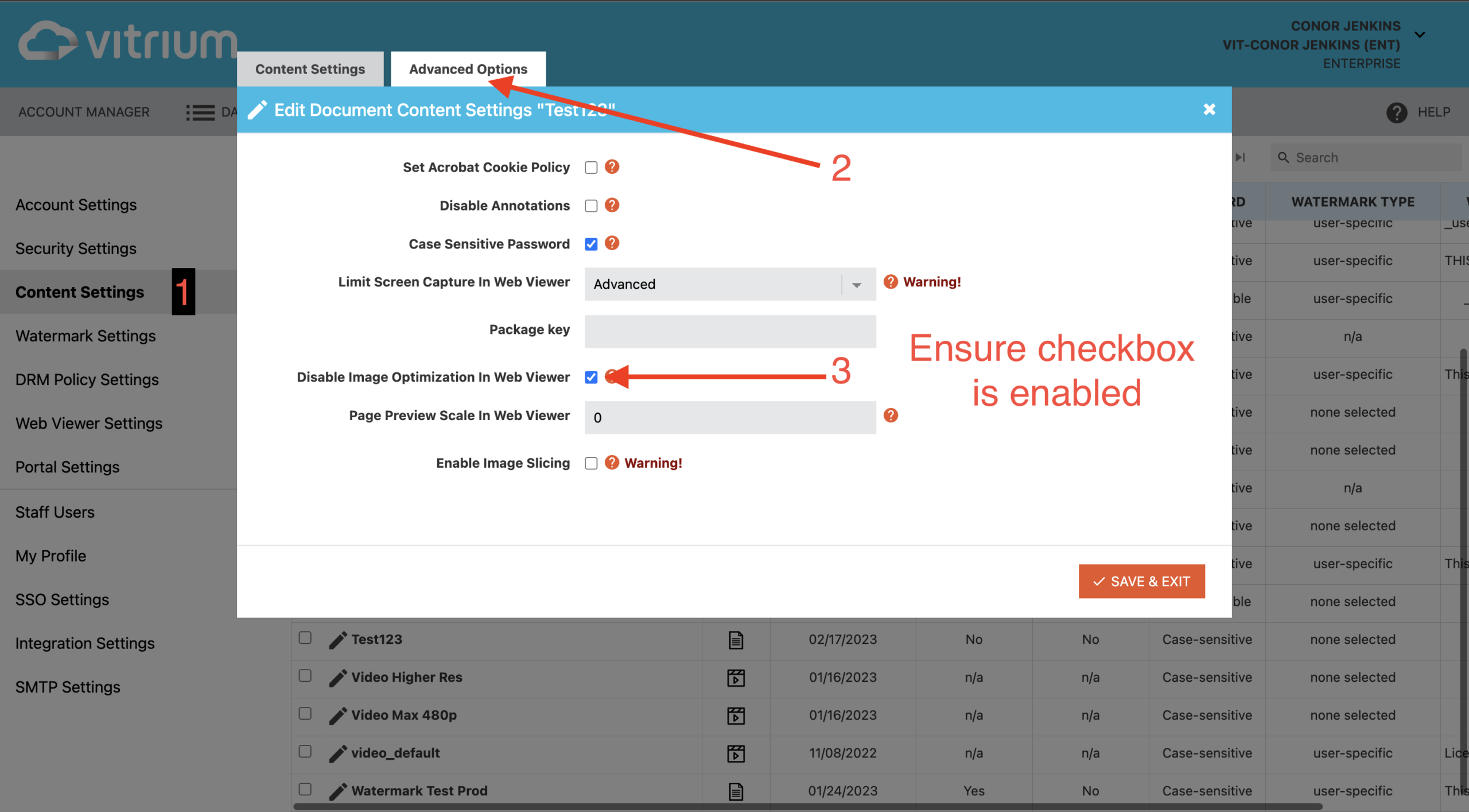
After you have refreshed your content in the web viewer and there is still no discernible improvement, then try these other steps.
If you are using Google Chrome, Firefox, Safari or Microsoft Edge navigate to this page for instructions on how to disable hardware acceleration in your browser.
If you have uploaded a PDF file to Vitrium and the images in the web viewer appear distorted, grainy, or have lost some of their original quality compared to the original file, then you may be able to resolve this by optimizing the original PDF file in Adobe.
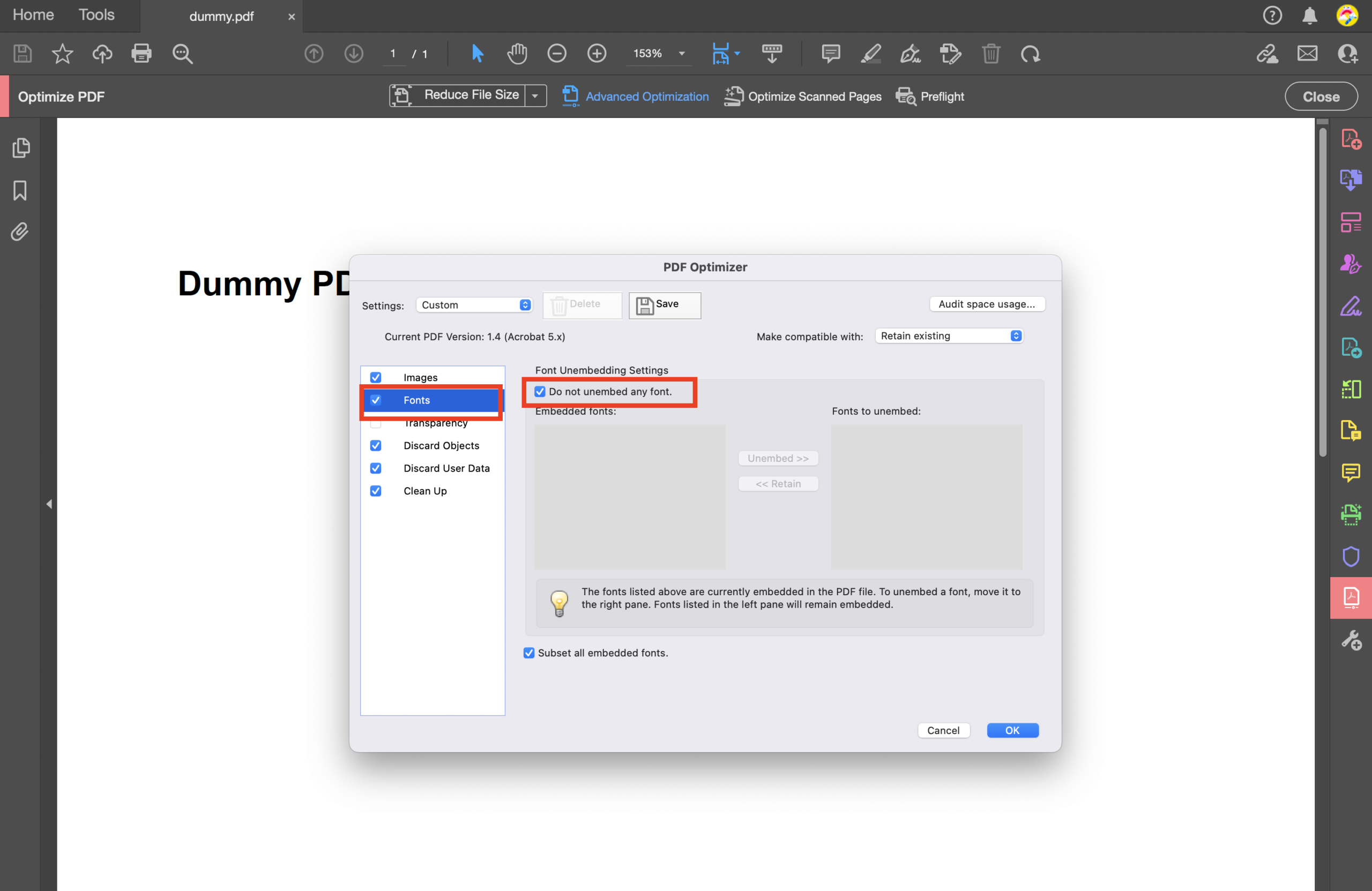
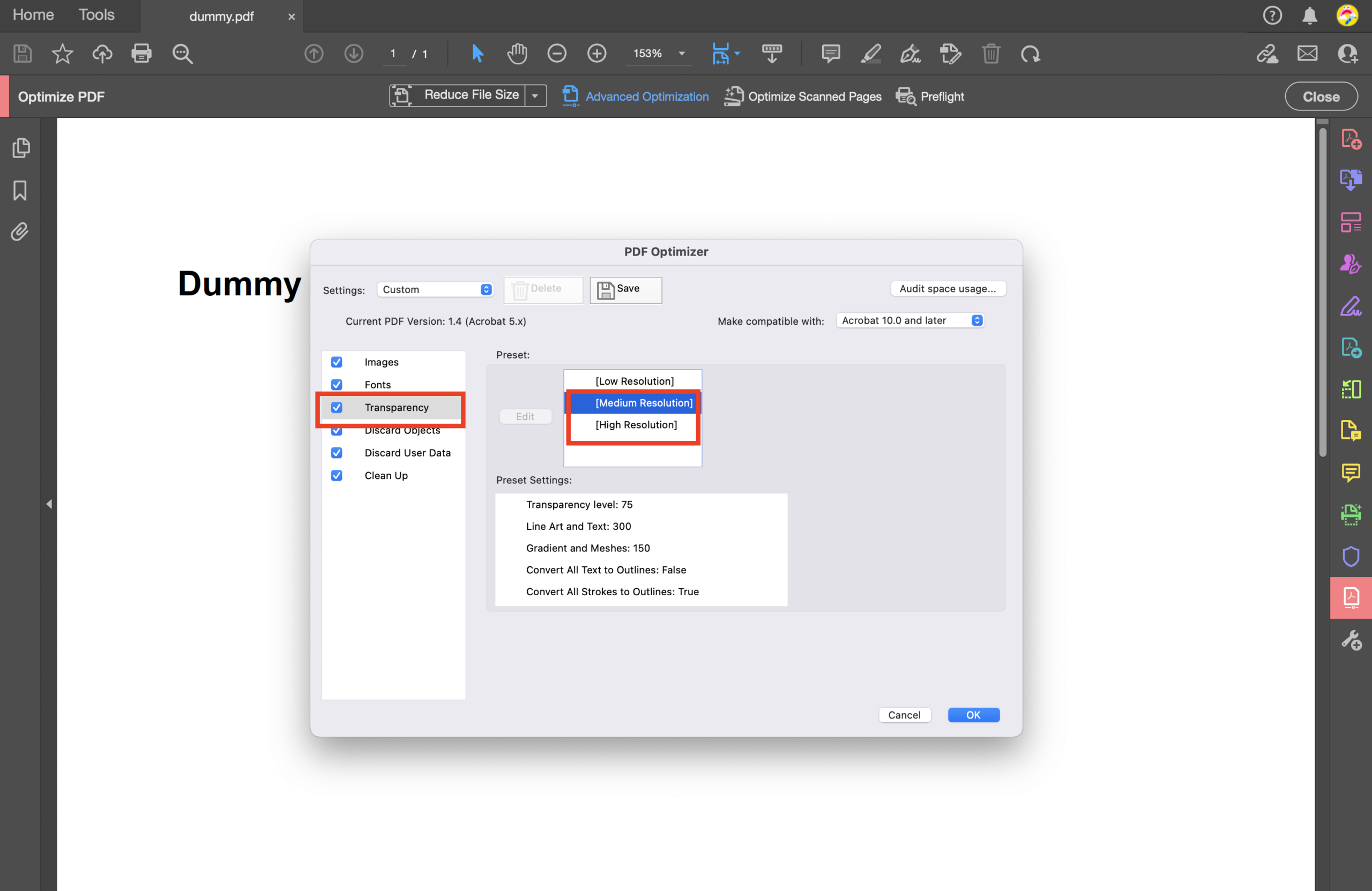
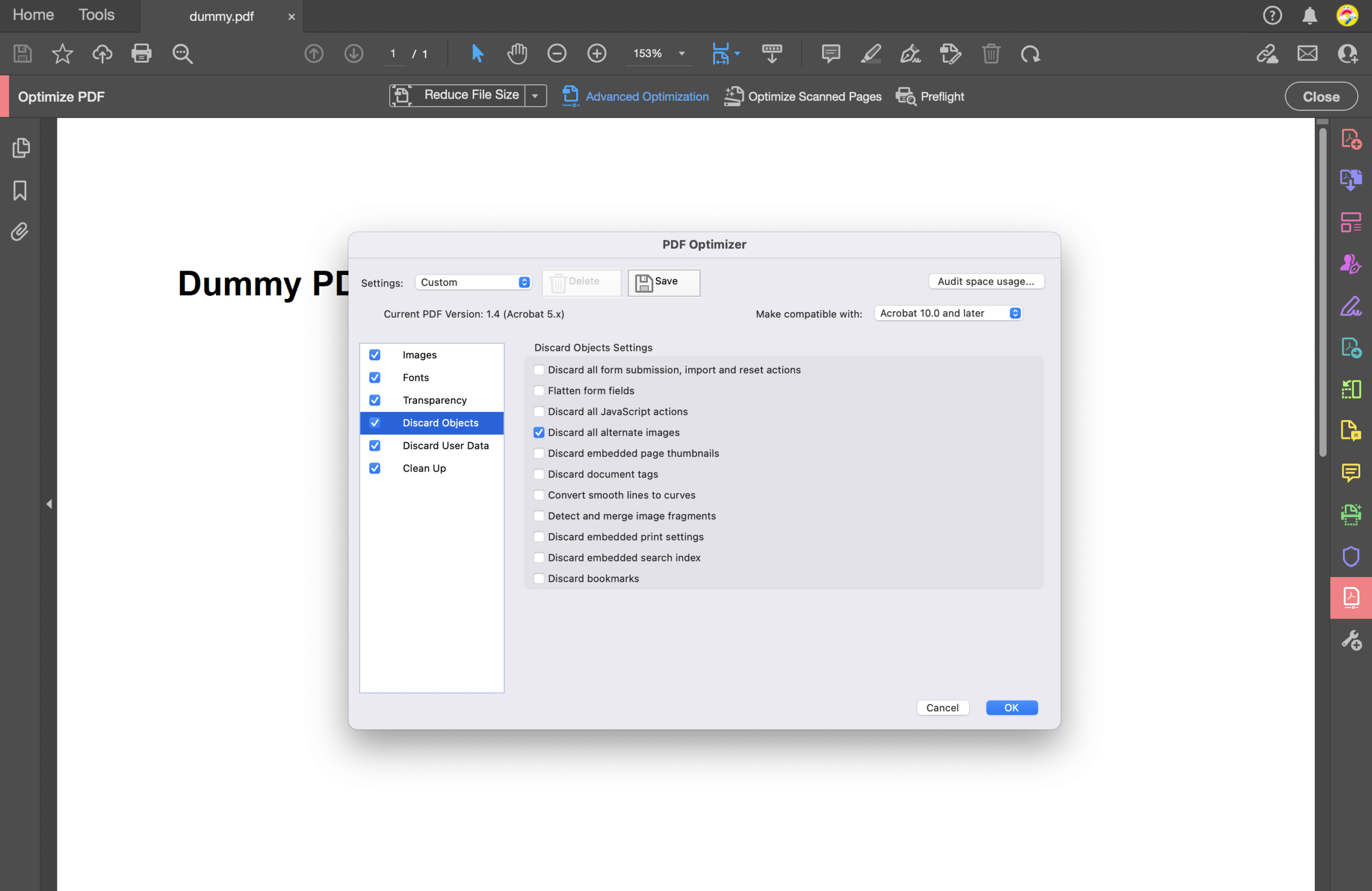
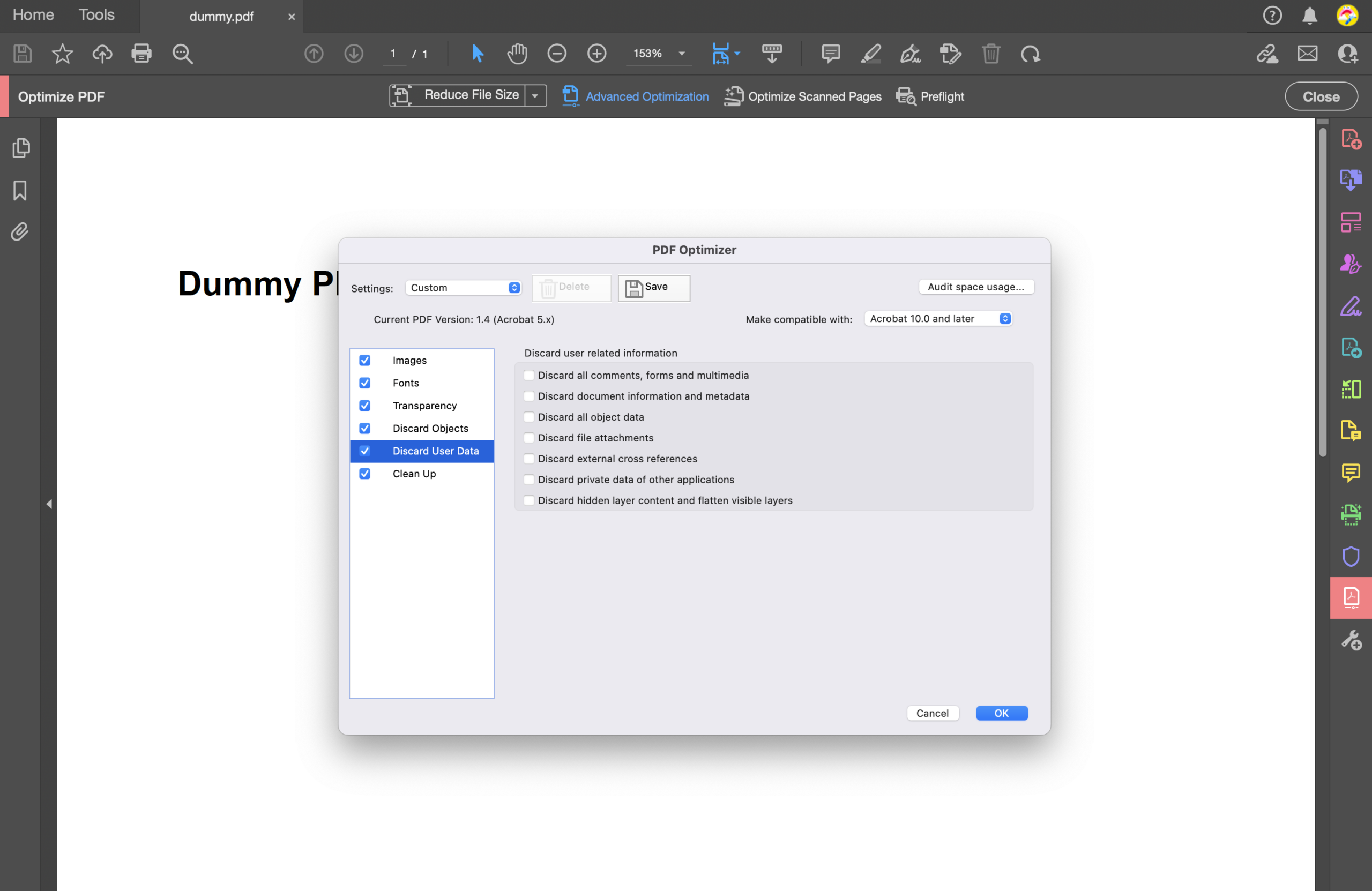
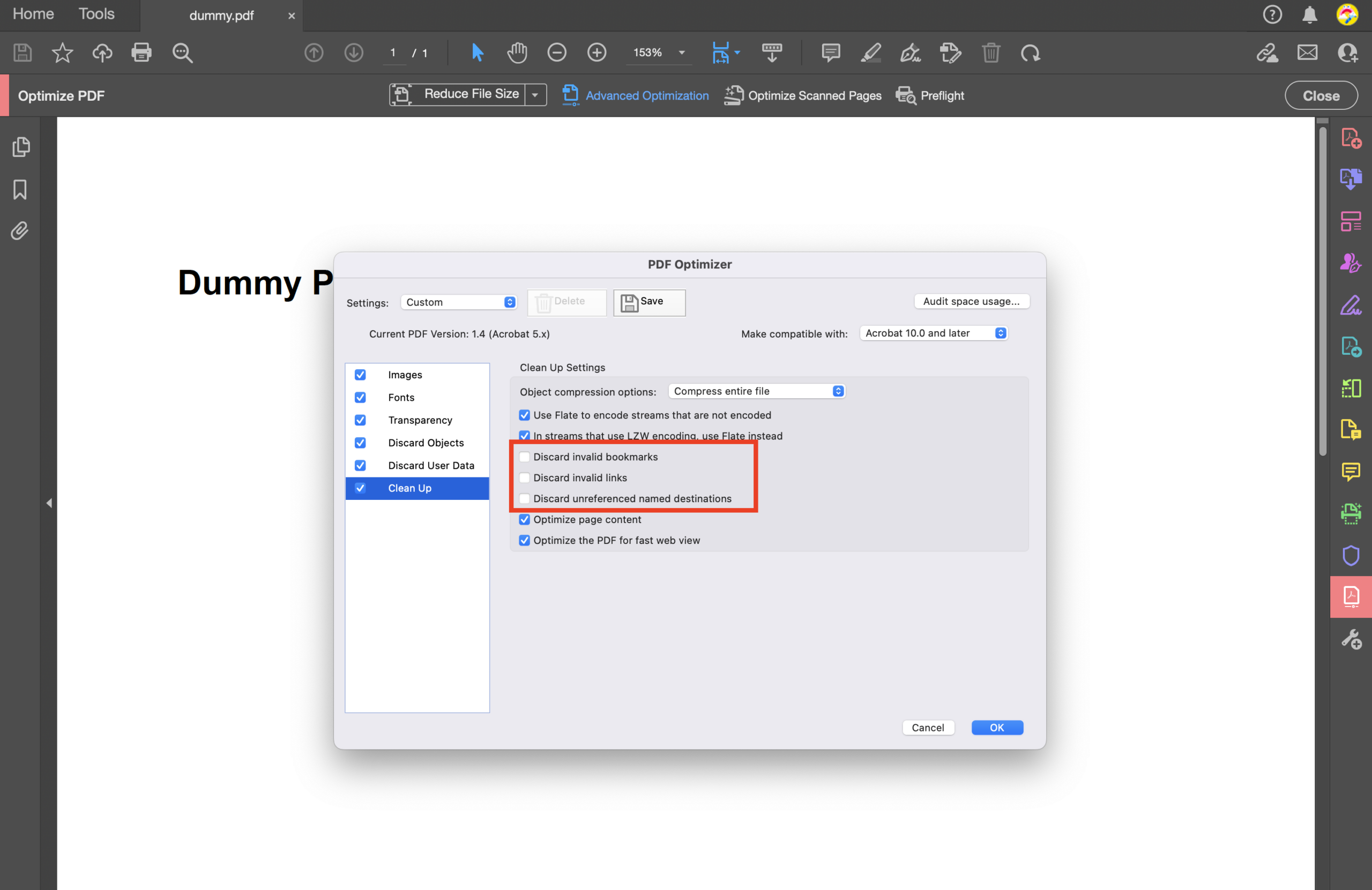
Try Adobe’s built-in optimization tool in Adobe Acrobat and refer to the following screenshots for our recommended settings.
Alternatively, if you use Adobe InDesign to create your PDF content, click here to review our suggested PDF Export Settings in Adobe InDesign.
Recommended Settings in PDF Optimizer in Adobe Acrobat
Open Adobe Acrobat and navigate to Tools > Optimize PDF. Change the Settings to Custom and update the image settings:
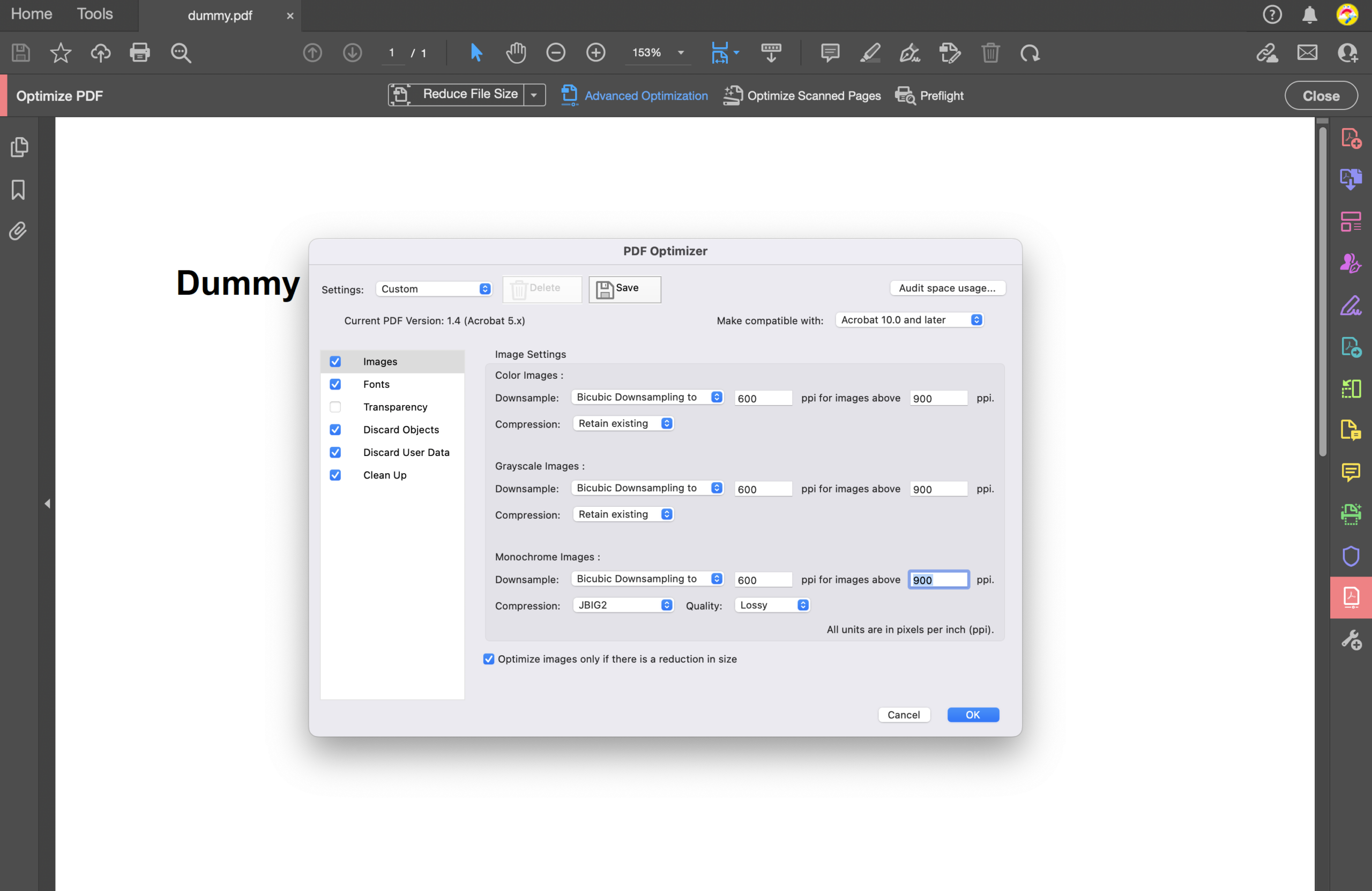
Navigate to fonts and ensure ‘Do not embed any font’ is checked.
Navigate to Transparency and select medium resolution first. If the conversion fails, revert to high:
Navigate to Discard Objects:
Navigate to Discard User Data and ensure the following is correct:
Finally navigate to Clean up:
If you tried these settings and it still did not help resolve the distorted images, then please submit a ticket to the Vitrium team and include your original PDF file and a screenshot of the distorted image, if possible.