
Vitrium FAQs
Vitrium offers many different ways to distribute your content and it depends on which solution or which edition you subscribe to. If you are evaluating Vitrium, be sure to ask our sales team to help you find the right solution that works for you.
| Vitrium Vault | Vitrium Security Pro Edition |
Vitrium Security Enterprise Edition |
|---|---|---|
Send protected content via:
|
Send protected content via:
|
Send protected content via:
|
*Only Vitrium Vault allows you to have multiple portals (data rooms) included with your account, which allows for separating out your content distribution by partner, distributor, school, or even department if you wish to also segment your admin users by department.
With all Vitrium solutions, you can also send ‘Social DRM’ content links that don’t require user authentication but still offer some form of protection and control. You can also embed the Social DRM content on pages of your website or 3rd party system. Social DRM controls include expiry date controls, print & copy controls, IP address controls, and a few more.
There are a number of different reasons why a user might not be able to access Vitrium-protected content but you should first ask yourself:
Is the issue affecting all users?
If you are a Vitrium Security Pro Edition or Vitrium Vault customer, send a support ticket to Vitrium immediately and alert our team to the fact that this is affecting all your users. If our server is down, we would likely already know since we have monitoring and alerts set up, and would already be addressing the issue. If the issue is isolated only to your account, then there may be a configuration issue that we will look into.
If you are a Vitrium Security Enterprise Edition customer, please check your other system that Vitrium is integrated to. Is that system online? Check the External Service code that one of your developers wrote. Is that still online? Did they make any changes to it recently? If you have done all these things and still haven’t been able to isolate why all your users cannot access your content, send a support ticket to Vitrium and inform them of the urgency.
Is the issue affecting only 1 or a few users?
Review the User Activity Report in your Vitrium account to see if any error codes appear:
- If there is an Error Code, check the User Activity Error Code Guide for further steps.
- If there is no Error Code, ask the user the following questions:
- Are they connected to the Internet? They need to be connected in order to be authenticated.
- Are they trying to open the protected PDF version (which requires Adobe) or the web viewer link? If they say they keep entering the “Login” button but nothing happens, then it’s likely they are trying to open the protected PDF version in a browser or with an unsupported PDF viewer like Foxit or Mac Preview. Remind them to download the PDF and open it with Adobe Acrobat Reader or PDF X-Change.
- If it is the web viewer they are trying to open and the authentication is not going through, then it’s likely a firewall or proxy server interrupting the communication. Ask the user to have their IT department whitelist the following domains on port 443 (https):
– protectedpdf.com
– vitrium.com
– or the domain that your company is using for Vitrium content
If they can’t wait for their IT department to do this, ask the user to try opening the content at a different location (a different IP address), or from their mobile phone using their data plan. If they can access it from a different location or from their phone using data, then the issue is likely a firewall or proxy server.
- If it is the protected PDF and they are using Adobe, then they might need to disable the Adobe global object security policy. To do this, instruct your user to follow these steps:
– Open Adobe Acrobat Reader or Acrobat Pro
– From the top menu bar, click Edit, then select Preferences
– In the next window, select JavaScript
– Uncheck (de-select) the ‘Enable global object security policy’
– Open the protected content again in Adobe
There are two reasons why this button may not appear for you or your end users:
- Check the DRM Policy Setting that is assigned to your user in your Vitrium account and make sure that the Offline Access field has a value that’s greater than 0. For Enterprise customers that integrate with an external system, you may need to check your code.
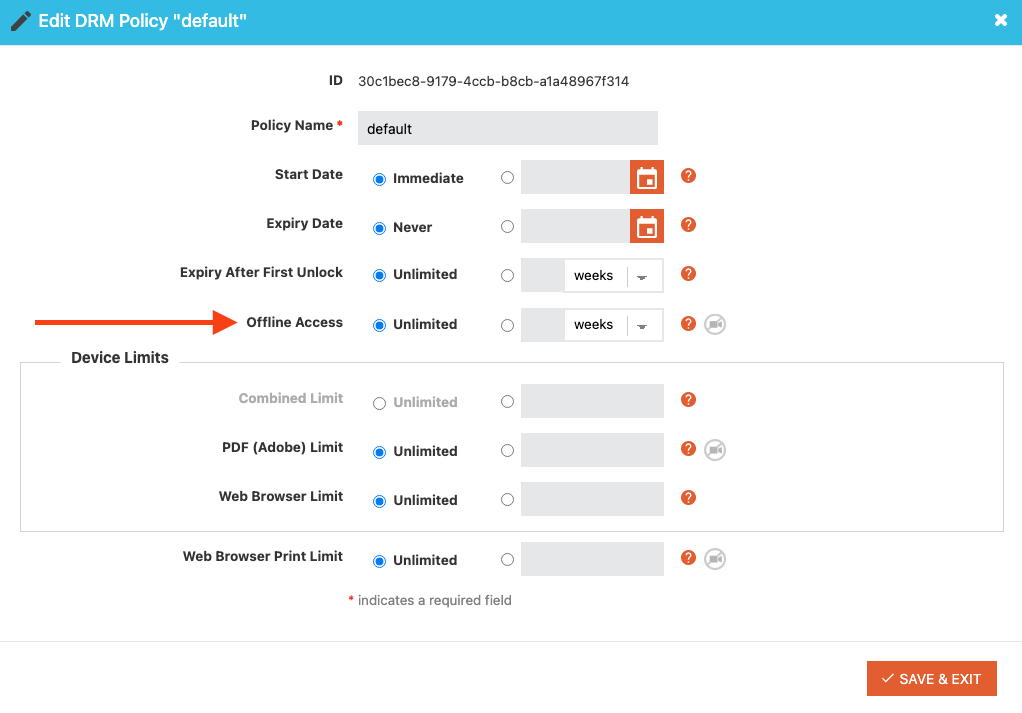
- If the DRM Policy assigned to your user appears correct and you have External Service enabled on your account, then follow these steps:
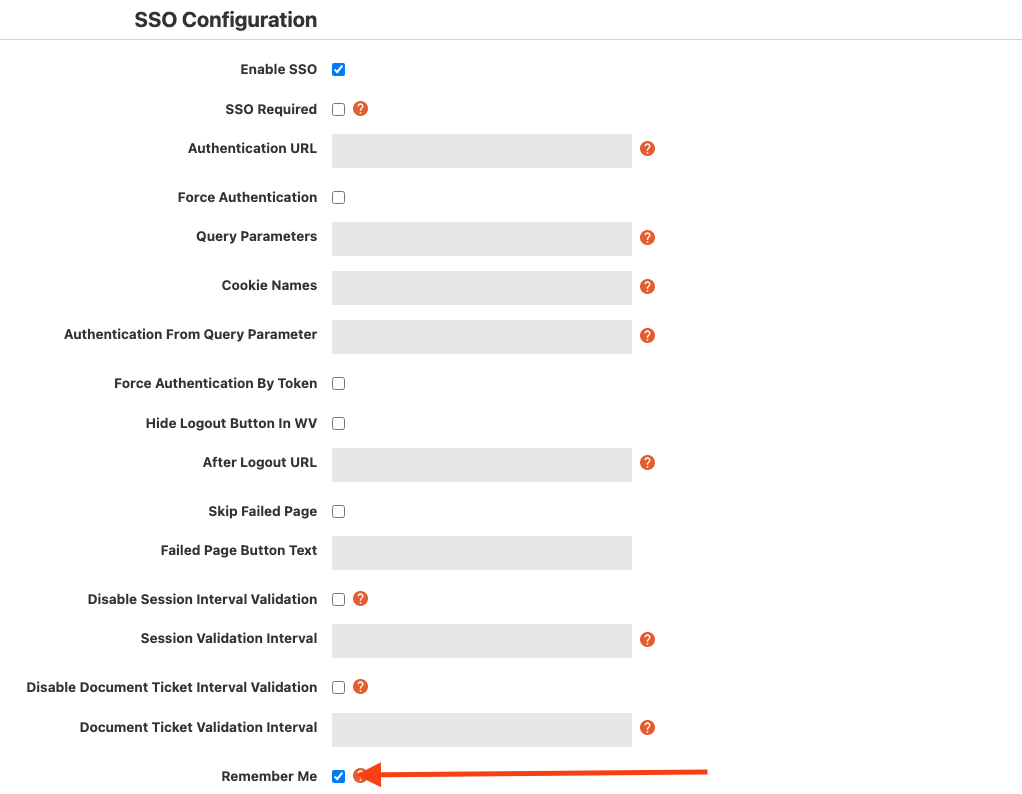
- In your Vitrium account, go to the Settings tab
- Click on Integration Settings, ensure Enable SSO is enabled(checked).
- Make sure the ‘Remember Me’ option is enabled (checked). If it isn’t, enable it and click Save Settings.
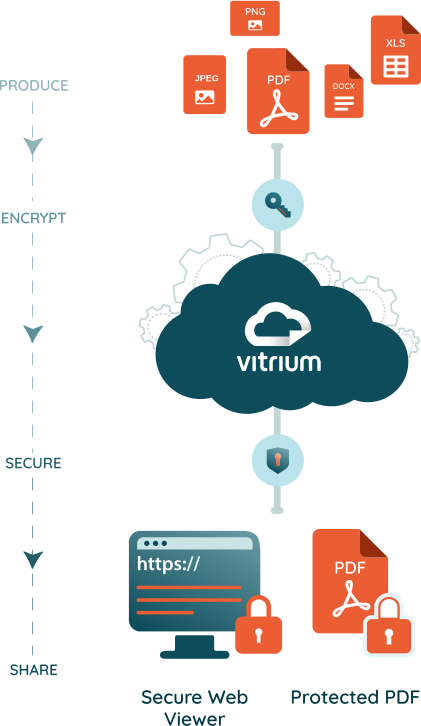
Yes, Vitrium Security does support these files as input formats but the protected output formats will not be in their original, native format. For example, when you upload a Word, Excel, or PowerPoint file into Vitrium Security, the system will convert the file to a PDF format, then convert it again to one of two secured outputs:
- Secure web viewer with a link to access the content via a web browser
- Secure PDF file that can be downloaded and unlocked via Adobe Reader or Acrobat
The end user accessing the content will not be able to edit or alter the content. However, they could mark up the content by using the highlighting or annotating tools in Adobe Reader or Vitrium’s web viewer.
For Word and Excel files, some formatting may get altered in the web conversion process. If this occurs, reach out to the Vitrium support team as there may be an alternative approach to use.
For PowerPoint files, the animation and other interactive features will not work in the protected formats.
If you would like to see Vitrium Security software support editing capabilities and interactive features from Word, Excel, and PowerPoint, please click here to add a Feature Request.
Yes, but there is a limitation. The PDF will get protected and converted into both secured formats: (1) protected PDF file and (2) secure web link. However, the file attachments do not get protected and the user will be able to access them from within Adobe Reader when the protected PDF file is sent to the user. The web viewer does not show the file attachments at all.
If the PDF attachments are an integral part of the PDF and you need them protected as well, we recommend doing one of two things:
- Combine them into the PDF so it becomes 1 PDF with no attachments, and then upload them into Vitrium for protection.
- Add the files separately into Vitrium for protection and send all protected PDF files (or web viewer links) separately to your users.
This will largely depend on how your organization sets up your Vitrium account, including which encrypted format the user is sharing, and what DRM ‘type’ you have applied: Social DRM or Full DRM.
If Full DRM is in Place
Full DRM requires a user to authenticate before they can access the content. This is the clearest way to prevent users from sharing with other users.
What the other user will see depends on whether you have Vitrium set up with single sign-on (SSO) access or not.
If No SSO is Set up
If a user tries to share the Vitrium secure web viewer link, video link, or audio link, the other user will see a login screen, which would likely be customized with your logo, brand colors, and messaging.
If the user who shares the content also shares their login credentials with the other user, then the other user may get access unless you have set other DRM restrictions such as “Concurrent User = 1” or “Browser Limit = 1” or “IP Address Limit = 1”.
If a users tries to share the protected PDF file, the other user will see the PDF login screen, which may also be customized with your logo, brand colors, and messaging.
If SSO is Set up
If a user tries to share the Vitrium secure web viewer link, video link, or audio link, the other user will see an SSO error message that states something like “No permission to content”. These SSO error messages can customized by your organization so they may slightly differ.
If a users tries to share the protected PDF file, the other user will see the PDF ‘obscure’ page, which normally says “This page is protected”, but some Enterprise customers have customized this page so the messaging may be slightly different.
If Social DRM is in Place
Social DRM does NOT require a user to authenticate before they can access the content. This means a user can share the content with someone else. However, there may be other restrictions placed on the content such as:
- Blocking printing, copying & downloading
- Setting expiry dates
- Setting specific named IP addresses to access content
- Setting specific number of IP addresses to access content
- Setting location restrictions (by country or state/province)
Vitrium Security offers two types of secured outputs: (1) a secure web link and (2) a protected PDF file (for document conversions only). The concept of ‘saving a file’ is different for each type of output:
Secure Web Link
Although you can ‘save’ a web link by bookmarking it, you cannot download the content. The Vitrium customer can set a number of days of ‘offline access’ as part of the DRM policy setting but even if that is allowed, the user can click the ‘Save to browser’ button in the web viewer and the content gets saved in the browser’s cache or memory for offline viewing. Again, the content does not get downloaded anywhere.
Protected PDF File
Content and files that are protected with Vitrium Security are protected no matter where they reside or where they are saved – on a local computer, network drive, file sharing application, or a mobile device – the security travels with the protected PDF document. So theoretically, the user can save the file but if they save it to a public computer or shared network, the content itself cannot be viewed or accessed unless the person is authenticated. This is why Vitrium Security can be an ideal solution to combine with an existing content management or document management system.
When “Fillable PDF” forms are protected, after successfully unlocking the content, the user might need to enter data into the form(s) and save that entered data to a new file and send it back to someone. The new PDF is protected in the same way as the original PDF and the same DRM policy remains in effect.
Offline days, when greater than 0, allows Web Viewer users to click the toolbar icon “Save to Browser” and save that content to the browser’s cache and be offline — no Internet access — for those number of days. The user would also have to bookmark the Web Viewer URL in order to access that content offline. Once the number of days lapses, if the user is online, they will automatically be authenticated once again and be granted another (N) days offline. If the user is offline, the content will be locked and the user logged out. The user will need to be online and log in once again to continue to access the content. This re-authentication forces the Webviewer content to communicate back with Vitrium’s server to re-validate the User’s authenticity while checking if the content and/or DRM policy is still valid.
Expiry date is when content is set to expire, depending on the level the DRM Policy is set, it renders all access for the User(s) or Group(s) to be denied when the date comes. This is determined by setting a specific date of expiry.
Thus, the most predominant difference is that Offline days used for those users who can’t connect to the internet and this feature enables them to have access to the protected content without an internet connection. On the other hand, Expiry dates limits user(s) or group(s) from accessing the content after the date you’ve set. Subscription-based businesses can benefit from the Expiry date feature and also expiry after first unlock.
NOTE: If Expiry date is set, offline days will be shortened if it allows the user to go beyond the expiry date.