For Vitrium Security Enterprise Edition customers with External Service, permissions are handled through the External Service API code. Reach out to the developer who wrote that code to make changes.
For all other Vitrium Security customers, there are 2 primary ways to assign permissions to content:
At Folder Level*
At Content Level
Assign permissions at the folder or sub-folder level
Assign permissions at the individual file level
Ideal if you wish to apply controls for all content
Ideal if you wish to apply granular controls for content
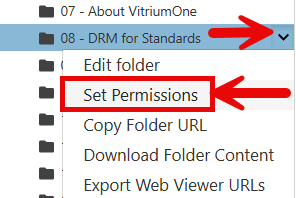
In the CONTENT tab of Vitrium, click on the down arrow beside the folder you wish to assign permission to, then select Set Permissions.
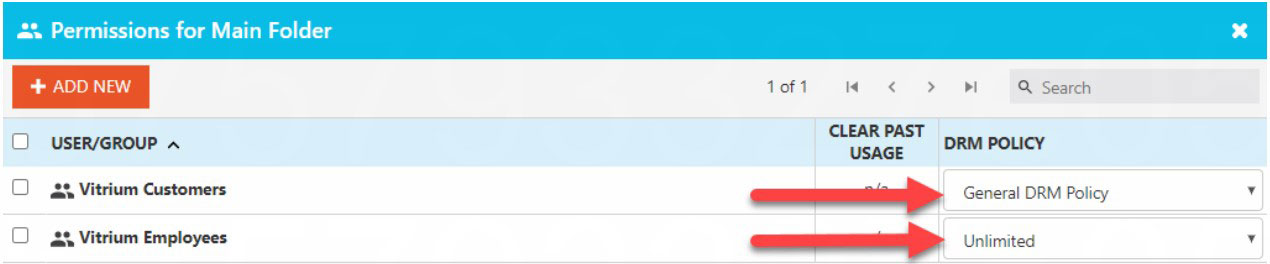
In the Permissions window, click ADD NEW, then select the USERS or GROUPS you wish to assign to all the content in that folder, select a DRM Policy, then click Save & Exit.
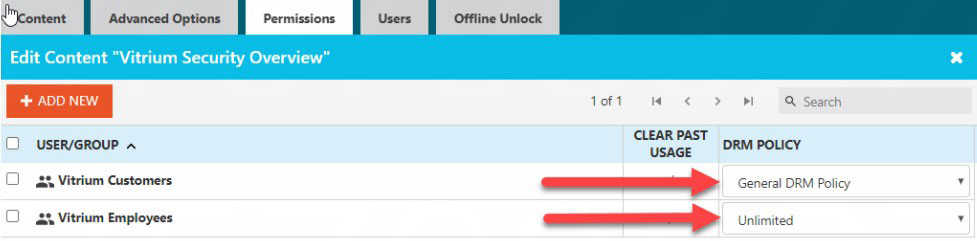
Important Note: You can assign a different DRM policy to different users or groups by changing it in the Permissions window. This is ideal if you have different policies you wish to assign to different types of users.
Assign Permissions at Content Level
In the CONTENT tab of Vitrium, click on the Permissions icon beside the content in question.
Click ADD NEW, select the USERS or GROUPS you wish to assign to the content, select a DRM Policy, click Save & Exit.
Review Existing Permissions
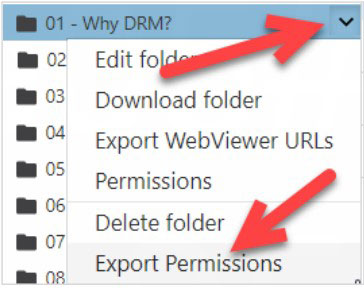
In the CONTENT tab of Vitrium, click on the down arrow beside the folder in question, then select Export Permissions.
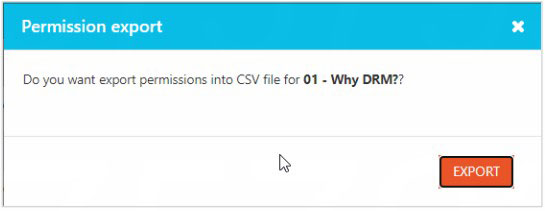
Next, click EXPORT to export a CSV file and you can review what existing permissions have been assigned to this folder.
Video Tutorial
Watch this video to learn more about assigning permissions in Vitrium Security:



Important Note: You can assign a different DRM policy to different users or groups by changing it in the Permissions window. This is ideal if you have different policies you wish to assign to different types of users.