


The CONTENT tab is the primary place where you will upload and manage your content. Vitrium Security converts uploaded files into encrypted formats that cannot be edited.
Vitrium Security supports over 25 different file inputs with 4 different encrypted formats, depending on what type of content is being uploaded. To learn more, click on these sections:
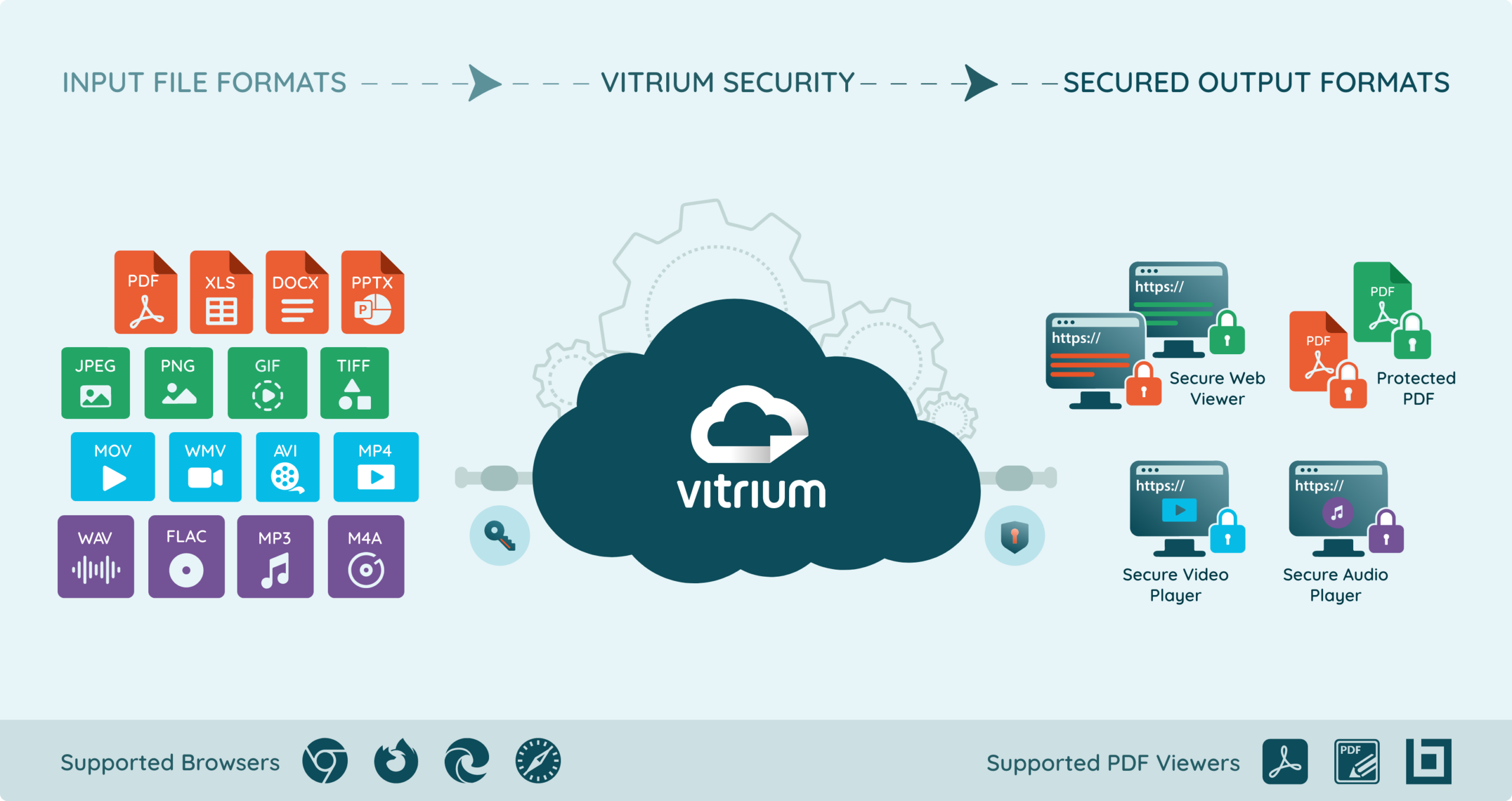
Supported File Formats
| Input Formats | Encrypted Formats |
|---|---|
| Documents PDF (.pdf) Word (.doc, .docx) Excel (.xls, .xlsx) PowerPoint (.ppt, .pptx) Rich Text (.rtf) Text (.txt) OpenOffice formats (.ods, .odt, .odp) | Vitrium Secure Web Viewer Vitrium Protected PDF |
| Images JPG (.jpg) PNG (.png) BMP (.bmp) TIFF (.tiff) GIF (.gif), except animated GIFs | Vitrium Secure Web Viewer Vitrium Protected PDF |
| Videos MOV (.mov) MP4 (.mp4) WMV (.wmv) AVI (.avi) FLV (.flv) MKV (.mkv) Resolutions supported: 240p, 360p, 480p, 720p, 1080p | Vitrium Secure Video Player |
| Audio WAV (.wav) MP3 (.mp3) AAC (.aac) FLAC (.flac) AC3 (.ac3) AIFF (.aiff) OGG (.ogg) M4A (.m4a) Audio available in stereo sound. 5.1 surround sound not supported at this time | Vitrium Secure Audio Player |
Supported Browsers
| Desktop | Mobile / Tablet |
|---|---|
| Chrome Firefox Edge Safari | Safari Mobile Chrome Mobile Firefox Mobile (Android devices only) |
Supported PDF Viewers
| Desktop (Windows) | Desktop (Mac) |
|---|---|
| Adobe Acrobat Reader DC Adobe Acrobat Pro PDF-XChange Editor Bluebeam Revu* | Adobe Acrobat Reader DC Adobe Acrobat Pro Adobe Acrobat Reader DC Adobe Acrobat Reader DC |
* Important Note: Fillable forms may not work as expected with Bluebeam. Please use Adobe, PDF-XChange, or Vitrium’s Web Viewer if you require the use of fillable forms. Also, the ‘obscure page’ (the page that shows the message “This page is protected”) sometimes does not appear in Bluebeam. This is a relatively minor limitation as it would only affect non-authenticated users. The message would still appear for all users if the PDF is opened in a browser or from their desktop in the preview panel of Windows File Explorer or Mac Finder.