Knowledge Base
Vitrium Knowledge Base
Guides & Manuals
Question
What File Formats
does Vitrium protect?
| Documents | Images | Videos* | Audio* |
|---|---|---|---|
 PDF |
JPG | MOV | WAV |
 Microsoft Word |
PNG | MP4 | MP3 |
 Microsoft Excel** |
BMP | WMV | AAC |
 Microsoft PowerPoint |
TIF | AVI | FLAC |
 OpenOffice Formats |
GIF | FLV | AC3 |
 CSV |
MKV | AIFF | |
 RTF |
OGG | ||
 TXT |
M4A |
This will largely depend on how your organization sets up your Vitrium account, including which encrypted format the user is sharing, and what DRM ‘type’ you have applied: Social DRM or Full DRM.
If Full DRM is in Place
Full DRM requires a user to authenticate before they can access the content. This is the clearest way to prevent users from sharing with other users.
What the other user will see depends on whether you have Vitrium set up with single sign-on (SSO) access or not.
If No SSO is Set up
If a user tries to share the Vitrium secure web viewer link, video link, or audio link, the other user will see a login screen, which would likely be customized with your logo, brand colors, and messaging.
If the user who shares the content also shares their login credentials with the other user, then the other user may get access unless you have set other DRM restrictions such as “Concurrent User = 1” or “Browser Limit = 1” or “IP Address Limit = 1”.
If a users tries to share the protected PDF file, the other user will see the PDF login screen, which may also be customized with your logo, brand colors, and messaging.
If SSO is Set up
If a user tries to share the Vitrium secure web viewer link, video link, or audio link, the other user will see an SSO error message that states something like “No permission to content”. These SSO error messages can customized by your organization so they may slightly differ.
If a users tries to share the protected PDF file, the other user will see the PDF ‘obscure’ page, which normally says “This page is protected”, but some Enterprise customers have customized this page so the messaging may be slightly different.
If Social DRM is in Place
Social DRM does NOT require a user to authenticate before they can access the content. This means a user can share the content with someone else. However, there may be other restrictions placed on the content such as:
- Blocking printing, copying & downloading
- Setting expiry dates
- Setting specific named IP addresses to access content
- Setting specific number of IP addresses to access content
- Setting location restrictions (by country or state/province)
Yes!
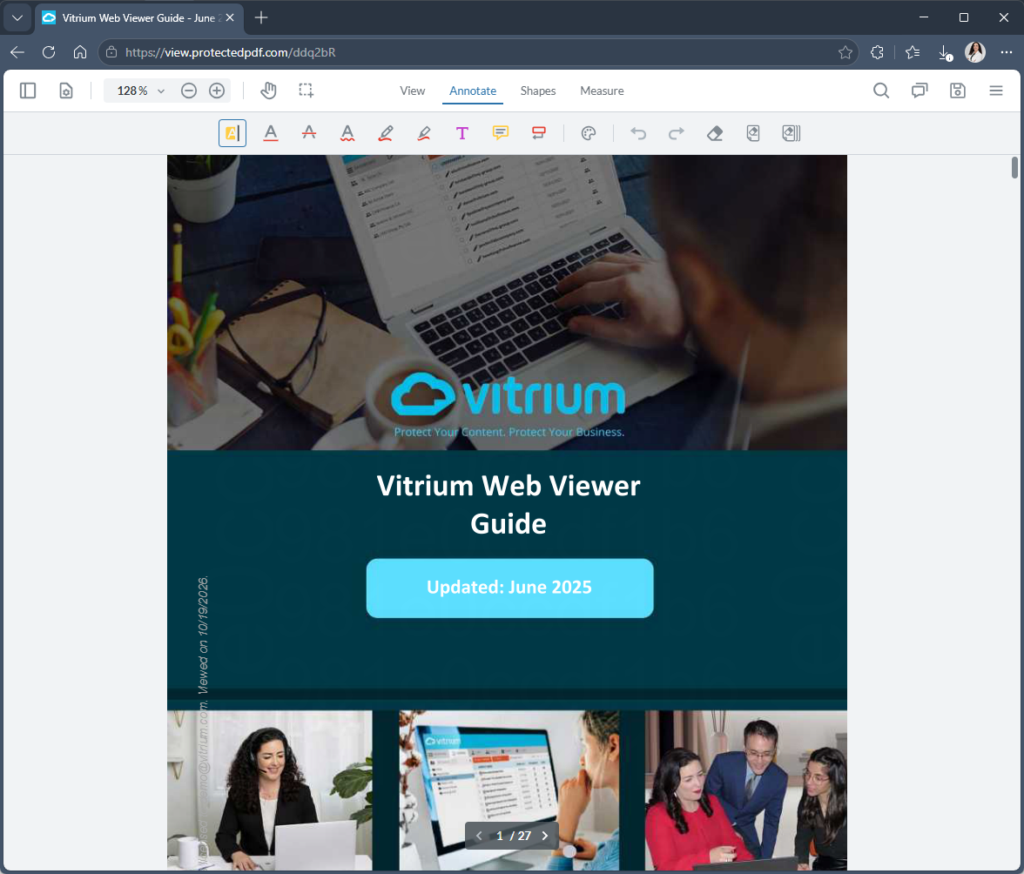
Vitrium offers a secure HTML version of its protected content called the Vitrium Secure Web Viewer (or Web Viewer for short). It’s one of the 2 encrypted formats for documents. Vitrium’s Secure Video Player and Secure Audio Player also work on iPads, Android tablets and other mobile and tablet devices. Below are screenshots of what these look like.
Vitrium Secure Web Viewer
There are a number of different reasons why a user might not be able to access Vitrium-protected content but you should first ask yourself:
Is the issue affecting all users?
If you are a Vitrium Security Pro Edition or Vitrium Vault customer, send a support ticket to Vitrium immediately and alert our team to the fact that this is affecting all your users. If our server is down, we would likely already know since we have monitoring and alerts set up, and would already be addressing the issue. If the issue is isolated only to your account, then there may be a configuration issue that we will look into.
If you are a Vitrium Security Enterprise Edition customer, please check your other system that Vitrium is integrated to. Is that system online? Check the External Service code that one of your developers wrote. Is that still online? Did they make any changes to it recently? If you have done all these things and still haven’t been able to isolate why all your users cannot access your content, send a support ticket to Vitrium and inform them of the urgency.
Is the issue affecting only 1 or a few users?
Review the User Activity Report in your Vitrium account to see if any error codes appear:
- If there is an Error Code, check the User Activity Error Code Guide for further steps.
- If there is no Error Code, ask the user the following questions:
- Are they connected to the Internet? They need to be connected in order to be authenticated.
- Are they trying to open the protected PDF version (which requires Adobe) or the web viewer link? If they say they keep entering the “Login” button but nothing happens, then it’s likely they are trying to open the protected PDF version in a browser or with an unsupported PDF viewer like Foxit or Mac Preview. Remind them to download the PDF and open it with Adobe Acrobat Reader or PDF X-Change.
- If it is the web viewer they are trying to open and the authentication is not going through, then it’s likely a firewall or proxy server interrupting the communication. Ask the user to have their IT department whitelist the following domains on port 443 (https):
– protectedpdf.com
– vitrium.com
– or the domain that your company is using for Vitrium content
If they can’t wait for their IT department to do this, ask the user to try opening the content at a different location (a different IP address), or from their mobile phone using their data plan. If they can access it from a different location or from their phone using data, then the issue is likely a firewall or proxy server.
- If it is the protected PDF and they are using Adobe, then they might need to disable the Adobe global object security policy. To do this, instruct your user to follow these steps:
– Open Adobe Acrobat Reader or Acrobat Pro
– From the top menu bar, click Edit, then select Preferences
– In the next window, select JavaScript
– Uncheck (de-select) the ‘Enable global object security policy’
– Open the protected content again in Adobe
Vitrium offers many different ways to distribute your content and it depends on which solution or which edition you subscribe to. If you are evaluating Vitrium, be sure to ask our sales team to help you find the right solution that works for you.
| Vitrium Vault | Vitrium Security Pro Edition |
Vitrium Security Enterprise Edition |
|---|---|---|
Send protected content via:
|
Send protected content via:
|
Send protected content via:
|
*Only Vitrium Vault allows you to have multiple portals (data rooms) included with your account, which allows for separating out your content distribution by partner, distributor, school, or even department if you wish to also segment your admin users by department.
With all Vitrium solutions, you can also send ‘Social DRM’ content links that don’t require user authentication but still offer some form of protection and control. You can also embed the Social DRM content on pages of your website or 3rd party system. Social DRM controls include expiry date controls, print & copy controls, IP address controls, and a few more.
Featured Video
How to Use Content Settings for Documents in Vitrium DRM Software