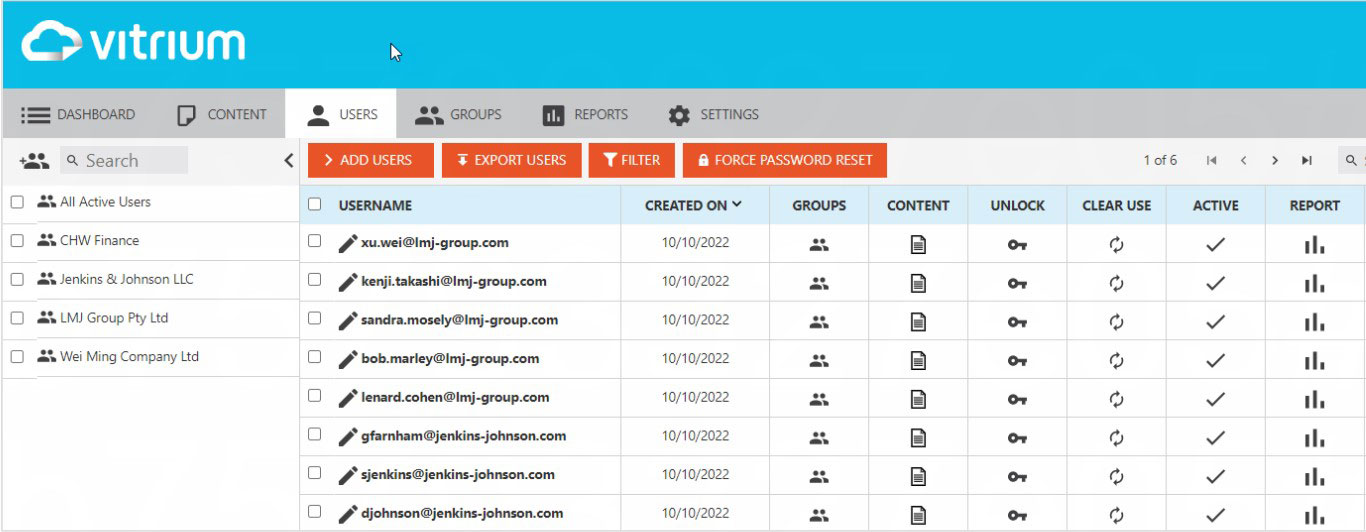
End Users can be found in the USERS tab of Vitrium. End users are the recipients of your Vitrium-protected content. They can be your clients, customers, employees, teachers, students, partners, or anyone who you wish to provide your content to. In this section, we’ll cover:
There are 3 primary ways you can add end users into Vitrium:
Manually
Via CSV Import
Via APIs*
Ideal for quickly adding a small number of users
Ideal for adding a larger number of users at a time
Ideal if you want to synch users between the two systems that are connected for single sign-on (SSO)
*This option is only available with Enterprise Edition.
How to Add Users Manually
Navigate to the USERS tab
Click ADD USERS and select ADD SINGLE USER
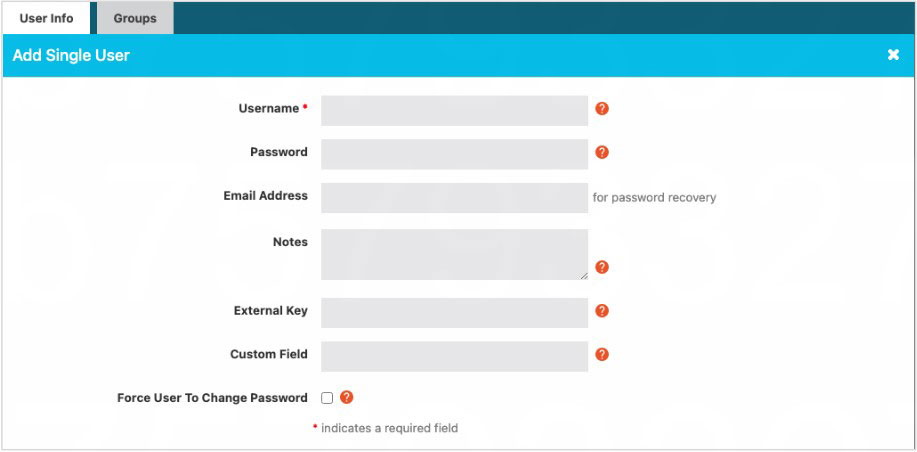
Enter the username, password and other information (see below for a description of all data fields)
If you wish to add the user to a group, click the Groups tab and select the group you wish to add them to
Once done, click SAVE & EXIT
Data Fields for Adding a User
Required Fields
Username: this is a mandatory field. It is strongly recommended to use an email address for the username.
Password: this is a mandatory field that acts as a temporary password for your user. It is recommended you ask the user to change their password immediately after they login for the first time. Alternatively, you can check “Force user to change password” to force them to change their password before they login for the first time.
Email Address: this will be automatically populated if you used the email address as the username. If you did not, then you will need to add an email address for the password recovery.
Optional Fields
Notes: this can be used for any number of reasons:
Enter their full name
Enter their company name
Enter their job title, division or department they work for
External Key: this is an optional field for Enterprise customers to enter an external system ID to associate this user with that system.
Custom Field: this is another optional field that can be used for any number of reasons.
Force User to Change Password: this is recommended if you want to force the user to change their password before logging in for the first time. You should inform them to check their junk folder for the password reset email. Additional password controls can be set in the Security Settings section.
Important Note:It is strongly recommended to use an email address for the username and recommend the user change their temporary password immediately.
How to Import Users Via CSV
In the USERS tab, click on the ADD USERS button
Select IMPORT USERS
Download the sample CSV file that is provided in this window (regular version is recommended to use for most cases)
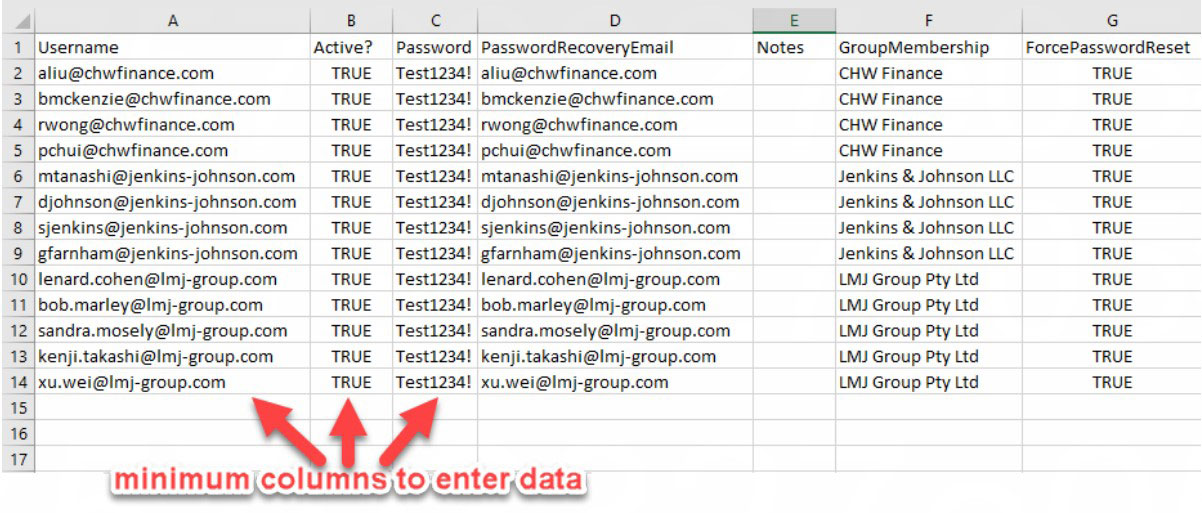
Enter the information and save it as a .csv. (see below for a description of each column)
Upload the completed CSV file back into Vitrium (keeping “The first row has column headers” checked)
Data to Enter in CSV File
Required Fields
Username: we strongly recommend you use email addresses for usernames
Active: enter TRUE for an active user, FALSE for inactive
Password: enter a temporary password for your user and recommend to them later to change their password after they login for the first time
If the user is already in Vitrium and you are just updating other key information related to that user such as their username or group name and you want to retain that user’s password, enter *KEEPPASSWORD* (including the asterisks) in this field so the import won’t change their existing password.
PasswordRecoveryEmail: if using email addresses as usernames, copy those to this column; if you are not using email addresses for usernames, then add the email addresses here in case the user forgets their password.
Optional Fields:
GroupMembership: enter a group name. If the group is not created yet, this will add that new group into Vitrium. If the group is already created in Vitrium, be sure to spell it exactly the same to ensure this user gets added to that group. We recommend checking the groups after you import the file.
ForcePasswordReset: Enter TRUE if you want users to change their password before accessing any content. This is recommended if you want to force the user to change their password before logging in for the first time. You should inform them to check their junk folder for the password reset email. Additional password controls can be set in the Security Settings section.
Description of Columns in Users Tab
Column Heading*
Column Description
Username
This is the username (often the email address) of the authorized user that you or another admin added into Vitrium.
Created On
This is the date the user got added into Vitrium. For Enterprise with External Service, this is the date of the user’s first unlock session.
Last Activity
This is the date of the last activity from the user.
Groups
Click here to view the group(s) that the user belongs to or to add the user to a group.
Content
Click here to view all the content that the user has been assigned permission to.
Unlock
Click here if you wish to provide access to a protected PDF file for a user who is not connected to the Internet. This function does not work for the secure web viewer.
Clear Use
Click here if you wish to clear the use for this user and reset their device, IP or print limits.
Active
Click here if you wish to deactivate a user. An ‘X’ indicates the user is not active. A checkmark indicates the user is active.
Report
Click here if you wish to review all that user’s activity.
Note: some columns may not appear for your edition.



Important Note: