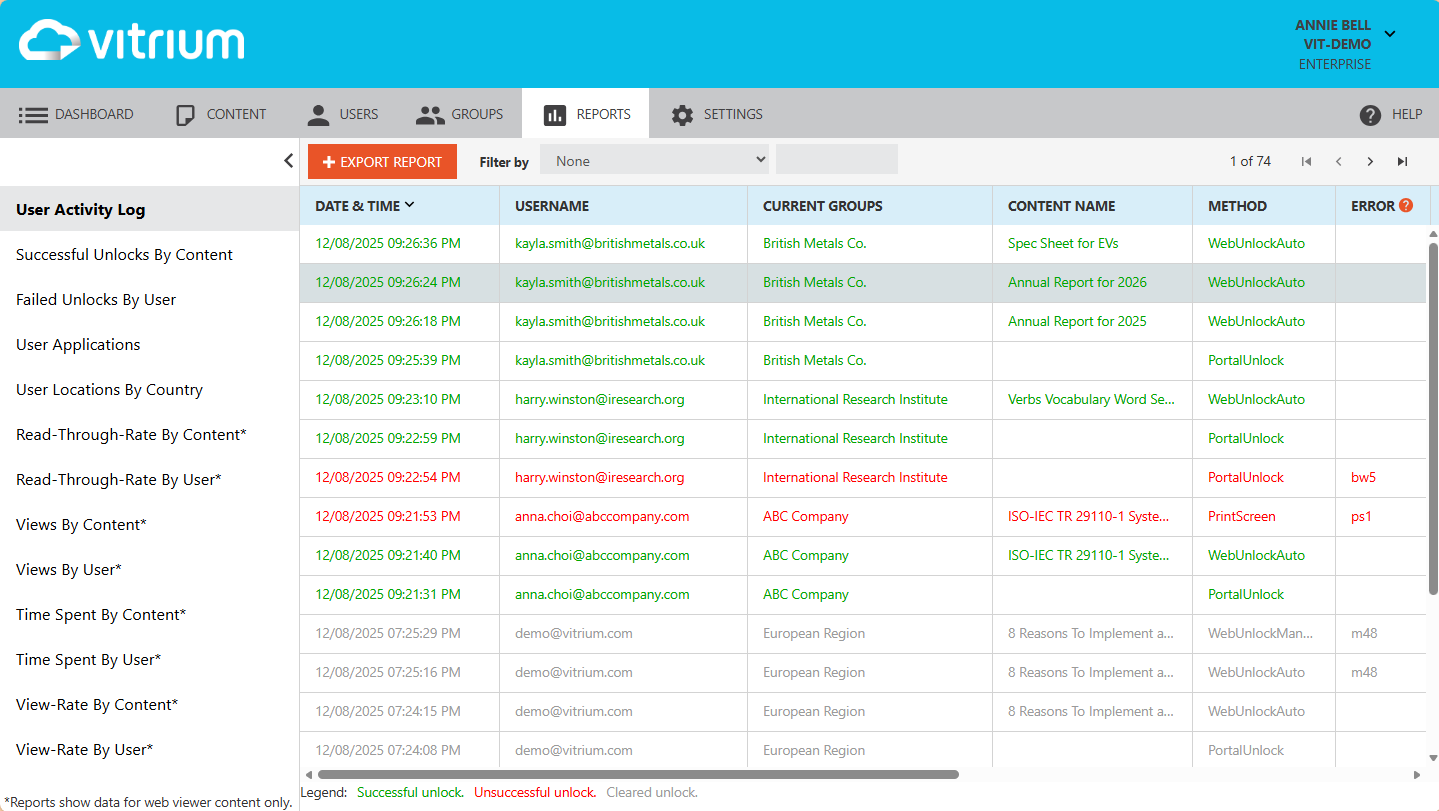
This is the date and time when the user accessed the content or encountered an issue. The time zone and date format are set according to the account settings.
Username
This is the user who accessed the content or who has encountered an issue.
Current Groups
This is the group that the user belongs to. It will always list the most current group.
Content Title
This is the name of the content that the user accessed.
Method
This is the specific activity the user made. Click here to review all the methods.
Error
This is a code that represents which error or DRM limit the user has encountered. Common ones include vc3 (device limit exceeded) or w29 (no permissions set). You can click on the question symbol to review the Activity Code Guide or click here to access it.
IP Address
This is the IP address of the user who has accessed the content.
Tracking ID
This is the tracking ID (cookie session) of the user who has accessed the content.
App
This is the application (a browser or PDF app) that the user has used to access the content.
Version
This is the version of the application that the user used to access the content from.
OS
This is the operating system that the user used to access the content from.
Country Code
This is the country and/or state/province where the user accessed the content from.
Important Note:For the country codes, 'O0', ‘O1’, ‘00’ and ‘01’ are private IP addresses so the user is likely behind a proxy server.
Definition of the Legend & Colors Used
Color Legend
Description
Rows in GREEN
These are successful unlocks (or views) of content by users. They can also be successful unlocks of the portal if applicable.
Rows in RED
These are unsuccessful attempts to access content or the portal. Refer to the Error column for more details. Some errors may be related to a user forgetting their password (bw5), exceeding their device limit (vc3), or something else related to an administrative error (w29, forgetting to assign permissions with a DRM policy).
Rows in GREY
This means an administrator cleared the person’s use to reset their limits, but their activity will still appear in the report for tracking purposes.
Definition of the Method Types in Report
Method / Type
Description
DeactivatedContent Access
When a user attempted to access content that has been disabled or deactivated.
DownloadSourceFile
When a user has downloaded the original source (unprotected) file. This is only possible if the corresponding DRM setting was enabled for the user.
DownloadUniquePDF
When a user has downloaded the protected PDF file from within the web viewer, the Vitrium user portal, or from another system if it has been configured with one of Vitrium’s APIs (Version/Unique or DownloadSSO).
PdfSocial
When a user opens a ‘Social DRM’ protected PDF document.
PdfUnlockAutoDevice
When a user opens a protected PDF document the 2nd or subsequent time and it recognizes the user is on the same device since it pings the server on startup.
PdfUnlockAutoTrueSso
When a user first opens a protected PDF after downloading it from within the web viewer, or user portal, or the system that is integrated with Vitrium.
PdfUnlockManual
When a user opens a protected PDF using the manual login method (i.e. they enter their username and password on the protected PDF login page).
PdfUnlockOffline
When a user opens a protected PDF document in offline mode (creating a cookie) and then later is online, the ‘ping’ will send that information back and logs it here.
PortalUnlock
When a user unlocks or accesses the Vitrium end user portal.
PrintScreen
When a user attempts to take a screen print or screenshot of a web viewer page. Vitrium does not track every attempt, only those using certain keyboard keys.
RemoteUnlock
When an administrator generates an unlock code for another user to access the protected PDF when they are offline using the ‘remote unlock’ feature.
RequestPrintDoc
When a user clicks the “Download PDF to Print” function within the web viewer, which downloads a protected PDF file that is only available for 30 minutes to print. This feature is only available by special request.
SaveOffline
When a user clicks the “Save for Offline Use” button in the web viewer.
WebPrint
When a user clicks the “Print” button in the web viewer. This action will count towards their Browser Print Limit. It does not always mean the user printed the document as they still have to click print in the next browser dialog box and Vitrium cannot track those subsequent actions.
WebSocial
When a user opens a ‘Social DRM’ web content. This can apply for a document or image in the web viewer, a video in the video player, or audio in the audio player.
WebUnlockAuto
When a user opens a web content and is provided access automatically because they are already logged in somewhere else.
WebUnlockAutoTrueSso
When a user opens a web content with single sign-on (SSO) access.
WebUnlockManual
When a user opens a web content through a manual process.
Best Practices for Exporting the Report
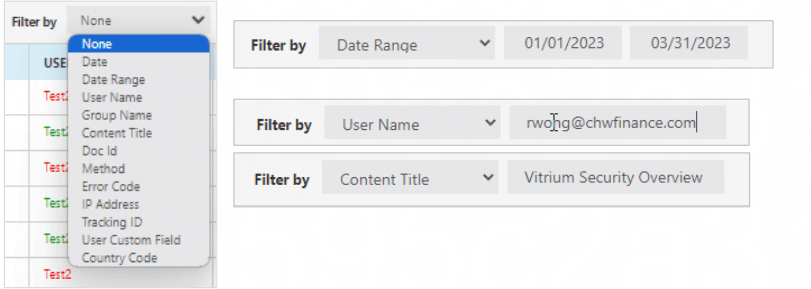
You can export the User Activity Log, but it is strongly recommended to filter it by a date range first. This is because the report can be VERY LONG, especially if you have a lot of users or a lot of content. You can filter it by Date Range, User Name, File Name, Error Code, or one of the many other drop-down selections available.
Filter Report First
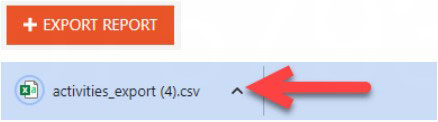
Once you are satisfied with the filtered report, then click the EXPORT REPORT button and this will export a CSV file.
Definition of Columns in Exported Report
Column
Description
ActivityDate
Date and time of the transaction in UTC time zone
IsSuccess
Was the transaction successful? Did the user gain access to content, print, or login to the user portal successfully? (TRUE/FALSE)
DocId
Internal record ID of the content. Unique value per content record. GUID format.
VersionId
Internal record ID of the content version. Unique per version. If you use the Version feature, this will differ for each version uploaded. GUID format.
VersionName
This is a string that usually will have “Version: 1” and, if you subscribe to Vitrium Security Enterprise and use the Version feature, subsequent version uploads will increment that value by 1 each time, so “Version: 2”, “Version:3”, etc. During upload or using API calls, you’ll have the option of changing these values.
DocCode
Internal DocCode of the content. Unique for each content.
Filename (Content Name in UI)
Unless using APIs this will be the resulting PDF minus the “.pdf” file extension. Same for video, audio, images. The extensions are removed. The column “ContentType” will define the type of content.
SessionId
Only appears for VersionUnique Protected PDFs (a feature only available to Vitrium Security Enterprise customers). This will be the DocId of that PDF.
ReaderId
Internal record ID of the User record. Unique value per content record. GUID format. If you are a Vitrium Security Enterprise customer using External Service, this will be most likely be the user’s ID from your external system as you’re responsible for providing this value.
ReaderName
Username as seen in the User record.
GroupNames
At the time this file was being exported, this lists any Groups that the user might belong to. It does not list Groups that the user might have been linked to at the time of the transaction, nor does it have anything to do with DRM enforcement.
IpAddress
The IP that the user was linked to at the time of the transaction.
CountryCode
Using GeoIP database info, this is the ISO country code based on the IpAddress. For the USA and Canada IPs, this will also include the State and Province codes.
ComputerId (Tracking ID in UI)
This code is how Vitrium manages device limits. For a Web Viewer, this is stored in the user’s cookie. For a Protected PDF, this is stored via Adobe or PDF-XChange. If users are in incognito or private browsing OR if they use ad blockers or other such browser extensions/add-ons that kill cookies, this can change each time they access content or log in. For the most part, this should be a static value for each type of browser that a user uses on a given device. This should also be static for Protected PDFs on a given computer where they use the same O/S user credentials to log in to that PC or MacBook.
Message (Error in UI)
If there’s an error or denial to block the user from gaining access, the error code will be logged here. If you’re a Vitrium Security Enterprise customer with an External Service that provides custom error messages, this will also contain those messages.
IsIgnored
If you cleared usage for this transaction, it will report TRUE. IsIgnored=TRUE records are no longer referenced when enforcing DRM policies and no longer count towards device limits.
Type (Method in UI)
Click here to review all the different Types of activities (known as Method in the UI).
ClientAppName
Name of the browser or PDF viewing app that the user tried to access content with.
ClientAppVersion
Version of browser or PDF viewing app that the user accessed content from.
ClientLanguage
Language of the browser or PDF viewing app that the user accessed content from.
ClientOperating System
Name of the operating system that the user accessed content from.
ClientDeviceName
Type of device the user accessed content from.
ContentType
Type of content the user has accessed: Document, Video, Audio, Standard (for Protected PDF). In older versions of Vitrium, you may see these values: doc (PDF), aud (audio), img (image), and vid (video).



Important Note: