This feature is more useful for IMAGES than documents.
To rotate ALL pages in your content:
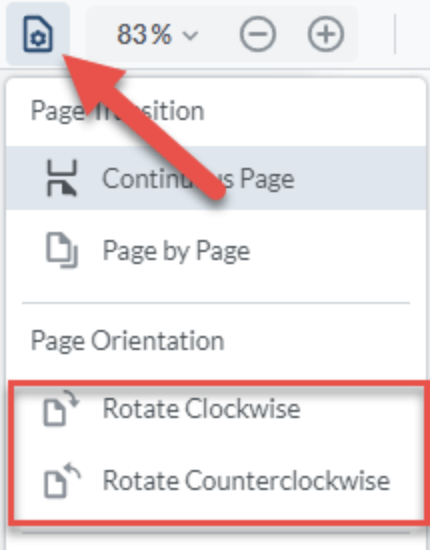
- Click the View Controls button at the top left of the web viewer toolbar
- Select which way you want to rotate all the pages:
- Rotate Clockwise
- Rotate Counterclockwise
Alternatively, you can also rotate a SINGLE page by:
- Click the Panel button at the top left side of the web viewer toolbar
- Select Thumbnails view
- Click on the page you want to rotate
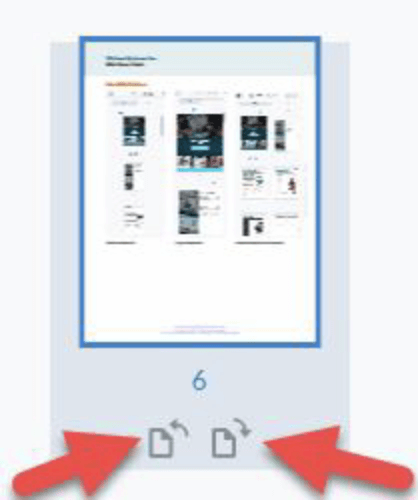
- Choose the Clockwise or Counterclockwise icon beneath the thumbnail