


The Vitrium Secure Web Viewer comes with a variety of different zooming and page layout options that your users can take advantage of:
Zoom In or Out
To zoom in and out of a page:
-
PC users can click Ctrl and use their mouse scroller to zoom in and out
-
Mac users can click Command + + to zoom in and Command + – to zoom out
-
Or users can simply click the + or – symbols at the top of the web viewer toolbar:

Full Screen
To display the document in full screen mode:
- PC users can click the F11 button and click Esc to exit
- Mac users can click Control + Command + F and click Control + Command + F to exit
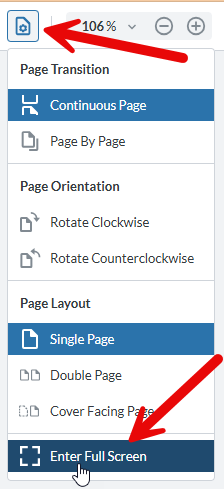
- Or users can select View Controls at the top of the web viewer toolbar, then select Enter Full Screen from the drop-down menu
Fit-to-Width or Fit-to-Page
To display the document in either fit-to-width or fit-to-page mode:
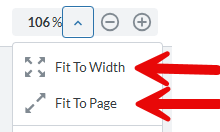
- Users can click the arrow beside the zoom toolbar and select one of these options
Fit-to-Width View
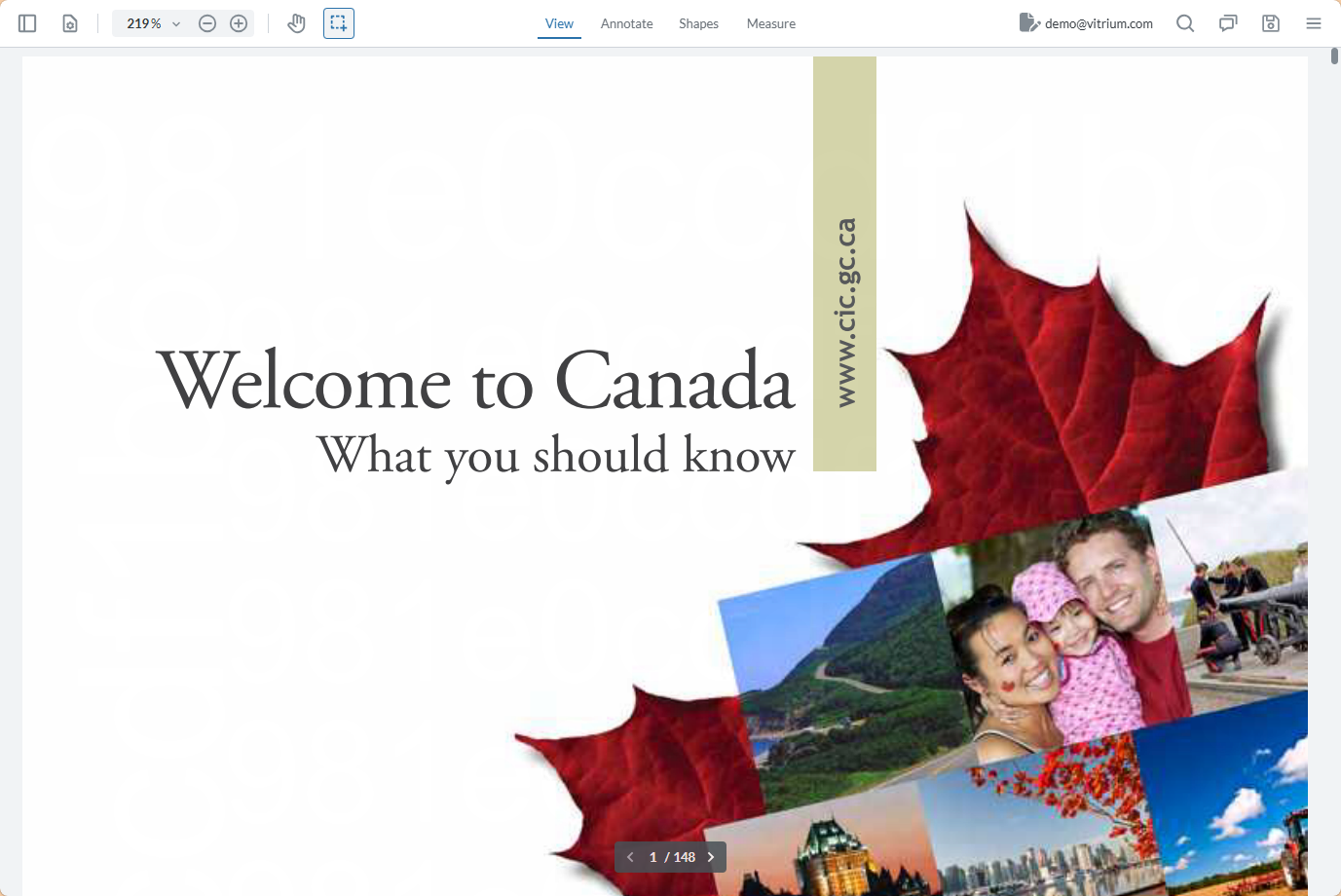
This view maximizes the full width of the page on your screen.
Fit-to-Page View
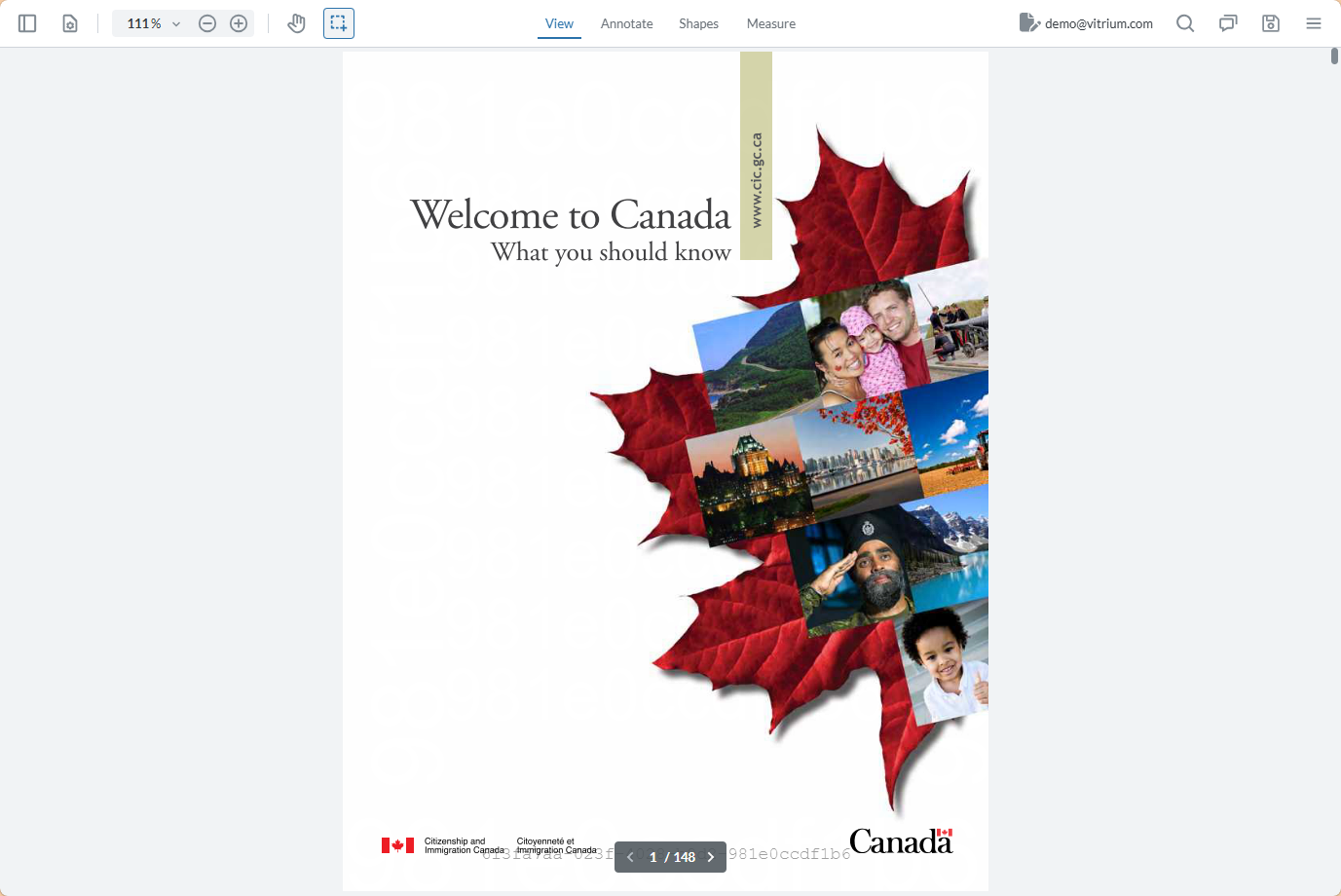
This view maximizes the full height of the page on your screen.
Single, Double or Cover Page Views
To display the document in a single-page view, double-page view, or cover-page view:
- Users can click the View Controls icon on the web viewer toolbar and select one of these options
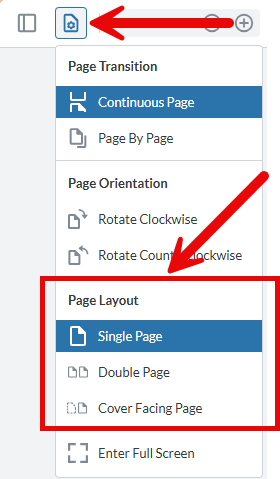
Single Page View (default)
This will show 1 page of your document at a time. This is the default setting.
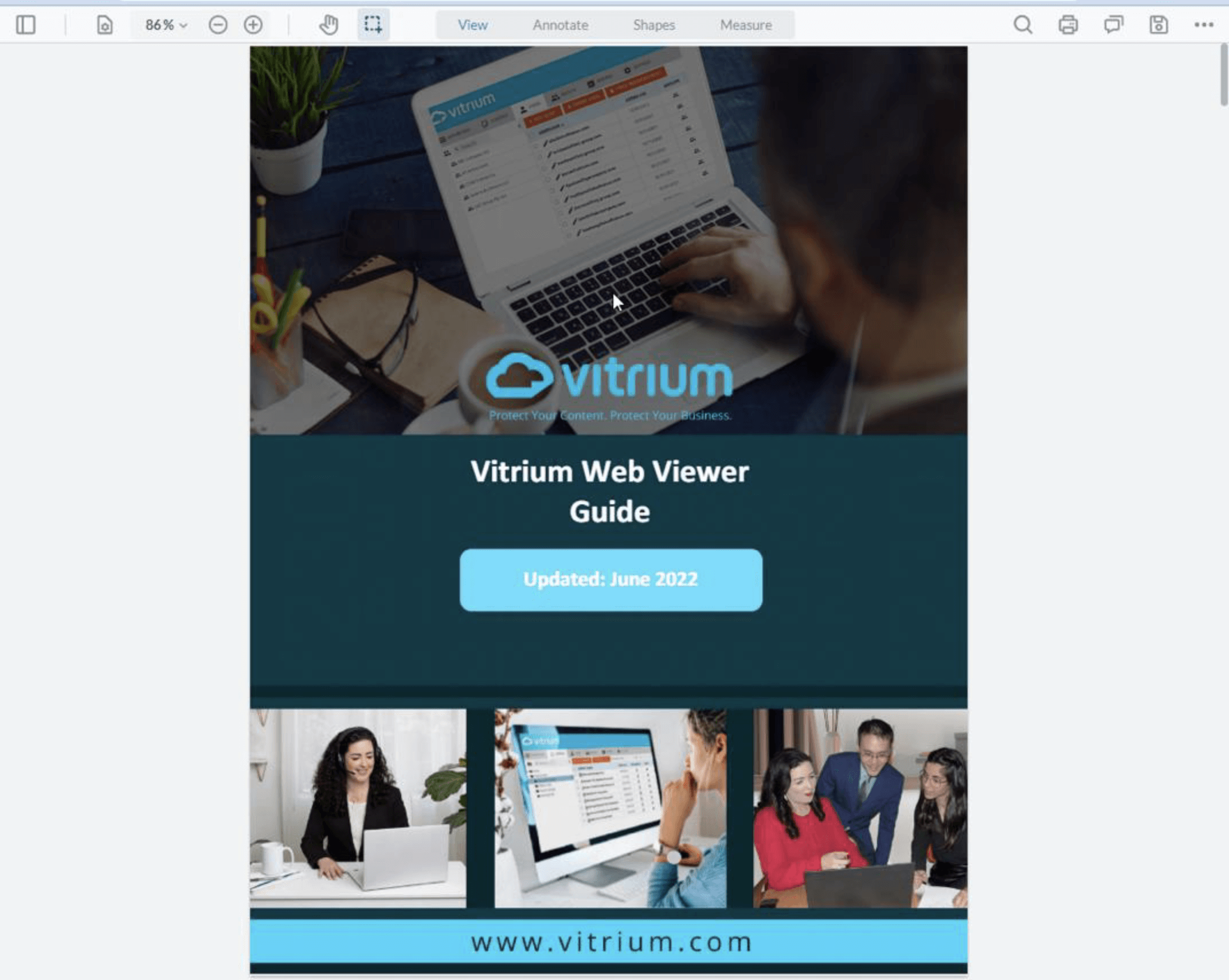
Double Page View
This will show 2 pages of your document side-by-side at a time. This selection will be remembered with this document the next time the user accesses it.
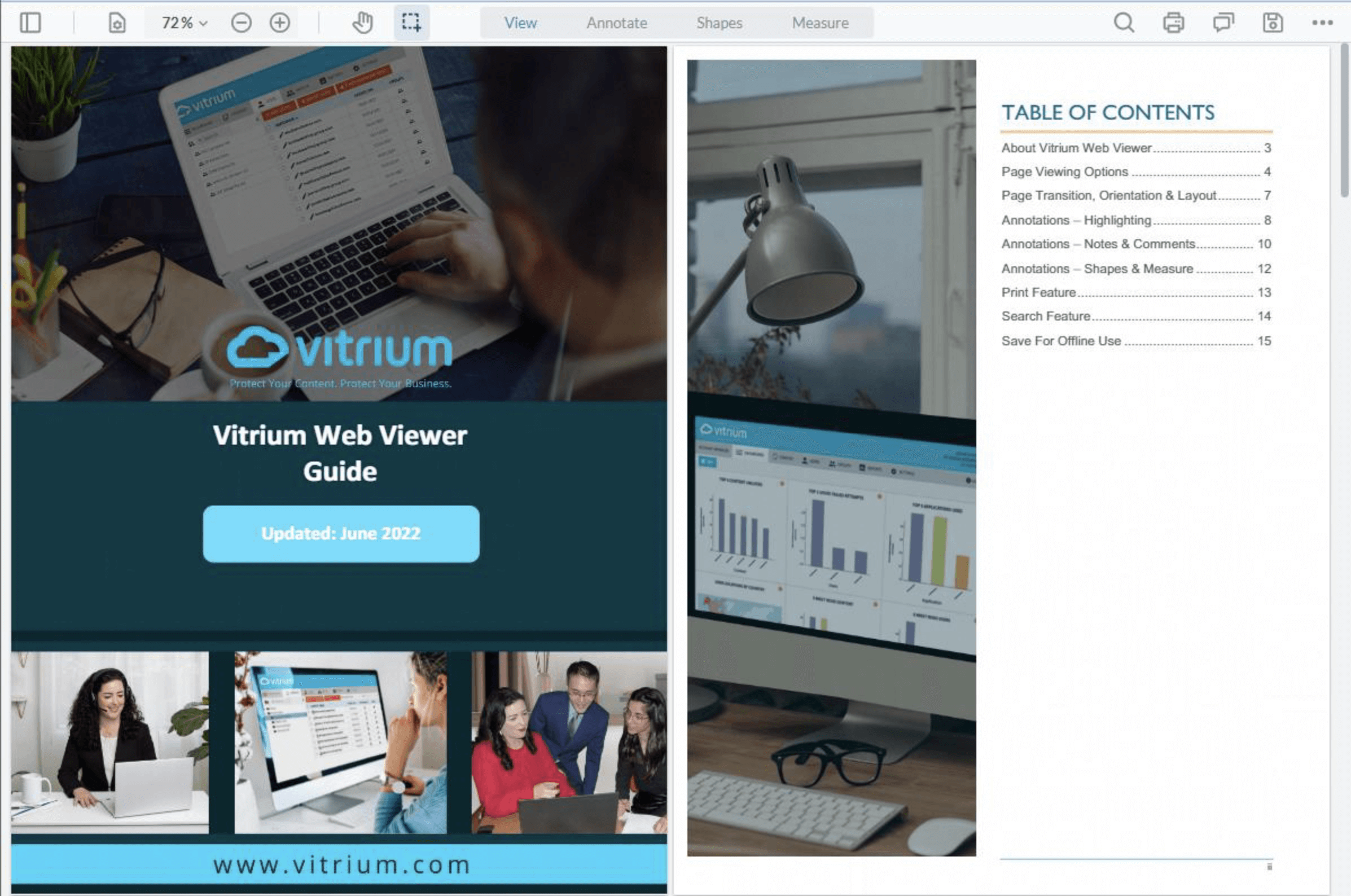
Cover Facing Page
This will show your cover page first, then 2 pages side-by-side as you click through to the next pages of your document. This selection will be remembered with this document the next time the user accesses it.