The Note feature in the Vitrium web viewer is similar to the Sticky Note in Adobe’s PDF viewer, or the Comment feature in Microsoft Word.
To Add a Note / Comment:
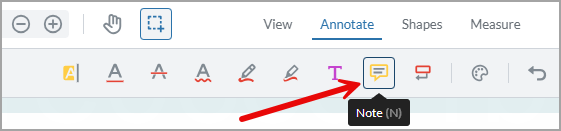
- Click on the Note icon in the Annotate ribbon
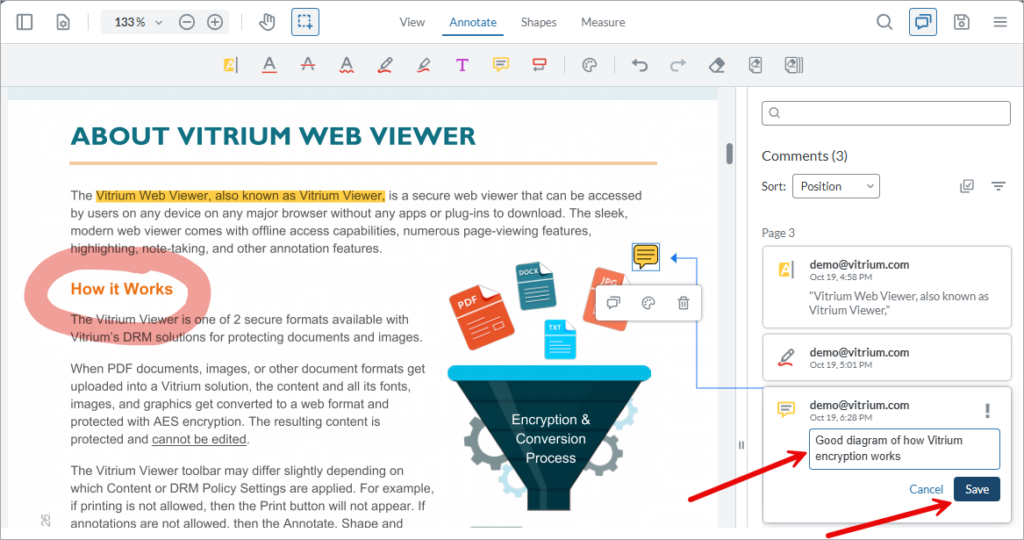
- Click in the content where you wish to add the note
- Enter your note or comment in the text area, then click Save
When you add your note, it will appear on the right-hand side of the viewer under the ‘Comments’ section, along with the page number:
When you close the document and come back to it later, you can open the Comments section and click on your note to jump directly to that page.
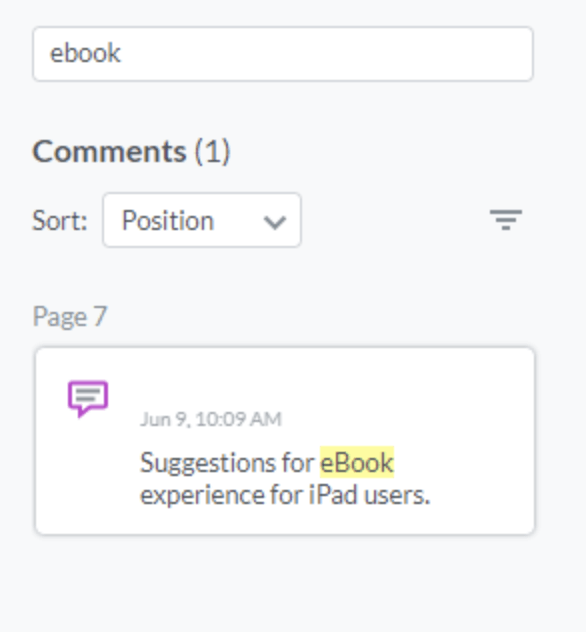
Searching Within Notes / Comments
If you have a lot of notes and comments, you can type a search keyword into the search bar in the Comments section (not in the regular search) and you can find notes and comments related to that keyword.