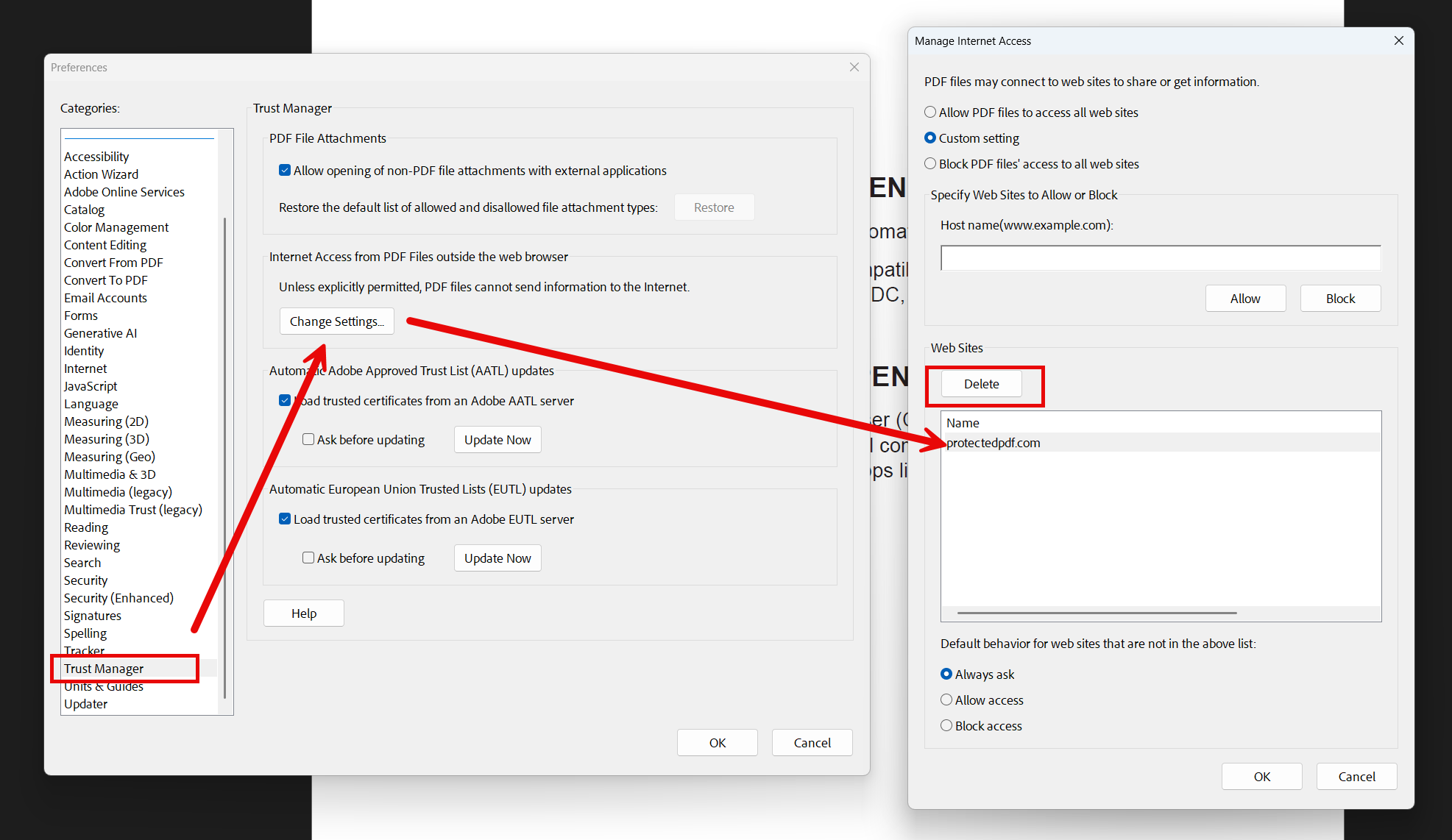
Often times, when a user opens a Vitrium protected file for the first time, Adobe will ask for confirmation to allow the connection to the domain used by your Vitrium account in order to confirm credentials and permissions. This happens via a pop-up, but if they user says no and closes it, they may not be prompted to confirm this again upon subsequent open attempts. If the user is opening the Protected PDF in Adobe, but is only seeing the obscure page, they may need to check the settings below to confirm they did not accidentally block the connection.
1. In Adobe, go to Menu > Preferences > Trust Manager.
2. Click on Change Settings to bring up the pop-up that will be titled Manager Internet Access.
3. Ask them to check for protectedpdf.com or your custom domain that was configured for Vitrium. If it is listed, click on it to highlight it, and click Delete.
4. Click OK and then close and re-open the app. The user should be prompted again, and will need to allow the connection.