The problem is usually caused by a proxy server or firewall that interrupts the communication between the content and the authentication server, though it can sometimes appear when a user's connection is slow or having difficulty loading the content and/or web viewer. Your end user may see a message similar to this: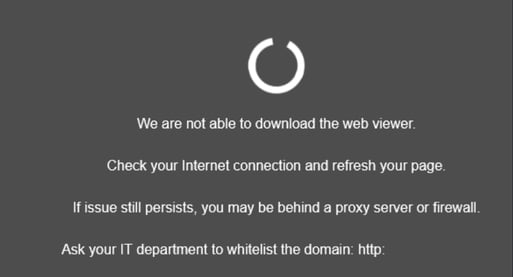
Before asking your user to reach out to their IT department, have them try the following troubleshooting steps:
1. Do a hard refresh on the web viewer page by pressing CTRL + F5 (or command + F5 on Macs).
2. Have the user try a different browser type*.
3. Have the user try an incognito window*.
* Note that steps 1 and 2 will create a new "device" for the user, so you may need to clear use to reset those limits to ensure continuity of access.
If the steps above do not resolve the issue, the next steps will be to have your user ask their IT department to whitelist the domain on port 443 (https). If your account has a custom domain setup, you will need to provide your user(s) with the correct one, so be sure to check which domain the content is delivered from. If you do not have a custom domain configured on your account, then you can provide them with the domain(s) noted below for whitelisting:
Why do proxy servers or firewalls block the content?
Proxy servers and firewalls are designed to protect your organization from unwanted viruses, malware and other phishing type schemes. However, some types of communication is safe, such as the content you're trying to access, as this is coming from a legitimate and trusted source.
How do I make these changes?
You need to speak to your IT admin as they'll know what to do but here are some quick tips:
- For proxy or firewall configurations, your IT person must ALLOW direct communication with the domain that the content is being sent from on port 443 - the domain might be protectedpdf.com or the domain your organization's custom domain.
- For Adobe Reader/Acrobat configurations, follow these steps:
- Open the Adobe Reader or Acrobat program
- From the top men, select Edit > Preferences
- Under Categories, click Trust Manager
- Click the change Settings button
- Add the applicable domain to the "Allow communication" section
How can I check for a proxy server:
- Click on the Start Menu and open Settings
- Select Network & Internet > Proxy
- Under Manual proxy setup, check to see if the "Use a proxy server" box is selected.