There are a few reasons why the protected PDF file may not open for users, but the most common reasons are:
- The user is trying to open the PDF in their browser
You can quickly identify this if you look at their screen or they send you a screenshot and you see the PDF open in a browser tab as shown below. Vitrium's protected PDF does NOT work in a browser, only the secure web viewer does.
The user needs to open the PDF with one of the supported PDF apps: Adobe Acrobat Reader DC, Adobe Acrobat DC, PDF-XChange Editor (Windows only), or Bluebeam Revu* (Windows only). Please note that fillable forms may not work well with Bluebeam - please use Adobe, PDF-XChange, or Vitrium's Secure Web Viewer.
*Important Note: There is one minor known limitation, which is the "obscure page" (the page that shows the message "This page is protected") sometimes does not appear in Bluebeam. This is a relatively minor limitation as it would only affect non-authenticated users. The message would still appear for all users in their browser and in their File Explorer or Finder preview panel. - The user is trying to open the PDF in Mac Preview
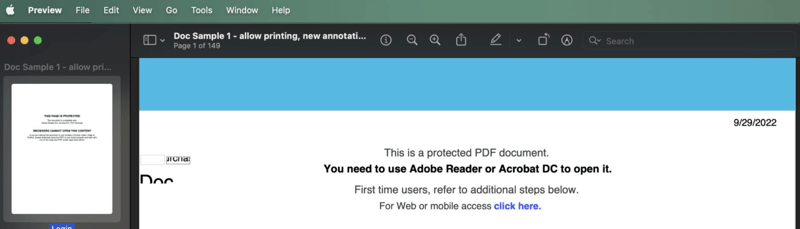
You can quickly identify this if you look at their screen or they send you a screenshot and you see the PDF trying to open in Mac Preview as shown below. Vitrium’s protected PDF does NOT work with Mac Preview.
The user needs to open the PDF with one of the supported PDF apps: Adobe Acrobat Reader DC or Adobe Acrobat DC as PDF-XChange and Bluebeam Revu are Windows only).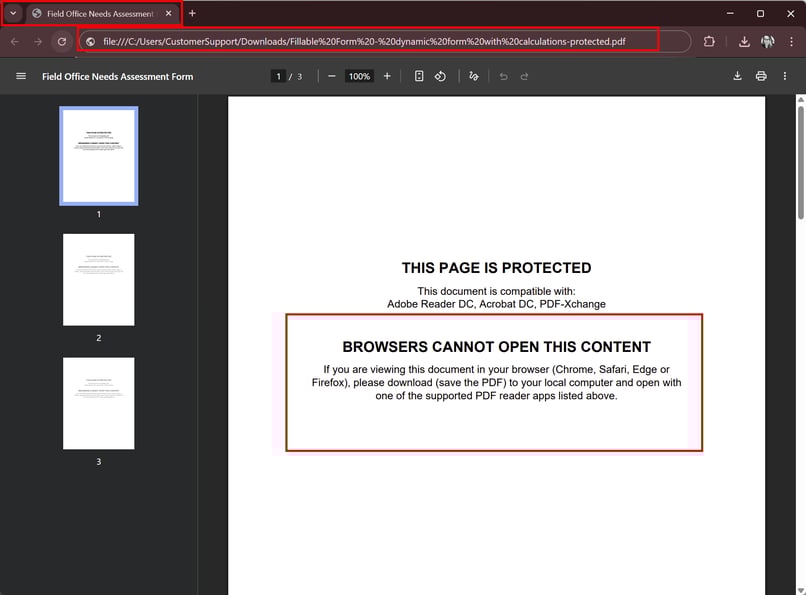
 Suggested Action for 1 & 2
Ask the user to open the protected PDF file in one of the supported PDF apps:
- Adobe Acrobat Reader DC
- Adobe Acrobat DC
- PDF-XChange Editor - The user has not disabled the global object security policy yet
A pop-up message with instructions will appear in the user’s PDF app but they might close it before reading it too closely and the document subsequently closes.
 Suggested Action for 3
Ask the user to disable the global object security policy, then try opening their document again.
Refer to the section What is the Global Object Security Policy (GOSP) to learn more about this feature, including the steps to disable it in the different PDF apps.