The Note feature in the Vitrium web viewer is similar to the Sticky Note in Adobe’s PDF viewer, or the Comment feature in Microsoft Word.
To create a note or comment:
- Click on the “Note” icon in the Annotate ribbon. As with other annotation features in the web viewer, you can have 4 pre-set colors for your note:

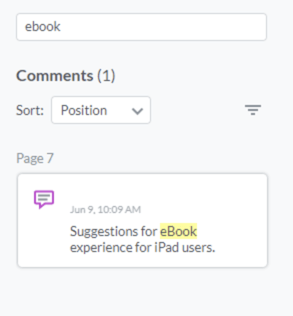
- When you add your note or comment, it will appear on the right-hand side of the viewer under the ‘Comments’ section, along with the page number where it appears in the content:
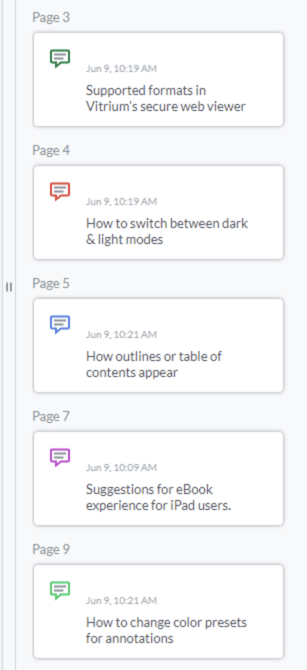
- If you have several notes and comments, here’s how they will look on the right-hand side panel, known as the ‘Comments’ panel:
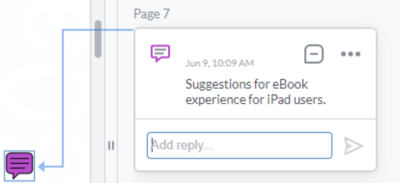
- When you click on a note, it will jump to that page.
Searching Within Notes / Comments
If you have a lot of notes and comments, you can type a search keyword into the search bar in the Comments section (not in the regular search) and you can find notes and comments related to that keyword.