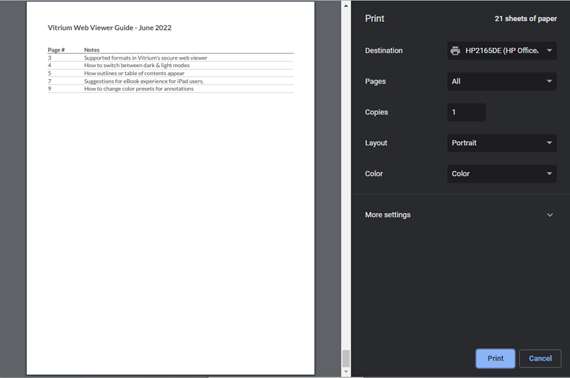
If you have printing enabled in the web viewer, you will see a Print icon on the web viewer toolbar:

Print controls are managed in Vitrium's Content Settings and DRM Policy Settings. Refer to these sections in the Admin Manual for more information.
To print your content:
- Click the Print button or use your normal keyboard commands (i.e. Ctrl-P)
- The following print box will appear:
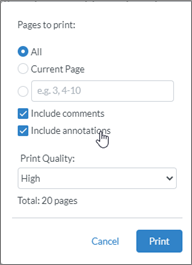
- Review your options before clicking Print
- Select ‘All’ or ‘Current Page’
- Select ‘Include comments’ or ‘Include annotations’ or keep both checked
- Keep the Print Quality set at High
- Click Print
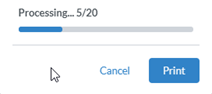
- You will see a Processing status bar as the content gets converted to high-quality for printing
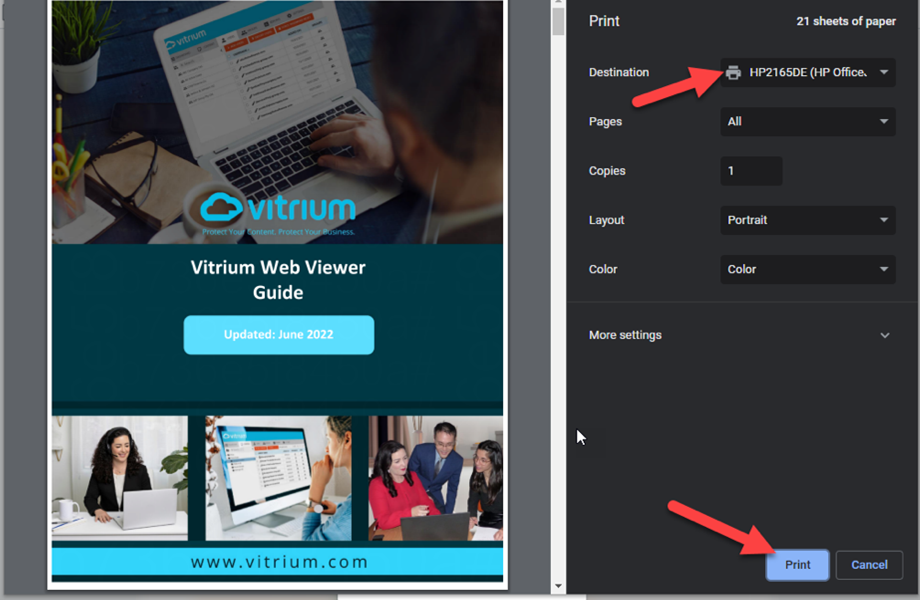
- You will then see another print dialog box. Be sure to select your printer here if it's not already set as the default, then hit Print again.
If you selected Include annotations, you will see these appear directly on the pages of your content: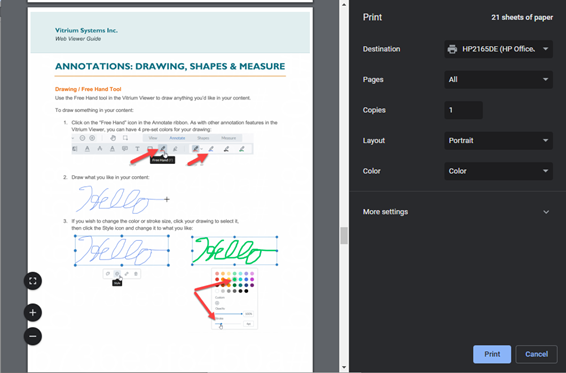
If you selected Include comments, you’ll see these appear on the last page of your content: