End Users are those who you assign permission to access your Vitrium-protected content. These users can be your clients, customers, employees, teachers, students, partners, or anyone who you wish to provide your content to. There are 3 primary ways you can add end users into Vitrium:
| Manually Add End Users |
Import Users Via CSV |
Add Users Via APIs (Enterprise Edition only) |
|
|
|
Manually Add End Users
To add a user manually in Vitrium:
- In the USERS section of Vitrium, click on the ADD USERS button
- Select ADD SINGLE USER
- Enter username, password and other information (see below for description of all data fields)
- Go to the Groups tab to select the group you wish to add the user to
- Once done entering all the information, click SAVE & EXIT
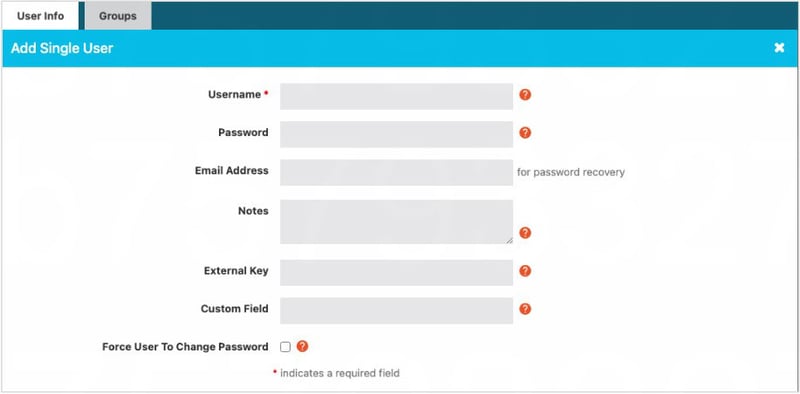
Data Fields for Adding a User
Required Fields
- Username: this is a mandatory field. It is strongly recommended to use an email address for the username.
- Password: this is a mandatory field that acts as a temporary password for your user. It is recommended you ask the user to change their password immediately after they login for the first time. Alternatively, you can check “Force user to change password” to force them to change their password before they login for the first time.
- Email Address: this will be automatically populated if you used the email address as the username. If you did not, then you will need to add an email address for the password recovery.
- Notes: this can be used for any number of reasons:
- Enter their full name
- Enter their company name
- Enter their job title, division or department they work for
- External Key: this is an optional field for Enterprise customers to enter an external system ID to associate this user with that system.
- Custom Field: this is another optional field that can be used for any number of reasons.
- Force User to Change Password: this is recommended if you want to force the user to change their password before logging in for the first time. You should inform them to check their junk folder for the password reset email. Additional password controls can be set in the Security Settings section.
important note
It is strongly recommended to use an email address for the username and recommend the user change their temporary password immediately.
Import Users Via CSV
In the Users tab of Vitrium:
- Click on the ADD USERS button.
- Select IMPORT USERS.
- Download the sample CSV file that is provided in this window. The regular version is recommended.
- Update the CSV file.
- Upload the completed CSV file back into Vitrium (keeping “The first row has column headers” checked).
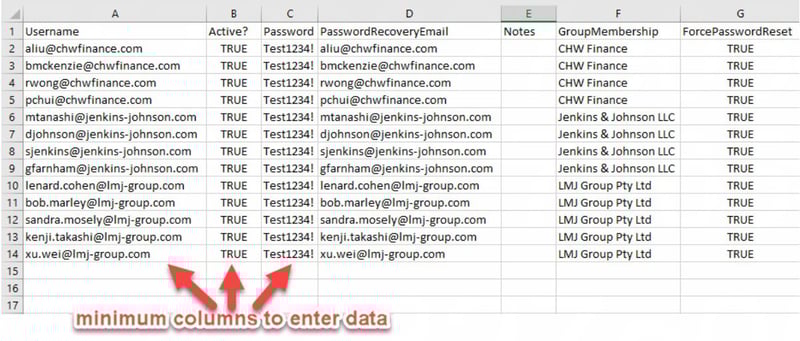
Data to Enter in CSV File
Required Fields
- Username: it is strongly recommended to enter email addresses for usernames
- Active: enter TRUE for an active user, FALSE for inactive
- Password: this is a mandatory field that acts as a temporary password for your user. It is recommended you ask the user to change their password immediately after they login for the first time. Entering *KEEPPASSWORD* (including the asterisks) in this field will allow you to make changes to other columns without altering or resetting the user’s password.
- PasswordRecoveryEmail: if using email addresses as usernames, copy those to this column; if you are not using email addresses for usernames, then add the email addresses here in case the user forgets their password.
Optional Fields:
- GroupMembership: enter a group name. If the group is not created yet, this will add that new group into Vitrium. If the group is already created in Vitrium, be sure to spell it exactly the same to ensure this user gets added to that group. We recommend checking the groups after you import the file.
- ForcePasswordReset: Enter TRUE if you want users to change their password before accessing any content. This is recommended if you want to force the user to change their password before logging in for the first time. You should inform them to check their junk folder for the password reset email. Additional password controls can be set in the Security Settings section.
Understanding the Columns in the Users Section
This is what the USERS section of Vitrium looks like with the definitions of each column below:
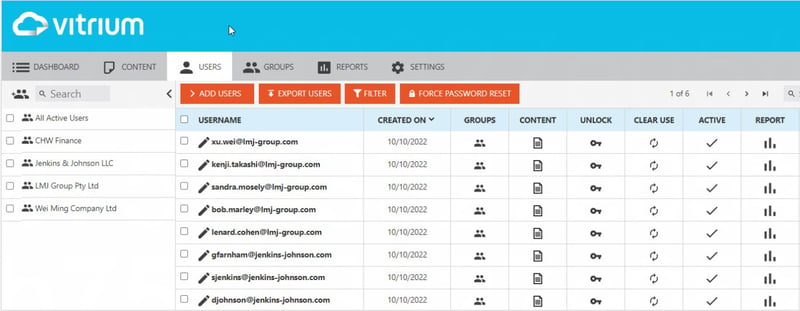
Note: some columns may not appear for your edition.
| Column Heading | Description |
| Username |
This is the username (often the email address) of the authorized user that you or another admin added into Vitrium. |
| Created On |
This is the date the user got added into Vitrium. For Enterprise with External Service, this is the date of the user’s first unlock session. |
| Last Activity | This is the date of the last activity from the user. |
| Groups |
Click here to view the group(s) that the user belongs to or to add the user to a group. |
| Content |
Click here to view all the content that the user has been assigned permission to. |
| Unlock |
Click here if you wish to provide access to a protected PDF file for a user who is not connected to the Internet. This function does not work for the secure web viewer. |
| Clear Use |
Click here if you wish to clear the use for this user and reset their device, IP or print limits. |
| Active |
Click here if you wish to deactivate a user. An ‘X’ indicates the user is not active. A checkmark indicates the user is active. |
| Report |
Click here if you wish to review all that user’s activity. |