In Vitrium's Watermark Settings, you can apply dynamic, user-based or text-only watermarks to your content. They are an important part of the DRM process and ideal to add to content for several different reasons:
- To identify the user who your content has been licensed or granted permission to access.
- To display your company’s copyright protection disclaimer.
- To display other DRM-related information on your content (i.e. expiry date info, device limit, etc.)
 note
Diagonal watermarks are not recommended if you will be offering downloadable Protected PDFs due to a limitation with Adobe. More info below under Placement.
Add a Watermark
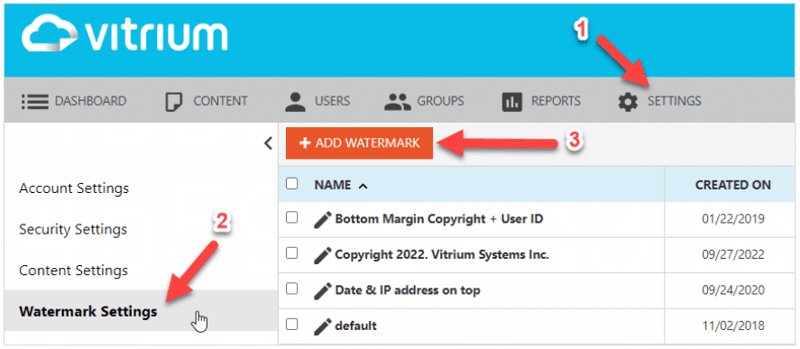
- In Vitrium, go to SETTINGS, then Watermark Settings
- Click ADD WATERMARK
- Enter your watermark information (see fields below), then click SAVE & EXIT to save your new watermark
- To apply the watermark to any content, you will need to add it to a Content Setting (click here to learn more about Content Settings)
Fields in Watermark Tab

- Name
Give your watermark a descriptive name such as:
- Licensed To (vertical left, red 9pt font)
- User ID (custom placement horizontal)
- Type
There are 3 options to choose from:
- user specific: this is the most commonly used type. It's a dynamic watermark where you can add text and insert different dynamic variables to it (i.e. username, user ID, date, time, etc.)
- user specific (social): this is also a dynamic watermark but it's only used for Social DRM content, which is content that doesn't require users to log in or authenticate to access it. This means you cannot add any user-identifying information in the watermark, other than IP address, but there are other variable data you can add such as date & time, expiry date, and more.
- text only: this is just a plain text watermark where you cannot enter any dynamic data, only text. It can be useful if you just want to add CONFIDENTIAL across the middle of your content or to add your company's copyright statement at the bottom.
- Text
This is the text that you will show on your watermark. - Select to Insert
If you selected a “user specific” type, you can also insert a number of different dynamic variables from the drop-down menu. The most recommended ones are:
- User ID or User Name
- Date, Time or Year
- Expiry Date or IP Address
- Placement
Choose from different placement options including Bottom, Top, Vertical left, Vertical right, Diagonal, or Custom. Click on Custom Placement Options to learn more about this option.
Important Note for Protected PDFs (Downloads)
When a user clicks on a diagonal (45°) watermark in Adobe reader or Acrobat, the watermark may become invisible. It will reappear when the user changes pages, but will become invisible again should they click the same diagonal watermark on subsequent pages.
This issue occurs because PDF "form fields" can only be rectangles and have to be parallel to the page. A watermark "form field" is required when a "User Specific" watermark is defined AND the placement is diagonal or 45°. A "User Specific" watermark is one where field variable placeholders are referenced as opposed to only static text.
We recommend using vertical or horizontal "User Specific" placed watermarks instead of diagonal watermarks if you are distributing downloaded PDFs to your customers.
- Alignment
Choose from different alignment options including Center, Left, or Right.
Fields in Advanced Options Tab
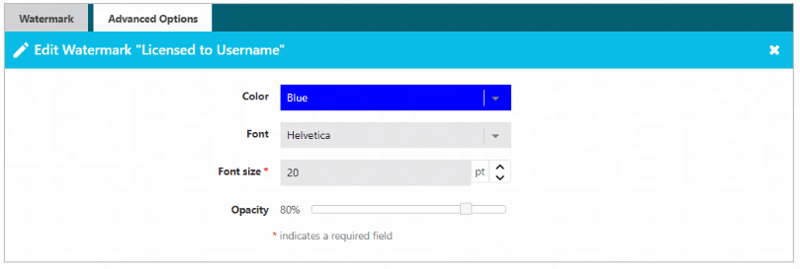
- Color
Choose the color of your watermark text from the pick-list. - Font
Choose the font of your watermark text from the pick-list. We recommend Helvetica as it is the most easily readable font for online use. - Font Size
Choose the font size of your watermark text. We recommend in the range between 9 to 12 pt. - Opacity
Slide the scale up or down to select the opacity (or transparency level) of your watermark text. We recommend leaving it at the default 80% unless you prefer a more transparent watermark.
 note
It is recommended to create different Watermark Settings as Vitrium allows you to apply multiple watermarks to your content.
Watermark Custom Placement Option
The customer placement can be a useful option if you want your watermark to appear in a location that Vitrium doesn’t offer with its pick-list items. For example, let’s say you want your watermark to appear around ¼ of the way down from the top of the page, or you want your watermark to appear at the very bleeding edge of the document, or maybe you want it to appear in 2 or 3 different places as a diagonal watermark in various strategic places.
Below is a description of what each of the custom placement options mean and what values to enter:
- X Offset
This is the horizontal positioning of your watermark. Values represent percentages so it is recommended to use an integer between 0.01 to 0.99. For example:- 0 = 0% and represents the far left.
- 0.5 = 50% and represents the middle.
- 1 = 100% and represents the far right.
- Y Offset
This is the vertical positioning of your watermark. Values represent percentages so it is recommended to use an integer between 0.01 to 0.99. For example:
- 0 = 0% and represents the bottom.
- 0.5 = 50% and represents the middle.
- 1 = 100% and represents the top.
- Width
This is the width of the box (in pixels) where your watermark will be placed inside (the 'box' is invisible). For example:
- For a longer-length watermark, consider setting the width between 300-600 pixels.
- For a shorter-length watermark, consider setting the width between 50-100 pixels.
- Height
This is the height of the box (in pixels) where your watermark will be placed inside (the ‘box’ is invisible). For example:
- If using a large-sized font, consider setting the height between 50-100 pixels.
- If using a smaller-sized front, consider setting the height between 10-25 pixels.
- Rotation
This is the rotation of your watermark, represented in angles. For example:
- 0 = horizontal
- 90 = vertical (text runs bottom to top)
- 45 = angled up to the right
- 180 = flipped upside down (not recommended to use this one!
- 270 = vertical (text runs top to bottom)