Similarly to how you can add users in Vitrium, you can add GROUPS by manually adding them or importing them via CSV file. Refer to Importing Users Via CSV for steps on how to import groups.
Adding Groups Manually
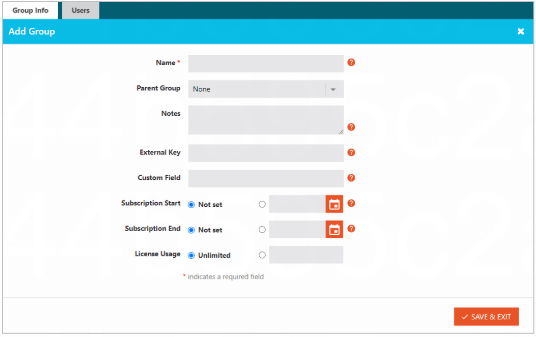
In the GROUPS tab of Vitrium, click ADD GROUP and then enter the following information:
- Name: this is a mandatory field. Name your group.
- Parent Group: if you want to create a subgroup, choose the group you would like to have as the Parent Group.
- Notes: this is an optional field that can be used to track any type of information:
- Enter type of group.
- Enter description of group.
- Enter purpose of group.
- External Key: this is an optional field for Enterprise customers to enter an external system ID to associate this group.
- Custom Field: this is another optional field that can be used for any number of reasons.
If the Subscription Policy is active at the GROUP Level, you can also enter:
- Subscription Start: the first date on which group members will be able to access content.
- Subscription End: the last date that group members will be able to access content.
If the Corporate License Module is active on the GROUP Level, you can also enter:
- License Usage: Define how many licenses you would like to have assigned to this group.
Adding Users to a Group
In the same window:
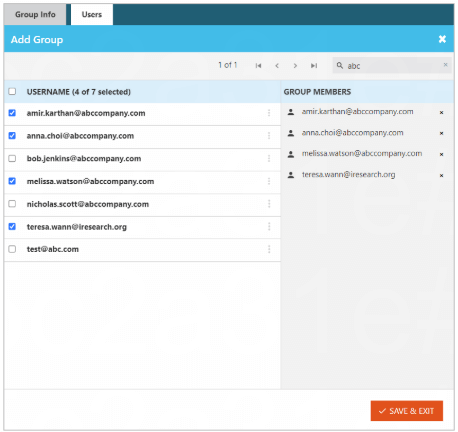
- Click the Users tab.
- Select the users from the left window so they appear under Group Members on the right.
- If you wish to allow a user to view the annotations of others, follow the steps listed in the section below.
- Click SAVE & EXIT.
Assign User to Manage Corporate Licenses
If you wish to allow a user to manage their assigned corporate licenses:
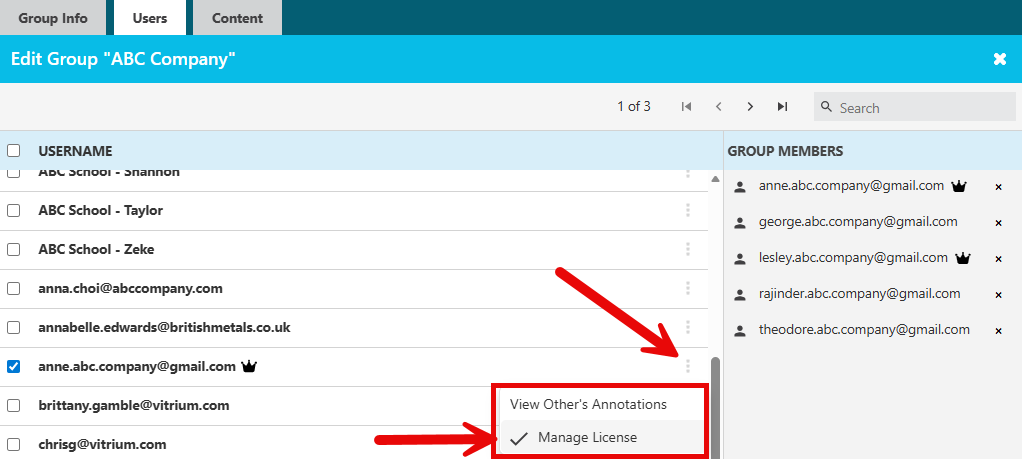
- Click the 3-dot menu on the right side of the username you wish to enable this feature for.
- Select Manage License.
- You will see a 'crown' icon appear next to their name under the GROUP MEMBERS.
Click here to learn more about this special feature.
Assign User to View Other Users' Annotations
If you wish to allow a user to view other users' annotations that they are connected to in the same group:
- Click the 3-dot menu on the right side of the username you wish to enable this feature for.
- Select View Other's Annotations.
- You will see a 'people' icon appear next to their name under the GROUP MEMBERS.

Click here to learn more about this special feature.