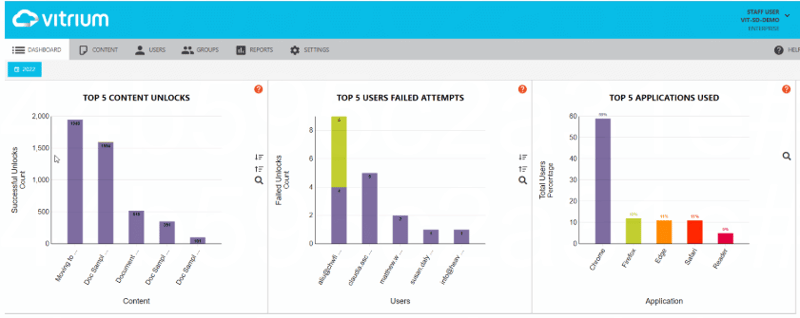
There are 8 dashboard graphs in total, most of which represent the top 5 of something within a given time period. You can drill in on any graph to show all the data, or you can drill in on a specific file or user to show data for that file or user.
Date Range
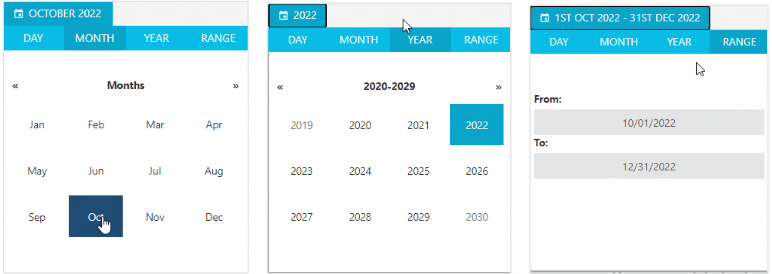
By default, the date range shows the current month, but you can click on the Date button to change this to a specific:
- DAY
- MONTH
- YEAR or RANGE of time
Dashboard Menu Icons
There are several different icons that you’ll see on each graph, each with their own unique function.
- Sorts data from Most to Least.
- Sorts data from Least to Most.
- Drill in to Show All Content in Reports tab.
- Shows data by Count (# of Files or # of Users).
- Shows data by Time Spent (in Minutes).