Learn about other content functions in Vitrium:
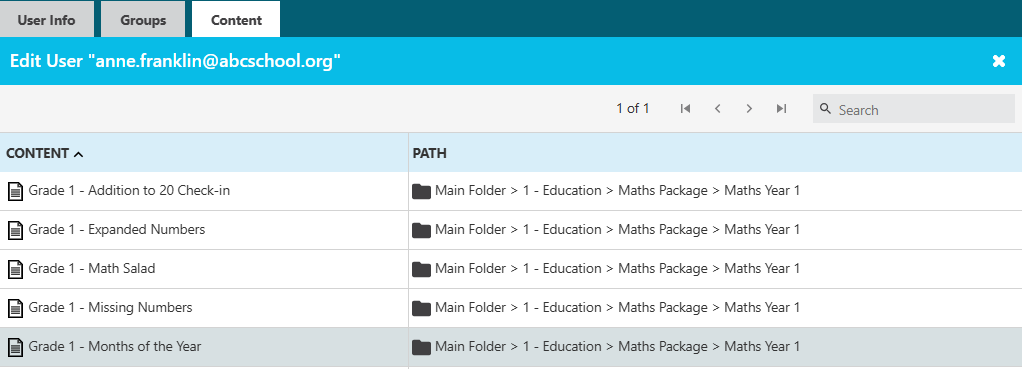
Reviewing Content Assigned to User
- In the Users tab, click the content icon beside the user in question
- You will see all the content they have been assigned permission to
Searching Users
You can search for users in the USERS tab based on the following information:
- Username
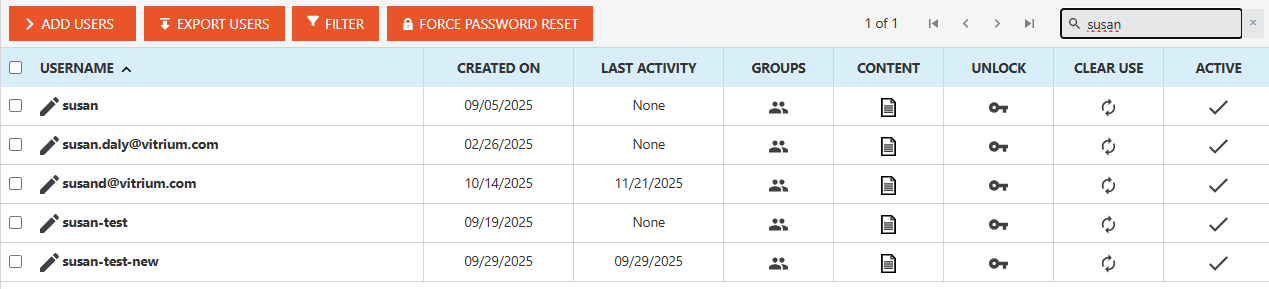
- User ID
- Notes (if you set any)
- Custom Field (if you set any)
- External Key (if you set one)
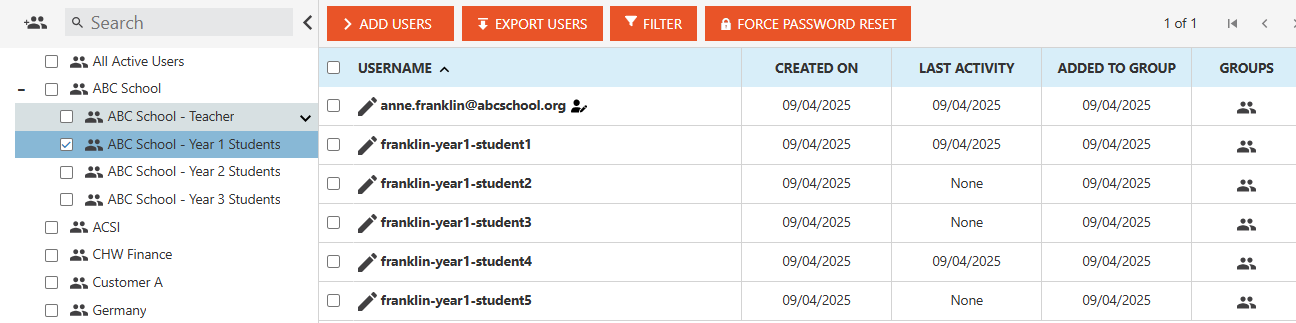
- Group: select the group name on the left-hand side of the users screen:
Filter Users
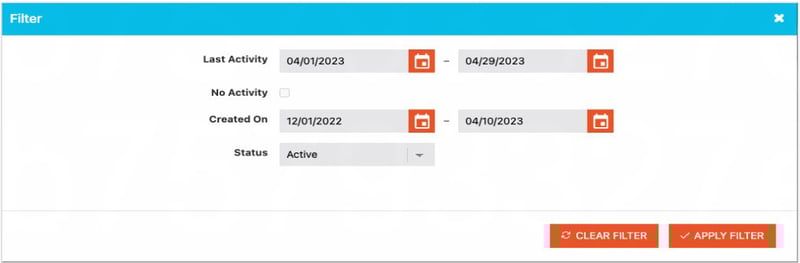
You can filter users by:
- Last Activity (within a date range)
- No Activity
- Created On (within a date range)
- Status (active or inactive)
Exporting Users
You can export all users or a group of users that you have searched on:
- In the USERS tab, click EXPORT USERS
- You will receive a CSV file of the export which will look like this:
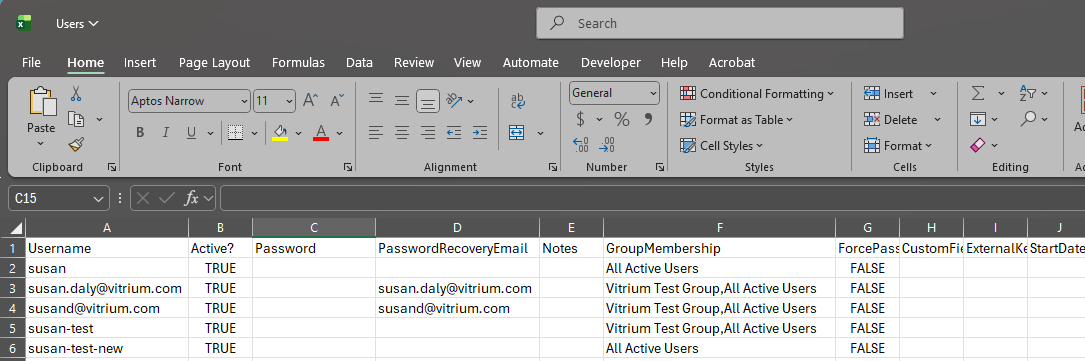
NOTE: the export does not show the user's password in the export file for security and privacy reasons.
Revoking or Deactivating a User
You can revoke (or deactivate) a user by clicking on the ACTIVE icon beside the user in question:
- An ‘X’ indicates they are no longer active. This also revokes their access to any content that has been assigned to them.
- A checkmark indicates they are active. You can toggle this on or off at any time.

important note
Revoking or deactivating users is NOT possible for Enterprise accounts that use External Service to integrate with another system. You need to revoke them in that system.
Deleting Users
To delete a user in Vitrium:
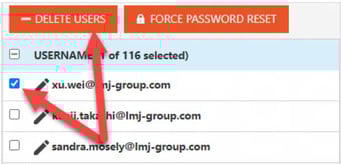
- Click the small box to the left of the user in question, then click DELETE USERS. You can select one user or multiple users at a time.
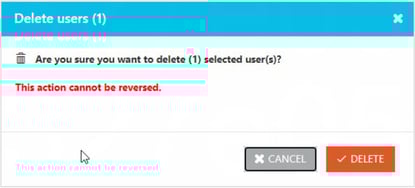
- You will be prompted with a message confirming that you are okay to delete the user as this action cannot be reversed. If you are okay with this, click DELETE.
Searching Users
You can search for users in the USERS tab based on the following information: