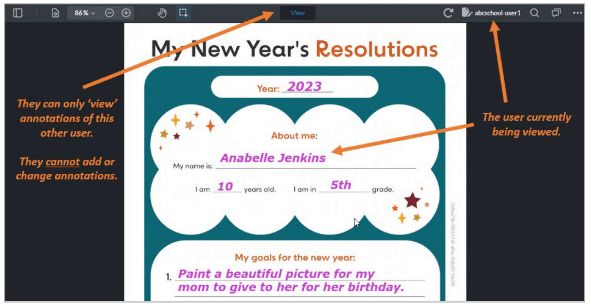
This feature allows a user to view the annotations and/or form fill data of other users in the web viewer. The user can view the annotations or form data in read-only mode – they cannot edit the information. The user with this setting applied will only be able to view other users’ annotations for the content to which they are also assigned permission.
This feature can be useful for a variety of purposes including:
- To administer tests (in a teacher-to-student scenario)
- To gather feedback or other info about the content
- To gain insight into how users interact with your content
- To conduct surveys
- And more!
To enable this feature:
- Go to the GROUPS tab.
- Click on a group where you would like to add this feature for an end user.
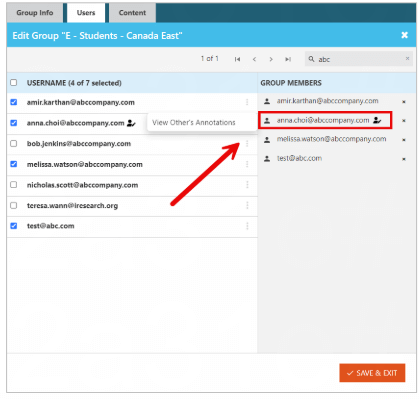
- Search for the user you would like to allow annotation sharing with on the Users tab.
- Click the three dot menu next to their username and select View Others’ Annotations.
- An icon will appear next to their name listed on the right when this feature is active.
- When done, click SAVE & EXIT.
important note
Make sure you ONLY assign this feature to those users (such as the teachers or instructors) whom you want to view other users’ annotations!
Viewing Shared Annotations in Vitrium’s Web Viewer
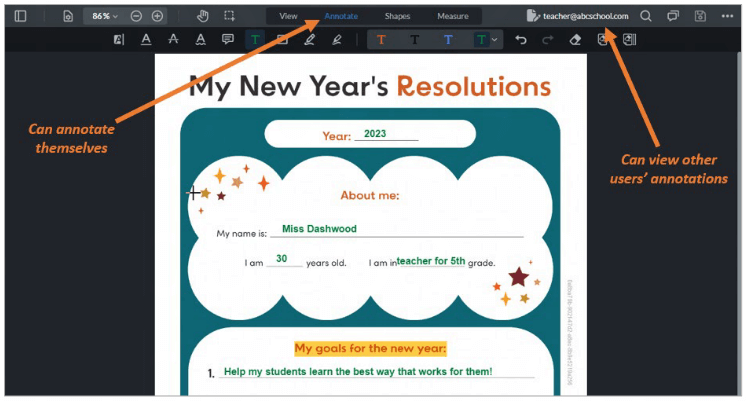
Here’s a sample of how this works in a Teacher-Student scenario:
- Teacher’s View (with “Allow Annotation Viewing” set in their DRM policy)
- Teacher’s View (changing to view a student’s annotations)
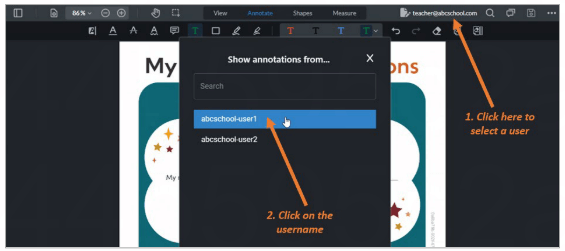
- Teacher’s View (now viewing another student’s annotations)
Exporting Others’ Annotations in a Downloaded PDF
If you would like to export the annotations of other users in a downloaded PDF, you will need to follow the steps below.
- Open the desired content in the Web Viewer.
- If annotation sharing is enabled, select the user(s)’ annotations by following the steps outlined above.
- Click on the hamburger menu again and select Export annotations and form data – this will download an XFDF file.
important note
You will need an unprotected copy/original version of the file to import annotations successfully after downloading. - Open the file unprotected version of the PDF in Adobe or PDF X-Change and follow the steps below to import the annotations.
.png?width=308&height=262&name=P%20113(1).png)
In Adobe:
- Open the downloaded PDF with Adobe.
- Click on the Comments icon on the right side tool menu.
- Click on the Options menu and select Import Data File.
- Select the appropriate XFDF file and open it.
.png?width=441&height=200&name=P%20113(2).png)
In PDF X-Change:
- Complete steps 1 through 4 in exporting annotations.
- Open the unprotected PDF with PDF X-Change.
- Click on the Comments tab.
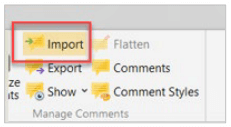
- Click on the Options menu and select Import Data File.
- Select the appropriate XFDF file and open it.