Learn about other content functions in Vitrium:
important note
There are NO groups in Vitrium for Enterprise accounts that use External Service. Any groups would be managed in your other system.
Users in a Group
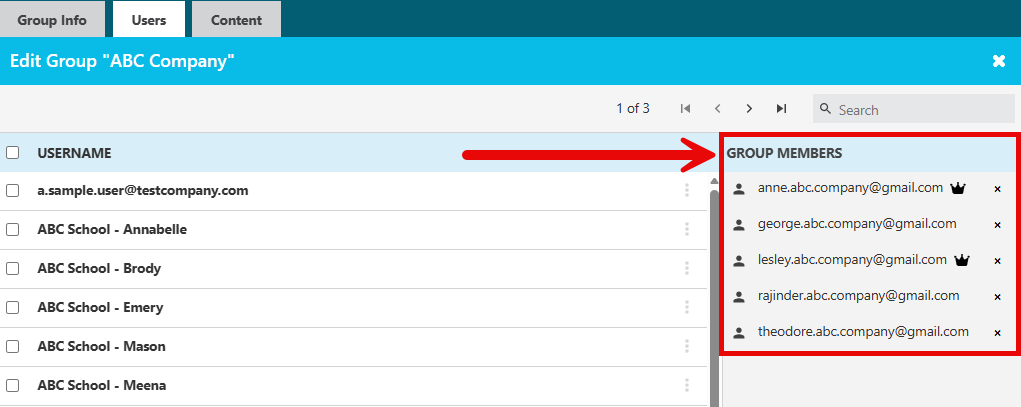
- In the GROUPS tab, click the users icon beside the group in question

- You will see all the users in that group listed as "Group Members" on the right-hand side
Content Assigned to a Group
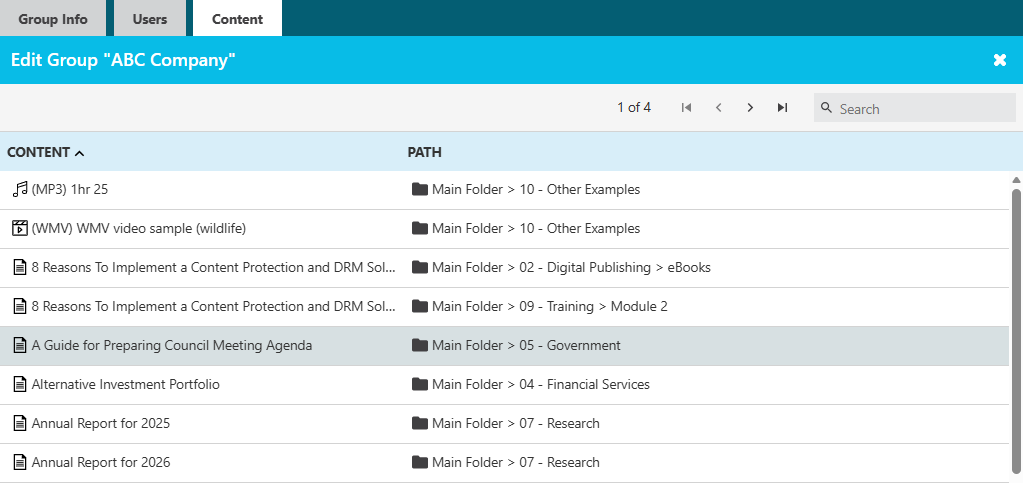
- In the GROUPS tab, click the content icon beside the group in question
- You will see all the content they have been assigned permission to
Searching Groups
You can search for groups in the GROUPS tab based on the following information:
- Group Name
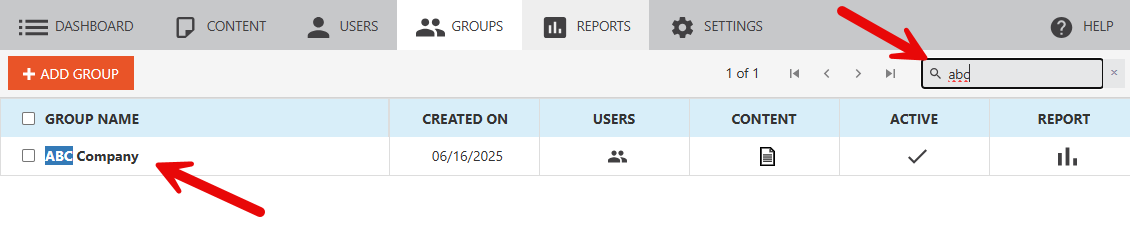
- Group ID
- Notes (if you set any)
- Custom Field (if you set any)
- External Key (if you set one)
Revoking / Deactivating a Group
You can revoke (or deactivate) a group by clicking on the ACTIVE icon beside the group in question:
- An ‘X’ indicates they are no longer active. This also revokes this group's access to any content that has been assigned to them.
- A checkmark indicates they are active. You can toggle this on or off at any time.

Deleting Groups
To delete a group in Vitrium:
- Click the small box to the left of the group in question, then click DELETE GROUPS. You can select one group or multiple groups at a time.
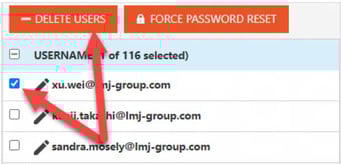
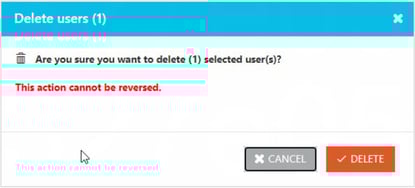
- You will be prompted with a message confirming that you are okay to delete the user as this action cannot be reversed. If you are okay with this, click DELETE.