Learn about other content functions in Vitrium:
Searching Content
You can search for content in the CONTENT tab, either at the Main Folder level (which searches within all the folders) or at a specific folder. You can search for content based on the following information:
- By content title
- By the content code
- By a tag (if you set any)
- By the web link URL
- By an External Key

Replacing Content
You can either choose to replace existing content with a new or updated version, or add an entirely new version of your content, while retaining the original version. The former is helpful if you no longer want users to access the previous content and the latter is helpful if you do want users to access both the original content but also the newer version as well.
Replace Content with New / Updated Version
Click on the content in question to open the Edit Content window, then click BROWSE beside the Replace Content field, or drag and drop your content to this window, then click Save & Exit.
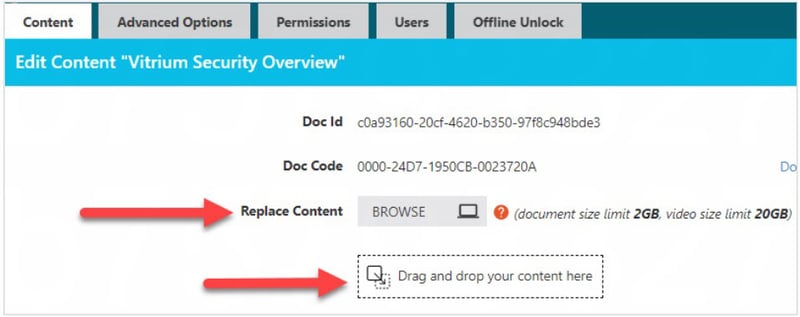
important note
When replacing content, these changes will appear immediately for the web viewer, but you will need to re-download and send the protected PDF version to your end users.
Add New Version & Retain Other Version
You can do this in one of two ways:
- Simple Method: add the new version with its specific version number in the content name.
- Advanced Method: add the new version using the 'version' feature in Vitrium.
Simple Method
Follow the regular method to add a new version of your content using a different content name to distinguish between the two: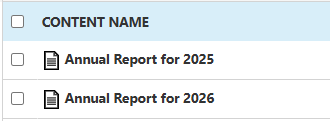
Advanced Method
This option is only available in Enterprise Edition. Click the + symbol under the VERSION column beside the content you wish to add another version to.
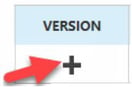
Then click BROWSE beside the Upload New Version Content field to select your new file, or drag and drop the file into this window, and then click SAVE VERSION.

Once you have more than one version set in place, the icon in the Version column will change to say MANAGE and if you click on that, you will see all the different versions, each with their own WEB LINK and SECURE PDF that you can send to users.

important note
Annotations are not shared across versions.
Reviewing Content Activity
Click on the REPORT icon beside the content in question to view the associated user activity for that content.

You will be redirected to the User Activity Log in the Reports tab where you can see who has opened the file, on what date and time, from which IP address, from what type of application or browser, and more. Refer to the User Activity Log in the Reports section for more information about how to read this report.
Deactivating Content
To deactivate content, click the ACTIVE icon beside the content in question:
- An ‘X’ indicates it is deactivated
- A checkmark indicates it is active
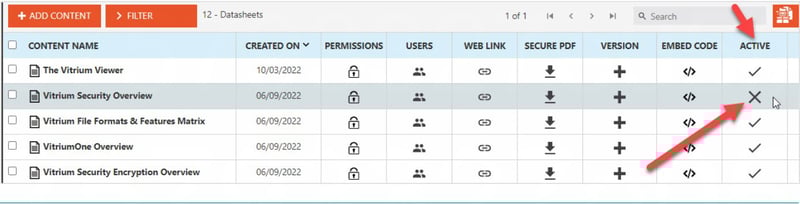
Once content is deactivated, end users will no longer have access to it, but if they attempt to unlock it, they will receive an error message and you will see this error appear in the User Activity Log. You can reactivate the content later or delete it entirely from the system.
Deleting Content
To delete content, click into the small white box on the left side of the content in question, then click the DELETE CONTENT button. You can delete a single file, multiple files, or folders from within the Content tab.
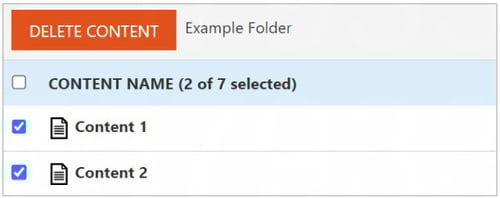
Once you click the Delete Content button, you will see another prompt confirming your deletion.
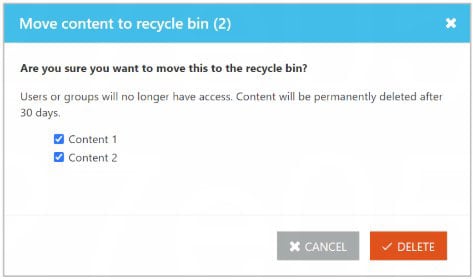
This will move files to the Recycle Bin folder on the CONTENT tab of your Admin. Files contained in the Recycle Bin will automatically be deleted permanently after 30 days.
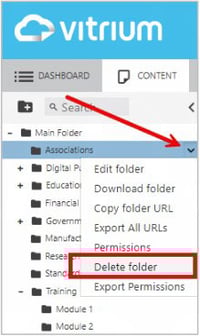
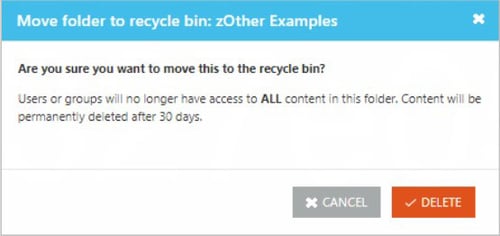
To delete a folder (and its sub-folders), click on the folder you wish to delete, and drag it to the Recycle Bin. You can also click on the folder options and select Delete folder.
Recycle Bin Feature
The recycle bin feature in the CONTENT tab is quite useful for temporarily storing deleting folders and content (and their corresponding permissions).
You can access the Recycle Bin by clicking on it at the bottom of the folders section:
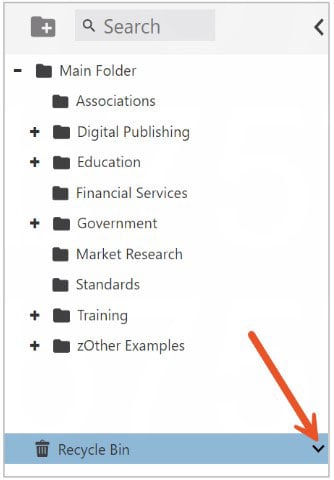
If you want to permanently delete files before the 30 day period:
- Open the Recycle Bin folder on the CONTENT tab of your Admin.
- Select the file or folder (including subfolders) you wish to permanently delete.
- Click the DELETE CONTENT button at the top of the window.
- Confirm your decision by clicking DELETE.
If you need to restore deleted content (and its permissions):
- Open the Recycle Bin folder on the CONTENT tab of your Admin.
- Click and hold the file or folder (including sub-folders) you wish to restore.
- Drag and drop the file in the appropriate folder in your CONTENT tab.
important note
If you delete files from or empty the RECYCLE BIN, files will be deleted from Vitrium’s servers PERMANENTLY and cannot be recovered.