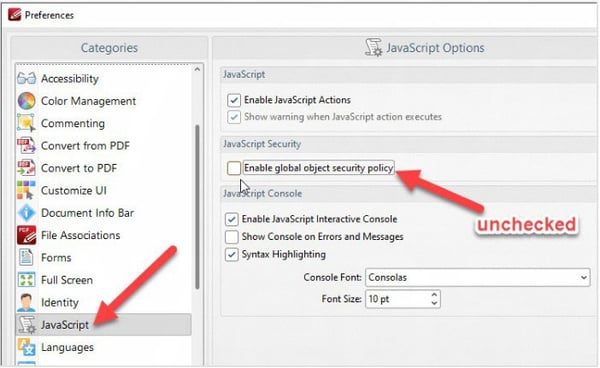
Before you open the same protected PDF file a 2nd time, you must disable the “global object security policy” in the Adobe or PDF-XChange app. This is to allow the ‘device’ cookies or ‘tracking ID’ to work effectively.
- If your end user DOES NOT disable this feature, then they will track multiple cookies (or tracking IDs) on their same computer and may reach their device limit unnecessarily, prompting a support call to your organization.
- If your end user DOES disable this feature, then the Adobe or PDF-XChange app will track a single device cookie (or tracking ID) on that machine and the user will not likely reach their device limit.
Disabling the “global object security policy” does NO HARM to your user’s computer. It is simply a mechanism to create a single tracking ID (or cookie) on their computer, no different than how a browser session tracks cookies as well.
To disable this feature in Adobe Acrobat Reader (on a PC):
- From the top menu bar, click Edit > Preferences.
- Under Categories, click JavaScript.
- Uncheck the field “Enable global object security policy" and ensure the “Enable Acrobat JavaScript” field is checked.
- Click OK.

To disable this feature in Adobe Acrobat Reader (on a Mac):
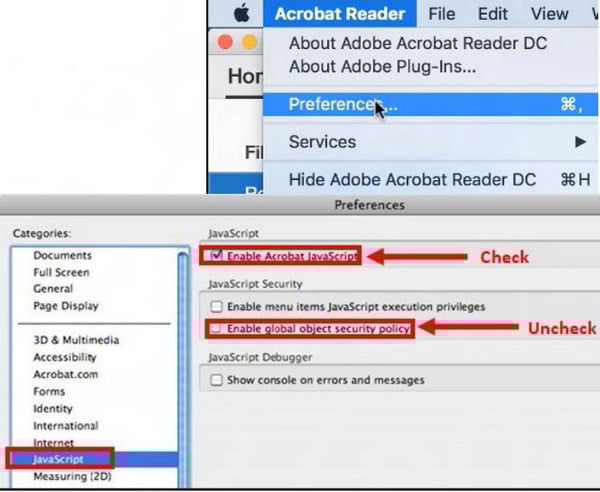
- From the top menu bar, click Acrobat Reader > Preferences.
- Under Categories, click JavaScript.
- Uncheck the field “Enable global object security policy" and ensure the “Enable Acrobat JavaScript” field is checked.
- Click OK.
To disable this feature in PDF-XChange Editor (on a PC):
- From the top menu bar, click File > Preferences.
- Under Categories, click JavaScript.
- Uncheck the field “Enable global object security policy”.
- Click OK.