The Corporate License Module allows you to assign a new role, License Manager, to a select User in a Group which allows that user to grant access to your content to other users in their organization (or corporation, or school, or entity). The organization needs to be set up as a Group in Vitrium and the number of users the License Manager can assign will be based on the License Usage that you set for that Group.
Once everything is set up in the Vitrium Account (on the admin side), the License Manager can then add the other users from within the Vitrium User Portal (on the end user side). The other users added will receive an email to activate their account and, once activated, they will automatically get added as a User in that Group in your Vitrium account.
important note
This feature is only available in Pro Edition or Enterprise Edition where the External Service (integration) feature is NOT used.
Corporate License Module feature activation
To activate the feature, you will first need to setup SMTP Settings for your account, then follow the steps below:
- In Vitrium, go to SETTINGS
- Click Account Settings
- Click on the box next to Enable Corporate License Module to activate feature.
- Select the appropriate SMTP settings from the drop down menu that appears.
- Click SAVE SETTINGS to ensure the changes are saved.
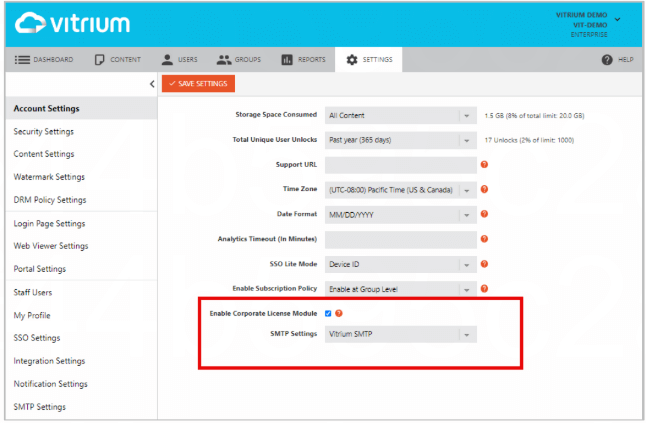
Assigning License Usage & License Manager (on Admin Side)
It is recommended that you assign the License Usage and License Manager when you add a new Group in Vitrium, but you can also assign the user later as well.
- When you add a new Group or edit an existing Group, you will see the field “License Usage”. Enter the number of licenses (active users) you would like to assign to the Group here.
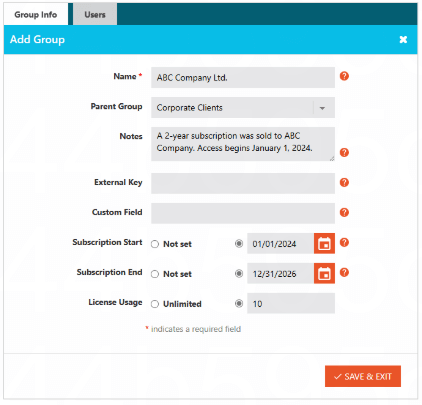
- Click on the Users tab.
- Find the user who you will give admin rights to add other users in their account, then click on the three-dot menu and select Manage License. When this option is selected, a crown icon will appear next to their username.
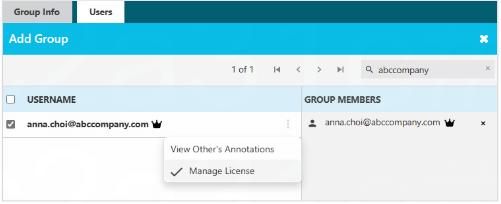
- Click SAVE & EXIT.
This user is now the License Manager for the new Group that you created, and they can add other users from their organization within the User Portal.
Adding & Managing Licenses in User Portal (End User Side)
A ‘corporate’ or ‘school’ or ‘organization’ License Manager can add, manage, and revoke licenses to content they purchased through the User Portal
- The License Manager can log into the User Portal with their own credentials.
- When logged in, they can click the account icon in the top right corner and choose Manage License.
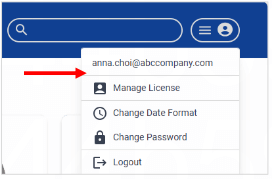
They will now be in the License Management section of the portal. This section will show the number of Total Users, Available Licenses, functions to Import, Export, Add Users, and the list of other Licensees in their account.
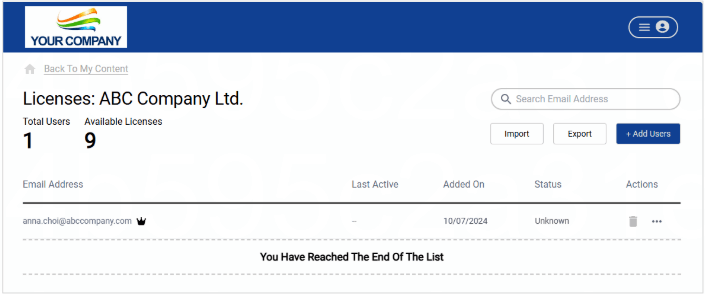
To Add a New Licensee
- From the License Management page, click the + Add Users button.
- Enter the email addresses or drag and drop a CSV file with user information (a CSV template can be downloaded from the dialog box that appears by clicking the + Add Users button).
- Users will receive an email asking them to confirm their account and create a password. Once that is done, they will be able to log into the portal to access their licensed content, or they can access the content directly if they have been provided the direct web link.
To Remove a Licensee
- From the License Management page, find the selected user you would like to remove by sorting the list, or using the search bar in the top right corner.
- When you have found the user, click the trash can icon on the right side.
- You will be asked to confirm your action. Click Confirm to delete the user.
To Assign an Additional License Manager
- From the License Management page, find the selected user you would like to assign as an additional License Manager.
- Click the three-dot menu on the right side of the page next to their email address.
- Click Assign Admin Access.
To Revoke License Manager Access
- From the License Management page, find the selected user you would like to revoke as an additional License Manager.
- Click the three-dot menu on the right side of the page next to their email address.
- Click Revoke Admin Access.
important note
If there is only one License Manager, they cannot revoke their own access, ensuring that at least one user will always be able to manage licenses.