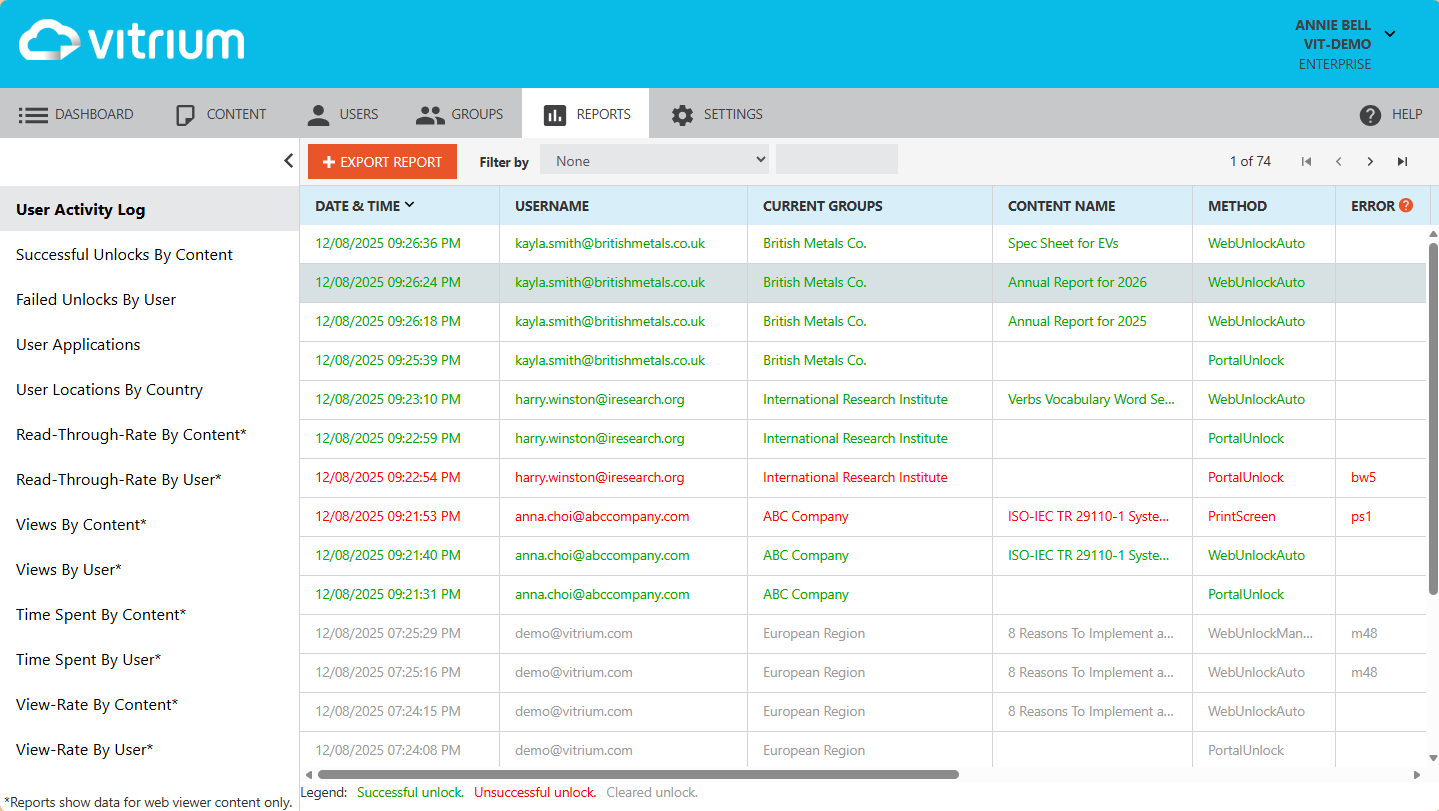
The User Activity Log is one of the most accessed reports in Vitrium Security as it provides information about:
- Who is accessing your content
- Which content & on what date or time
- How are they accessing content (method, browser, app)
- Where are they accessing content from (IP address, country)
In addition, unsuccessful unlocks with an associated error code also help you identify potential misuse of your content attempting screen print) or they can help you troubleshoot end user issues.
| Report Legend | Description |
| Successful Activities appear in GREEN | These are successful attempts by users accessing Vitrium-protected content or logging into the portal. Refer to the Method column for what attempt was made. |
| Unsuccessful Activities appear in RED | These are either unsuccessful attempts due to a user forgetting their password (bw5), or a user exceeding a DRM limit that was imposed on them (exceeded device limit vc3, content expired qe2), or it could be related to an administrative error in assigning the correct permissions (w29). |
| Cleared Activities appear in GREY | This means an administrator cleared the person’s use (to reset their limits) but their activity will still appear in the report for tracking purposes. |
Definition of Column Headings
| Column Heading | Description |
| Date & Time | The date & time stamp when the user accessed the portal or specific content. The time zone is set according to what is selected in the Account Settings. |
| Username | This is the user who accessed the portal or specific content. |
| Current Groups | This is the group that the user currently belongs to (if applicable). |
| Content Title | This is the content that the user accessed. If nothing appears, then it is likely a portal unlock. |
| Method | This is the function that the user took. There is a full description of all the different methods in this Knowledge Base FAQ. The most common ones are: - PortalUnlock - WebUnlockAuto |
| Error | This is the code that references what error occurred for the user. There is a full description of all the different error codes in this User Activity Error Code Guide. The most common ones are: - w29 (no permissions set) - vc3 (device limit exceeded) - bw5 (forgot password) |
| IP Address | This is the IP address of the user who accessed or attempted to access the content. |
| Tracking ID | This is the tracking ID (or cookie session) of the user who accessed or attempted to access the content. |
| App | This is the application that the user used to access the content. It may be a browser or a PDF app. |
| Version | This is the version of the application that the user used to access the content from. |
| OS | This is the operating system that the user used to access the content from. |
| Country Code | This is the country and/or state/province where the user accessed the content from. |
note: ‘O0’, ‘O1’, ‘00’ and ‘01’ codes are private IP addresses and may be hidden behind a proxy server.
Exporting the Report
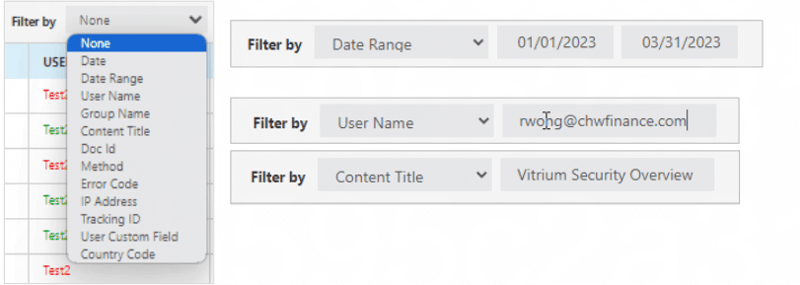
You can export the User Activity Log, but it is strongly recommended to filter it first by a date range. This is because the report can be VERY LONG, especially if you have a lot of users or a lot of content. You can filter it by Date Range, User Name, File Name, Error Code, or one of the many other drop-down selections available.
Filter Report First
Then Export
Once you are satisfied with the filtered report, then click the EXPORT REPORT button and this will export a CSV file.