Vitrium Security offers one of the most robust and extensive digital rights management (DRM) controls for protecting content. DRM Policy Settings can be applied to users or groups and set via permissions at the content level or the folder level.
- Overview of Vitrium DRM Policy Settings
- How to Add a DRM Policy Setting
- Definition of DRM Fields: General Settings
- Definition of DRM Fields: Advanced Options
- Definition of DRM Fields: Web Viewer Controls
- Overview of Vitrium DRM Policy Rule
- Understanding How Device Limits Work in Vitrium
Overview of Vitrium DRM Policy Settings
There are over 25 different DRM controls in Vitrium depending on which edition you have, but with any edition, you can set different DRM policies to different users or groups.
|
General DRM Settings |
Advanced DRM Settings | Web Viewer Controls |
|
|
|
How to Add a DRM Policy Setting
- In Vitrium, go to SETTINGS
- Click DRM Policy Settings
- Click the ADD DRM POLICY
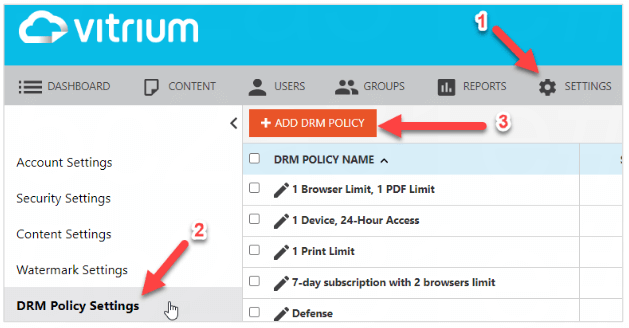
You can create different DRM Policy Settings and assign different policies to different users.
Definition of DRM Fields under General Settings
These DRM fields are available in all editions:
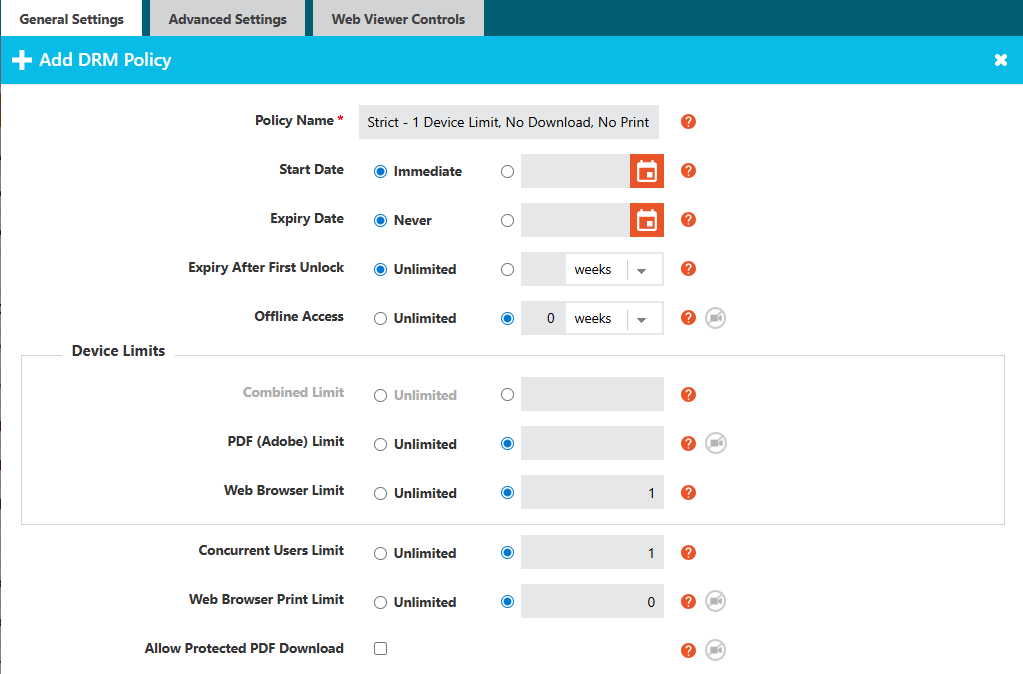
- Policy Name
This is the name of your DRM policy.
Note: it is recommended to give it a descriptive name such as Strict Policy: 1 Device, No Print, No Download. - Start Date
This is the beginning date when a user can access the content they have been assigned.
Note: you may want to consider using the Subscription Policy to manage subscription dates for users or groups. - Expiry Date
This is the end date when a user can access the content they have been assigned.
Note: you may want to consider using the Subscription Policy to manage subscription dates for users or groups.
- Expiry After First Unlock
This is the number of weeks/days/hours/minutes after which a content will expire for a user that has been assigned with this DRM policy.
Note: it is a ‘relative’ expiry so it starts counting after the user's first unlock session. - Offline Access
This is the number of weeks/days/hours/minutes that a user can view their content in offline mode. It starts counting after the user first clicks the 'Save for Offline' button in the web viewer or from the first time a user opens the downloaded protected PDF file. Set it to ‘0’ to not allow offline access. This setting is NOT applicable to video or audio due to browser size restrictions. “Remember me” needs to be selected on the login screen/enabled in SSO settings for this feature’s icon to appear.
- Device Limits Note: for documents, device limits can be combined between the web viewer and downloadable protected PDF but we recommend using the separated limits for simplicity's sake.
- Combined Limit
This is the total device limit which adds usage from BOTH the downloaded protected PDF access and browser access from the web viewer. - PDF (Adobe) Limit
This is the device limit for the downloaded protected PDF file which starts counting AFTER the user has opened the file with a supported PDF app. Users are required to disable the 'global object security policy'. Click here to learn more about that policy. - Web Browser Limit
This is the device limit (or specifically ‘browser’ limit) for the web viewer (or video or audio web players). Note: Vitrium's browser limit is dependent on browser cookies so you must instruct users NOT to open content in incognito mode, or they will use up their device limits very quickly! - Concurrent Users Limit
This is really more of a concurrent sharing limit as you can set the number of sessions that a user can open their content simultaneously. Multiple tabs of the same content in the same browser will not count against this limit. Note: this feature is only applicable to the web viewer for documents and images and it does not apply to content viewed offline. - Web Browser Print Limit
This is the number of times a user can print the web viewer for a document or image. Note: it does not control how many copies a person can print.
note
A print session will be counted even if the person only selects 1 page. You cannot control how many copies they print as the browser’s print dialog box is out of Vitrium’s control.
Definition of DRM Fields: Advanced Settings
These fields are available in Enterprise Edition or as an add-on for Pro Edition.
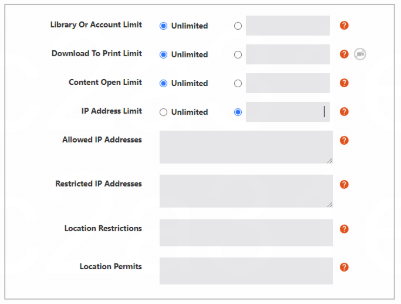
- Library or Account Limit
This is where you can set the total number of files that a user can access. This is ideal for scenarios where you offer a ‘library’ of content to a user, but they can only access, say 10 out of 100 files. - Allow Protected PDF Download
This is where you can enable the protected PDF download feature within the web viewer. If you enable this, be sure to set a PDF Limit in the Device Limit section. - Content Open Limit
This is where you can set the maximum number of times a user can access or unlock a specific content. - IP Address Limit
This is where you can set the maximum number of IP addresses that a user can access your protected content from. If you want to specify a particular IP address or range, enter 0 as the limit, then enter the IP address in the ‘Allowed IP Addresses’ section below. - Allowed IP Addresses
This is where you can specify a single IP address or a range of IP addresses for where a user can access content from. This is ideal when you distribute content to an organization or an educational institute and are okay if anyone from that organization or institute can access your content. - Location Restrictions
This is where you can restrict users from certain countries and/or states or provinces from accessing your content. If you set Russia for example, then anyone with a Russian IP address cannot access your content. - Location Permits
This is where you can only allow users from certain countries and/or states or provinces to access your content from. If you set United States, for example, then anyone with a US IP address can access your content, but users with IP addresses outside of the US cannot access your content.
Definition of DRM Fields: Web Viewer Controls
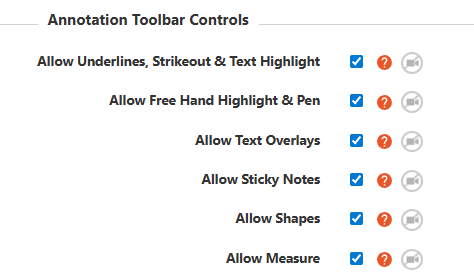
- Allow Underlines, Strikeout & Text Highlight
Choose whether to show (allow) or not show the underline, squiggly underline, strikeout, and text highlight functions in the web viewer. - Allow Free Hand Highlight & Pen
Choose whether to show (allow) or not show the free hand highlight or pen / drawing tool in the web viewer. - Allow Text Overlays
Choose whether to show (allow) or not show the text overlay tool in the web viewer. The text overlay is when you can add text on top of your document. - Allow Sticky Notes
Choose whether to show (allow) or not show the sticky note (comment) tool in the web viewer. - Allow Shapes
Choose whether to show (allow) or not show the whole shapes feature in the web viewer. - Allow Measure
Choose whether to show (allow) or not show the whole measure feature in the web viewer.
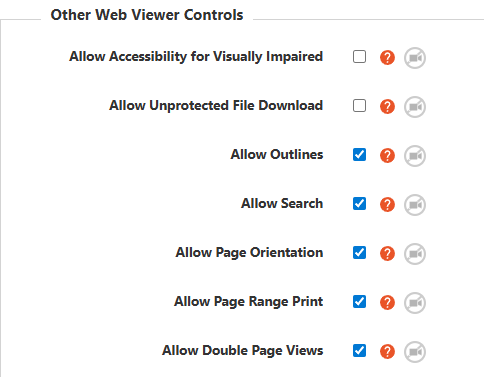
- Allow Accessibility for Visually Impaired
Choose whether you want to enable (allow) the accessibility feature in the web viewer. Accessibility allows a visually impaired person to read out all the toolbar functions in the web viewer, as well as the text of the content. - Allow Unprotected File Download
Choose whether you want to enable (allow) the user to download an unprotected version of your document. This may be handy for certain documents like an Excel file or a template document that you want a user to modify, edit, or use how they wish. - Allow Outlines
Choose whether to show (allow) the outlines feature in the web viewer. Outlines are the bookmarks or table of contents that you would have added to your original document that appear on the left-hand side of the web viewer. - Allow Search
Choose whether you want to allow a user to use the search function in the web viewer. They can search for any word or phrase within the document. - Allow Page Orientation
Choose whether you want to allow a user to change the page orientation of the document. - Allow Page Range Print
Choose whether you want to allow a user to select "All pages" or "Print Specific Page" when they print their document. - Allow Double Page Views
Choose whether you want to allow a user to view the content with double-page views showing 2 pages side-by-side.
Vitrium's DRM Policy Rule
Since you can apply DRM policies in different ways in Vitrium: to users or groups, at the content level or folder level, it is critically important to be aware of Vitrium's DRM Policy Rule especially if there are multiple DRM policies in place for the same user:
note
The most lenient DRM policy setting will always apply. For this reason, Vitrium recommends ONLY setting a DRM policy at one level (content-level OR folder-level) and to one type (users OR groups).
Understanding How Device Limits Work
The device limit in Vitrium Security is more of a ‘cookie limit’ but that can be a confusing term to people, so Vitrium uses the term device limit instead. Vitrium tracks a ‘device’ in different ways depending on which encrypted content the user is opening:
For Web Viewer / Video Player / Audio Player
Device Limit = Web Browser Limit
All browsers today store ‘cookies’, or small bits of information that helps identify who you are and remembers your preferred browser settings, including websites or content that you have previously logged into. Vitrium uses these cookies to track a browser session as part of its device limit feature. It’s very useful for users since they don’t need to log in for every content.
However, if the user opens content on one browser on their computer (Chrome), and then accesses the same content on a different browser but still on the same computer (Firefox), this will count as 2 devices because it is 2 different browser cookies.
Most users, however, access content on 1 browser per device but they may have multiple devices – a work computer, a home laptop, a smartphone, and a tablet. This is why Vitrium recommends setting 3 or 4 for Web Browser Limit in the DRM policy.
If the user accesses content in a browser’s incognito mode, then cookies are not tracked so the user will quickly reach their device limit. Because of this limitation, it is strongly recommended to ask users NOT to access content in incognito mode, otherwise, you may receive a lot of support calls related to them exceeding their device limit.
For Protected PDF
Device Limit = PDF (Adobe) Limit
PDF desktop viewing apps like Adobe Acrobat Reader and PDF-XChange Editor also have the ability to track cookies but it requires the user to disable the global object security policy in their PDF desktop app. Vitrium uses these cookies to track a PDF session as part of its device limit features, but it requires the user to disable this option in the app on their local machine.
It is strongly recommended to ask users to disable the global object security policy in their PDF desktop app. Disabling the feature does not harm the computer and does not put the user at any risk.
You can learn more in the section Disabling the Global Object Security Policy.