Vitrium Security offers different types of encrypted content, depending on the content type:
| Secure Web Viewer |
Protected PDF File |
Secure Video Player | Secure Audio Player |
|
|
|
|
*Desktop versions only.
Secure Web Viewer
To open Vitrium-protected content in the web viewer, click the WEB LINK icon in the CONTENT tab of your Vitrium account.
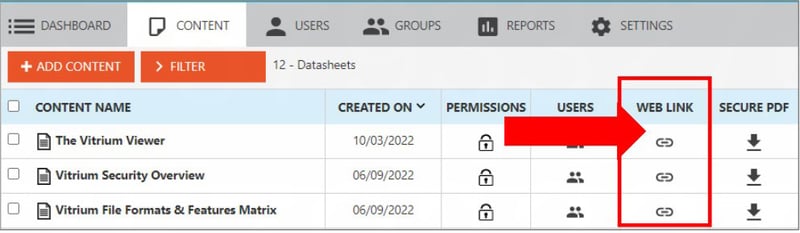
NOTE: You must have the correct permissions to successfully open the web viewer and you may need to add yourself as an End User since Vitrium separates End Users from Staff Users. Refer to the previous section Assigning Permissions.
Sample Web Viewer
The web viewer content will appear like this, although some toolbar items may differ depending on what options are enabled in the DRM Policy Settings.
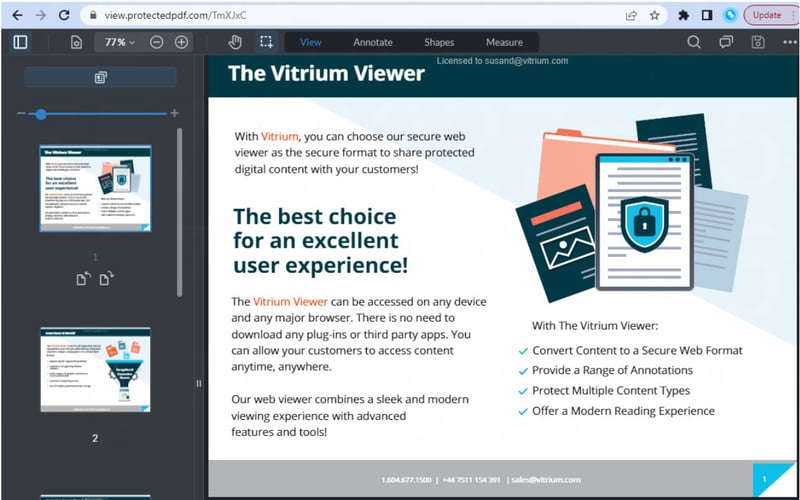
This is viewed with the web viewer's "dark mode". Refer to the Web Viewer Guide for more details about all the feature of the secure web viewer.
Distributing a Web Viewer Document or Image
You can right-click on the WEB LINK icon beside the content and select "Copy link".
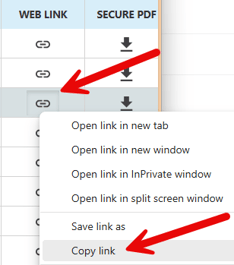
Then paste this URL link in an email, on your website, or in another system that you use to distribute your content to users.
Export Web Viewer URLs
If you need a list of all the web viewer links for your content, you can also export all the links. Select a specific folder or Main Folder if you want to export all the URLs and select Export Web Viewer URLs from the list:
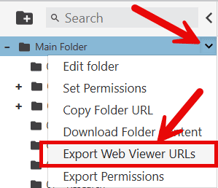
This option downloads a CSV file that will contain all the Vitrium-related information about the content in that folder including the Folder Path, the Doc ID, the web viewer URL, and other information as shown here:

Protected PDF File
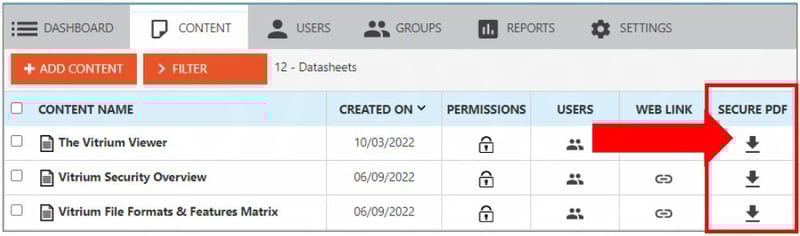
To open the protected PDF, click the SECURE PDF icon in the Content tab.
important note
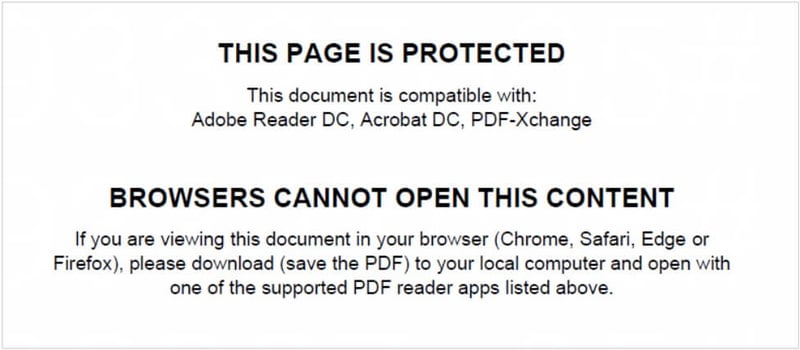
Vitrium’s protected PDF can be opened on desktop versions of Adobe Reader & Pro (PC & Mac), PDF-XChange Editor (PC), and Bluebeam Revu (PC).
The downloaded file will open differently depending on which browser you are using and it is important to be aware of these key points:
- The pages of the content will NOT show if the file is opened in a browser, Mac Preview, or another unsupported viewer. You must open it with one of the support PDF viewers.
- Go to your Downloads folder, right-click on the content and select Open With, and then choose Adobe Reader, PDF-XChange, or one of the supported PDF viewers.
- First-time users will need to click “Allow” on the communication prompt.
- First-times users will also need to disable the Global Object Security Policy. Click here to learn more about that and the steps involved.
Additional Customization for Protected PDF
When a downloaded Protected PDF is opened by an end user, the page contents will be hidden by an obscure page until the document is successfully unlocked (either manually or automatically, depending on your set-up). By default, the users will see this message, but Enterprise Edition customers can request to customize this page (called the "Obscure page") to include text or hyperlinks, such as a link to your organization's support page. It is not recommended to include images since this obscure page appears on every page of the document so adding images could quickly increase the document size, which would also impact your account storage.
Secure Video & Audio Player
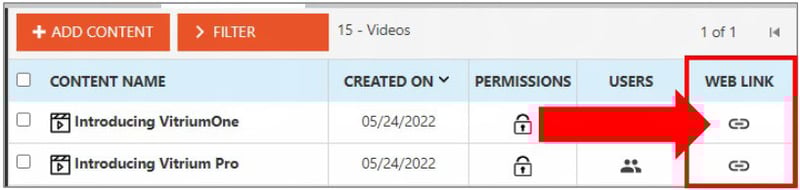
To open video or audio content in their respective online streaming players, click the WEB LINK icon beside the content:
Video Player Sample
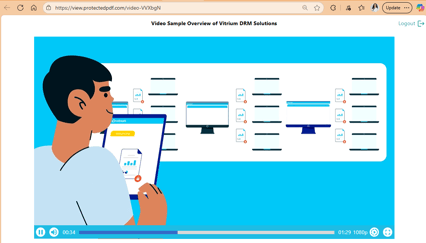
The video player will appear like this, though it would show the thumbnail image of your video and your watermarks instead:
Skip down below to review a summary of all the other features of the video player.
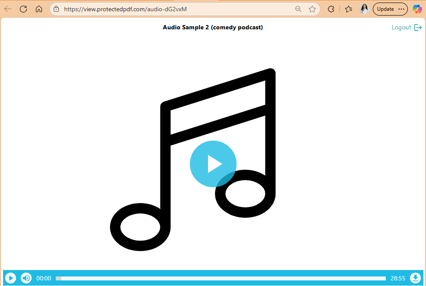
Audio Player Sample
The audio player will appear like this by default, though you can change the thumbnail image to customize it for your own purpose:
You can also watch the video in full screen mode.
Features of Vitrium's Video & Audio Player
The following table outlines the features of the Secure Web Player:
| Feature | Video | Audio |
| Play/Pause User can start or stop the video or audio. Buttons found on control bar at bottom of web player, or user can click anywhere on the content to start or stop playback. |
||
| Volume Control User can turn the volume up or down. |
||
|
Time Bar
Shows the run time of the video or audio and when the run time has elapsed. User can also select any point in the video or audio to start playback from. |
||
| Resolution Control User can change the video resolution from whatever options were set by the Vitrium administrator (1080p, 720p, 480p, 360p or 240p). Default option will be Auto, which automatically selects the resolution based on user’s connection speed. |
||
| Playback Speed Control User can increase or decrease the speed of the video playback. Default is 1x. |
||
| Fullscreen User can choose to watch the video in full screen mode. |
|