To set up single sign-on (SSO) access or to integrate Vitrium with another system that you use in your business for distributing content to users, contact the Vitrium team today. You can also check out our API Guides in our Knowledge Base.
important note
It is strongly recommend you consult with Vitrium prior to setting up any SSO Settings or using any of Vitrium's APIs as our team will be able to provide you best practices based on your use case, make recommendations, and point you in the right direction to get started.
The information in this Admin Guide is only to give you a high-level overview of these sections in Vitrium.
SSO Settings
Vitrium can connect to virtually any 3rd party system to set up single sign-on (SSO) for your users, but it also has several out-of-the-box SSO settings that can be used with Microsoft, Google, or Salesforce OAuth2.0. That's what will be covered here.
Steps to add OAuth2.0 SSO to your account:
- In Vitrium, go to SETTINGS
- Click SSO Settings
- Click ‘ADD OAUTH’ and choose from the list of options or, ‘ADD SAML’
- A popup dialog box will appear. For Facebook, Google, Microsoft & Salesforce the ‘Consumer Key’ and ‘Consumer Secret’ fields are required.
- For Custom SSO and SAML, the required fields are indicated with an asterisk.

Integration Settings
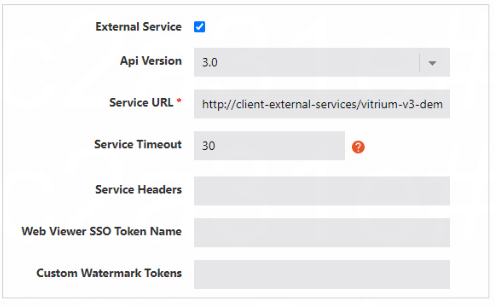
To integrate Vitrium with another system, your technical team or Vitrium's technical team will most likely turn on Vitrium's External Service. This is a lightweight JSON app that allows Vitrium to connect to your preferred business system such as an LMS, a CRM, an eCommerce system, an AMS, CMS, or any web-based system.
When the External Service field is checked, you must enter a Service URL. All other fields are optional. You can find further information about the External Service and using Vitrium's APIs in the API Guides section.