There are 2 primary ways you can assign permissions to your Vitrium-protected content:
- At Folder Level (recommended)
- Assign user or group permissions at the folder or sub-folder level
- Ideal if you wish to apply controls for all content within a folder
- At Content Level
- Assign user or group permissions at the individual file/content level
- Ideal if you wish to apply granular-level controls for specific content
Assign Permissions at Folder Level
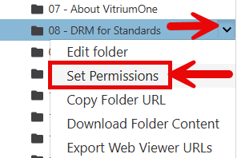
- In the CONTENT tab of Vitrium, click on the down arrow beside the folder you wish to assign permission to, then select Set Permissions.
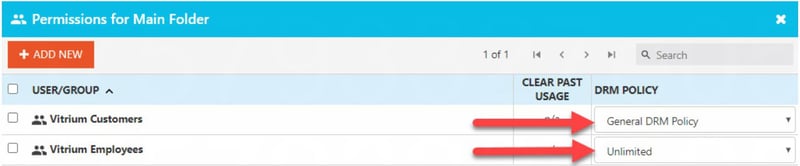
- In the Permissions window, click ADD NEW, then select the USERS or GROUPS you wish to assign to all the content in that folder, select a DRM Policy, then click Save & Exit.
important note
You can assign a different DRM policy to different users or groups by changing it in the Permissions window. This is ideal if you have different policies you wish to assign to different types of users.
Assign Permissions At Content Level
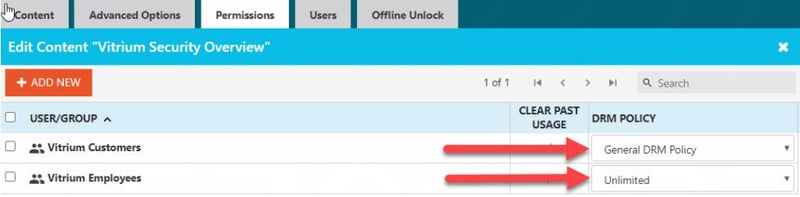
- In the CONTENT tab of Vitrium, click on the Permissions icon beside the content in question.

- Click ADD NEW, select the USERS or GROUPS you wish to assign to the content, select a DRM Policy, click Save & Exit.
Review Existing Permissions
- In the CONTENT tab of Vitrium, click on the down arrow beside the folder in question, then select Export Permissions.
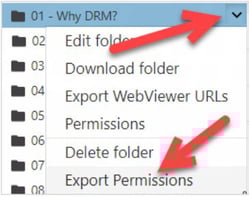
- Next, click EXPORT to export a CSV file and you can review what existing permissions have been assigned to this folder.
