This section will include an overview of Vitrium's general settings including the following:
Account Settings
The Account Settings are where you can find details about your Vitrium account (total user unlocks and storage consumed) and where you can set up basic settings for your account such as time zone, date format, SMTP settings, and more. The table below defines each field.
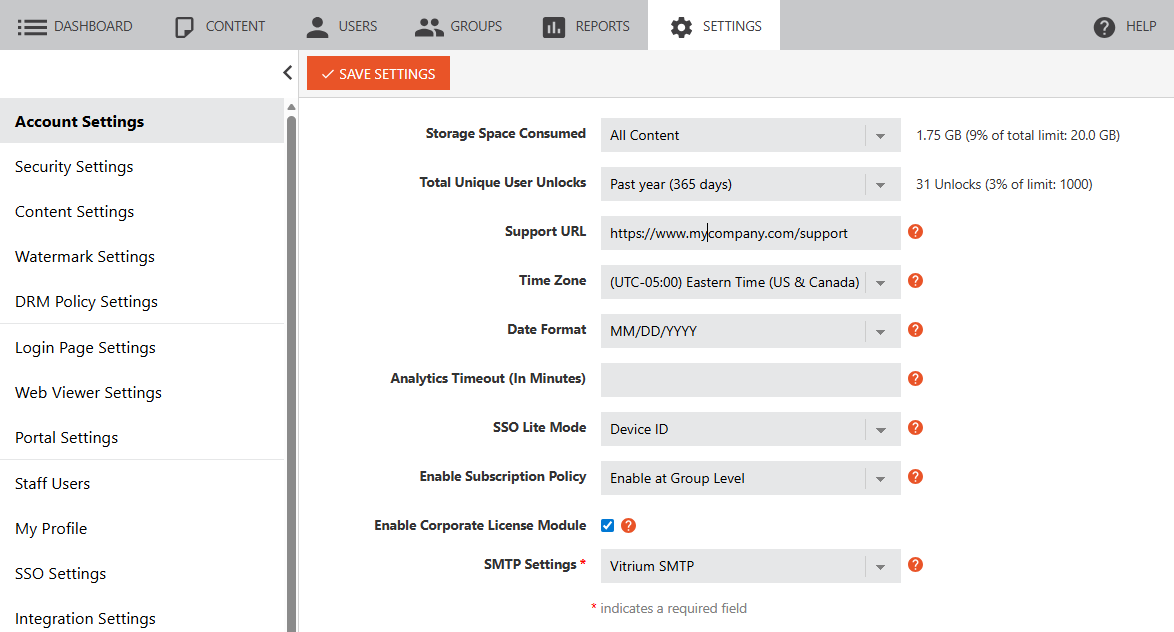
Account Settings Fields
| Field Label | Description |
| Storage Space Consumed | This is the total storage space being consumed by this Vitrium account. This is counted towards the Storage Limit that your company signed up for. Total storage includes the original (unprotected) files + all the protected versions. Refer to the section below for more details on How Vitrium Calculates Storage. |
| Total Unique User Unlocks | This is the number of unique users who have unlocked protected content on your account. Only users who have unlocked protected content count towards your user limit. The number is based on the previous 365 days from the current date, so will likely change often depending on usage. |
| Support URL | This is the URL that will appear in the error messages that end users see when they cannot access content due to some restriction being set in place. You should enter it as https:// or www. |
| Time Zone | This is the time zone for your account. You can change it at any time. |
| Date Format | This is the date format for your account. You can choose from a variety of different options. |
| Analytics Timeout (in minutes) | This is the maximum time analytics will log in reports if there has been no interaction with an open page, the default value is 10 minutes. Alternatively, you can set to ‘0’ for unlimited. |
| SSO Lite Mode | This is a convenient feature that allows a user to log into a file once and then, through cookies, are automatically granted access to other protected content that you send them. When set to ‘Device ID’ (default value), the user is identified by the browser cookie or Adobe /PDF-Xchange cookie. When set to ‘IP Address’, the user is identified by their IP address. When set to ‘None’, the user will need to log into every content that you send them. |
| Enable Subscription Policy | Choose whether you want to enable a subscription policy (start & end dates) to be set at the user level or group level. You can only select one level. More details are covered in the section Subscription Policy. |
| Enable Corporate License Module | Choose whether you want to use the Corporate License Module which allows you to assign a License Manager (corporate admin person) to one of your end users, who can then add other users within their organization to access the content licenses they have purchased or been assigned. More details are covered in the section Corporate License Module. |
How Vitrium Calculates Storage Space
The Vitrium app will store much more than your original (unprotected file) and the total storage space consumed largely depends on what type of content you will be uploading into the system:
- For documents & images:
Vitrium will store 3-4x the size of your total files uploaded as Vitrium stores the original (unprotected) files + the converted web viewer files + protected PDF files. For Word, Excel and PowerPoint documents, Vitrium also stores a converted (unprotected) PDF file as well. - For videos:
Vitrium will store 3-6x the size of your total video files as Vitrium stores the original (unprotected) videos + the protected versions in all the different resolutions (1080p, 720p, etc.) that you select in your Content Settings. To keep your storage lower, only select one resolution setting (i.e. 720p). - For audio:
Vitrium will store 2-3x the size of your total audio files as Vitrium stores the original (unprotected) audio files + the protected versions.
To see a breakdown of your storage space, click the drop-down menu beside the field "Storage Space Consumed" and choose from one of the options that you see:
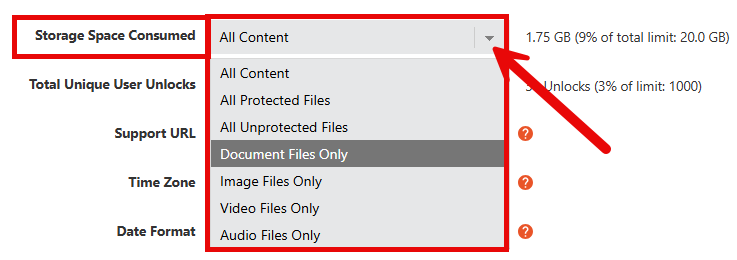
*The video and audio selections will only appear if you have paid for this add-on feature.
My Profile
Vitrium Security allows you to view or change your profile information.
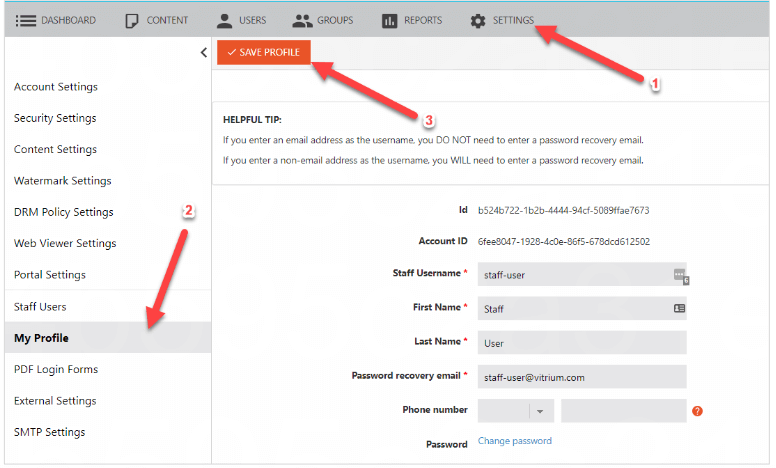
Steps to view or change your profile:
- In Vitrium, go to SETTINGS
- Click My Profile
- If you change your profile, click SAVE PROFILE
Information you can view or change:
- Change your password
- Retrieve your Vitrium account ID for API calls
- Change your username or name
- Change your password recovery email
Security Settings
These settings allow you to implement different password policies for both End Users and Staff Users.
| Field Label | Description | Set for End Users |
Set for Staff Users |
| Enable Two-Factor Authentication (2FA) | Users will need to provide their password, then enter a verification code that will be emailed to them. |  |
|
| Use 2FA On First Login Only | Check this if 2FA should only be used the first time the user logs in. Leave unchecked to use 2FA for every login session. | |
|
| Force All New Users To Reset Their Password | Check this to force all new End Users to reset their provided password. | |
n/a |
| Require Password | Check this if you wish to enforce the use of passwords for all end users. This cannot be checked if there are already End Users in the system without passwords. | |
Staff Users are always required to use a password. |
| Enforce Strong Password |
Check this to force all users to use a strong password: |
|
|
| Force Users To Reset Password After_days | Enter the # of days before a user is forced to reset their password. Leave blank or set to ‘0’ to disable the feature. Forcing a password reset will disconnect the user from any content they might already have open. | |
|
| Lock Out User After_ attempts | Enter the number of login attempts before a user's account is deactivated. It will reactivate in 15 minutes. Leave blank or set to ‘0’ to disable the feature. | |
|
| Prevent Users From Re-Using One Of The Last_ passwords | Enter a number for old passwords (excluding current password) that a user is not allowed to reuse when changing password. Leave blank or set to ‘0’ to disable the feature. | |
|
| Purge Activity And Usage Data When User Is Deleted | Check this if you want to delete the entire end user’s records in the activity log & reports after you delete them from Vitrium, thus effectively wiping out all their history. If is not checked and you delete a user, their activity information and other analytics data will remain in the system. | |
n/a |
Web Viewer Settings
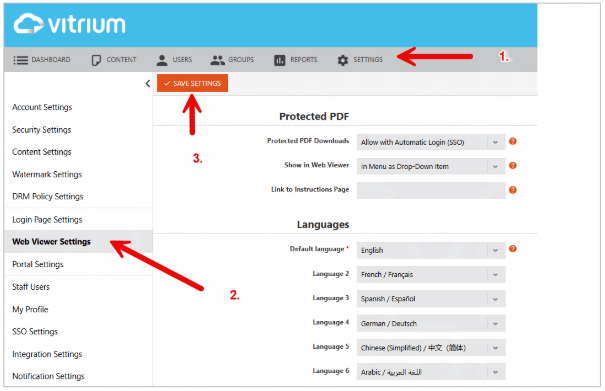
- In Vitrium, go to SETTINGS
- Click Web Viewer Settings
- After you make your modifications, click SAVE SETTINGS
Protected PDF
- Protected PDF Downloads: Select the option for how you want users to access the downloaded protected PDF from the web viewer or portal. This setting controls it for your entire account, while the setting in the DRM Policy controls it for a specific user or group in Vitrium.
- Do Not Allow: disables all protected PDF downloads
- Allow with Automatic Login (SSO): if the DRM policy allows the PDF download, when they download it from the web viewer, they will be automatically authenticated. This is the recommended option.
- Allow with Manual Login (Regular): this requires users to manually log into the downloaded protected PDF.
- Custom (for Enterprise only): this is for Enterprise customers with special cases
important note
The DRM Policy setting “Allow Protected PDF Download” will not work if this is set to ‘Do Not Allow’.
- Show in Web Viewer: if Protected PDF downloads are allowed for the account, you can choose from two options:
- In Menu as Drop-Down Item: the user will have to click into the menu and select “Download protected file”. We recommend this option if you prefer limited use of the protected PDF.
- As Button on Toolbar: the user can click on a visible button on the web viewer toolbar.
- Link to Instructions Page: Enter a link to your own website or a specific page that provides instructions for your users.
- Default Language: This is the default language of the Web Viewer and Portal so that users don’t have to update the language.
- Language 2, 3, 4, 5, 6: You may select other languages for your Web Viewer and Portal.
- Favicon: A favicon is a small image that appears in the website tab (left-hand side). The favicon image should be 16x16 pixels or 32x32 pixels, using either 8-bit or 24-bit colors.
- Custom URL for Error Page:
Enter your own URL here if you want to direct users to your system for password resets.
important note
This is only applicable to Enterprise Edition customers that use an External Service.