This tool appears in the Content tab beside the Search bar. This tool can help you uncover who took a screen print of your content if you find it online, on social media, in another system, or anywhere that it shouldn't be.
important note
The decoder is only available for documents and images in the web viewer and must have the Content Setting ‘Full DRM’ in place.
To decode a screen print, follow these steps:
- Download or save the screen print on your local machine.
- In your Vitrium account, go to the CONTENT tab and click the DECODE button.

- Click BROWSE and find the saved screen print to upload here, then click DECODE.
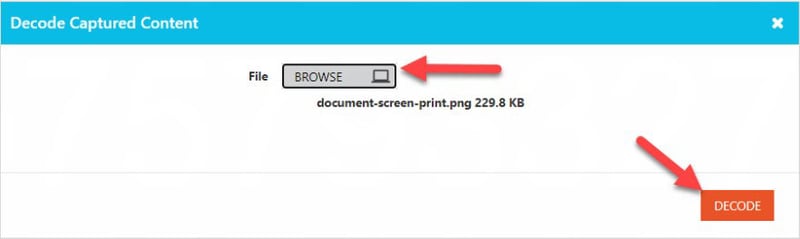
This effectively ‘decodes’ the content and reveals a 'hidden' watermark which is the user ID: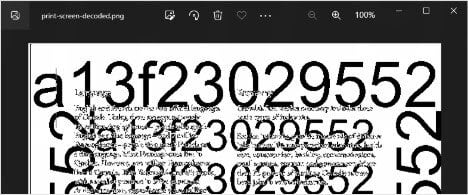
- Go back into Vitrium and enter the user ID into the search bar of the Users tab:
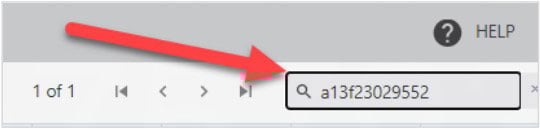
And this reveals the person who took the screenshot!! What you decide to do next is completely up to you.