These DRM fields are not enabled on your account by default. Reach out to a Vitrium Account Manager if you wish to have them enabled.
-
Allow Accessibility for Visually Impaired
-
Download to Print
-
Download Unprotected File
Allow Accessibility for Visually Impaired
This DRM policy is very useful if you are distributing your content to people who are hard-of-sight or visually impaired.
Vitrium’s Web Viewer now has accessibility features available within the regular Web Viewer window when the Accessibility feature has been activated on an assigned DRM policy. This includes logical tab order, full keyboard navigation, high contrast ratios for buttons for users with low vision, and ARIA support for screen reader compatibility. The screenshot below highlights the menu buttons designed to be inclusive for low vision or colour blind users.
The newly enhanced features rely on PDFs being tagged with appropriate semantic information about the document’s structure in order to be WCAG 2.2AA compliant and function as intended. These tags outline the logical reading order and content hierarchy, allowing formatting such as headings, paragraphs, lists, tables to be read out accurately. You can learn more about tagging PDFs for Accessibility in Adobe here. Documents that are not tagged will be treated like an XOD file, with the contents as a whole being read out loud.
important note
Vitrium's Web Viewer does not have native text to speech capabilities. You will need to have compatible software on your local environment.
To enable this feature:
- First, make sure your Vitrium Account Manager has enabled this setting turned on your account.
- In your Vitrium account, go to Settings, DRM Policy Settings
- Open an existing DRM policy or create a new one
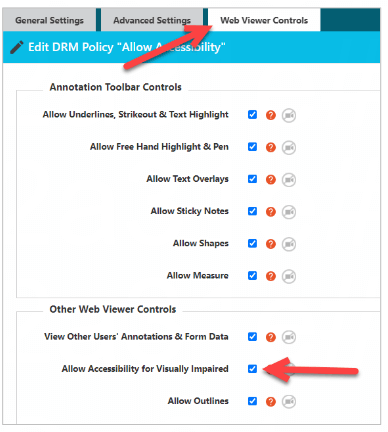
- Go to Web Viewer Controls, then check the field ‘Allow Accessibility for Visually Impaired’
- Click Save & Exit
- Apply this DRM policy to the user who requires accessibility.
Web Viewer With Accessibility Turned On
When accessibility is enabled, a user will be able to utilize their screen reading technology with compatible Vitrium protected documents. Different apps or extensions may have varying commands or controls to begin synthesized voice or text to speech technology. It is important to note that Vitrium's Secure Web Viewer does not have native text to speech capabilities.
Users with Accessibility enabled may press the TAB button on their keyboard to bring up the interface that will allow a user to skip sections. It will appear in the to left corner, as shown in the screenshot below. If the interface does not appear, double check to ensure accessibility is enabled for the relevant DRM policy, then refresh the page and try pressing TAB again.
Selecting the 'Document' option in the 'Skip To' menu and pressing the Enter key moves the focus to the current page of the file. If a screen reader is active, users can navigate through the document's content using standard navigation keys.
Macs will need to press OPTION + TAB for this feature.
Download To Print
This special DRM policy field is very useful in several different cases, but the main uses are:
- If you require users to print a very large document (over 100 pages)
- If you require users to print a very high-quality print of your document
- If you require a more secure print method than Vitrium’s regular web viewer printing
This policy allows users to download a protected PDF file (from within the web viewer) so they can print the PDF in one of Vitrium’s supported PDF viewers. The file will only be available for printing for 30 minutes, then it will lock up again. This is why this option is quite useful for a more secure print option!
important note
You cannot control the number of copies printed in the 30 minute printing window.
Remember to contact a Vitrium Account Manager if you wish to have this ‘special DRM policy field’ enabled on your account. Once it’s enabled, go to Settings > DRM Policy Settings, then edit an existing DRM policy or create a new one. You’ll see this field in the Advanced Settings tab:
.png?width=599&height=126&name=P%20117%20(1).png)
Once this policy is applied correctly, your users will see this option in their web viewer menu:
.png?width=152&height=144&name=P%20117%20(2).png)
Allow Source File Download
This special DRM policy field can be useful in very rare, but unique cases where you want to allow users to download an unprotected copy of your document. You can use it to send a file securely through Vitrium’s system, similarly to a secure file sharing system. You may want to use this feature to distribute an Excel file securely, since Excel formulas do not work in Vitrium’s web viewer and were never designed to.
Remember to contact a Vitrium Account Manager if you wish to have this ‘special DRM policy field’ enabled on your account. Once it’s enabled, go to Settings > DRM Policy Settings, then edit an existing DRM policy or create a new one. You’ll see this field in the Advanced Settings tab:
.png?width=735&height=187&name=P%20118%20(1).png)
Once this policy is applied correctly, your users will see this option in their web viewer menu:
.png?width=171&height=190&name=P%20118%20(2).png)