This section covers two related types of settings:
SMTP Settings
SMTP (Simple Mail Transfer Protocol) is an application used by mail servers to send, receive, and relay outgoing email between senders and receivers. It is important to note that these settings will depend on your environment. For example, you may not require a login or leverage SSL.
How to Set Up Your SMTP Setting
- In Vitrium, go to the SETTINGS tab
- Click SMTP Settings
- Click the orange ADD SMTP SETTING button
- Choose Basic or Microsoft OAuth for the type
- Enter information required for your SMTP type
- Click SAVE & EXIT.
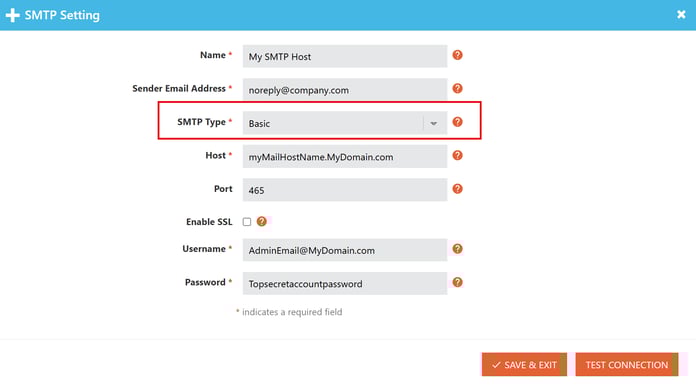
Description of Fields (Basic)
- Name: A name to describe this SMTP setting in your Vitrium Security account.
- Host: The SMTP host name of your email server (i.e., smtp.gmail.com).
- Port: The port number your SMTP service uses (i.e., Gmail uses 587 or 465, depending on your Gmail account settings).
- Sender E-Mail Address: This is what the end user will see as the ‘from’ address. We suggest using a “donotreply” email address (i.e., donotreply@yourdomain.com). This will require your mail system to have a valid email address that matches.
- Enable SSL: Enable if your SMTP client requires SSL (Secure Sockets Layer).
- Username: This is the credential that you use to access your SMTP client.
- Password: The password for the username SMTP client access.
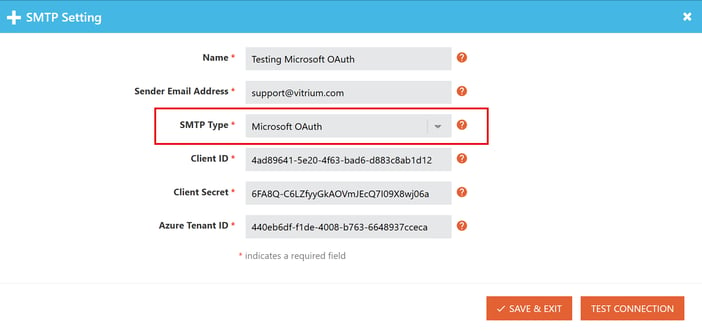
Description of Fields (Microsoft OAuth)
- Name: A name to describe this SMTP setting in your Vitrium Security account.
- Sender E-Mail Address: This is what the end user will see as the ‘from’ address. We suggest using a “donotreply” email address (i.e., donotreply@yourdomain.com). This will require your mail system to have a valid email address that matches.
- Client ID: Unique identifier for your registered application in Azure. You can find this in your Azure portal under your app's registration overview page.
- Client Secret: Password for your application in Azure. You can find this in the "Certificates and Secrets" section of your app registration in the Azure portal.
- Azure Tenant ID: Your organization's ID from Azure. You can find this in your Azure portal under your app's registration overview page.
Notification Settings
Notifications can be configured on any Vitrium account to alert members of your team when certain events occur. You can create email notifications or set up webhooks in your app.
important note
Webhooks are only available for Enterprise customers who have access to Vitrium's APIs.
List of notifications you can set up on your account:
In this list, you will find the category, the sub-category (if existed), and the events.
-
Content Processing
- Content Processing Succeeded
- Content Processing Failed
-
Login Session
- Staff User Logged In
-
Portal Activity
- Portal User Registered
- Portal User First Login
- Portal User Logged In
-
User Activity
- End User Errors
- All End User Errors
- Too Many Login Attempts (7ud)
- Wrong Password Entered (bw5)
- Exceeded DRM Limits
- All DRM Limits
- Exceeded Account Limit (dvc3)
- Exceeded Device Limit (vc3)
- Exceeded Concurrent Users Limit (vf3)
- Exceeded Open Limit (dovc3)
- Exceeded Print Limit (dpvc3)
- User in Blocked Country (rc7)
- User in Unpermitted Country (rc8)
- User in Unpermitted IP Address (ipvc3)
- Expiry Dates
- All Expiry Dates
- Content Expired (qe2)
- Content Expired After First Unlock (rqe2)
- Subscription Expired (qw1)
- Other Triggers
- All Other Triggers
- No Permission to Content (w29)
- Incorrect Permissions (4k3)
- Screen Print Taken (ps1)
- User Not In System (3yq)
- End User Errors
How to Set Up Notifications
Before you begin, you will need to ensure you have SMTP Settings configured, or the details required for setup handy, for email notifications. Webhooks will require the webhook URL.
- Go to the SETTINGS tab of your admin and click Notification Settings.
- Click the orange +ADD ADMIN NOTIFICATION button to bring up the dialog box.
- Enter a Notification Name, and select the Type, Category, Sub-Category (if applicable), and the Event.
- Choose which SMTP setting you would like to use.
- Select a recipient that will be notified when the event occurs.
- Add additional email addresses for notifications, if desired.
- Click SAVE & EXIT.
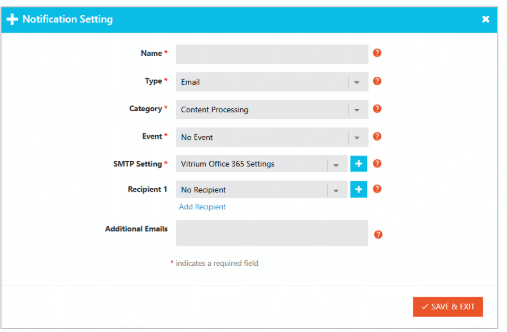
Fields Labels and Descriptions
- Name
Give the notification a name that is descriptive, yet concise, so you can see what it is for at a glance. - Type
Email or webhook
note
Webhook notifications are only available for customers who access Vitrium APIs. - Category
Select which category you would like to create a notification for. - Sub-Category
This field appears when sub-categories are available. Select which subcategory you would like to create a notification for. - Event
Specify the event you would like to be notified of. - Recipient 1
Select the staff account you would like to receive the notification. - Additional Emails
Enter additional email addresses to receive the notification, separated by a comma, if desired.